

Custom report pages: build your own page from a report
A custom page shows a report’s numbers, charts and posts in a design you choose: your own layout, colours, fonts and words. Use it for a one-page campaign recap, a branded summary for a client, or a page on your own website.
You don’t need to write any code. Claude or Kit builds the page; InfluenceKit fills in the data. Every figure on the page comes from the report, so it stays up to date as stats refresh and matches the report exactly.
Turn on custom pages
- Open the report and click Share Report.
- Go to the Share Link tab.
- Switch on Allow custom pages.
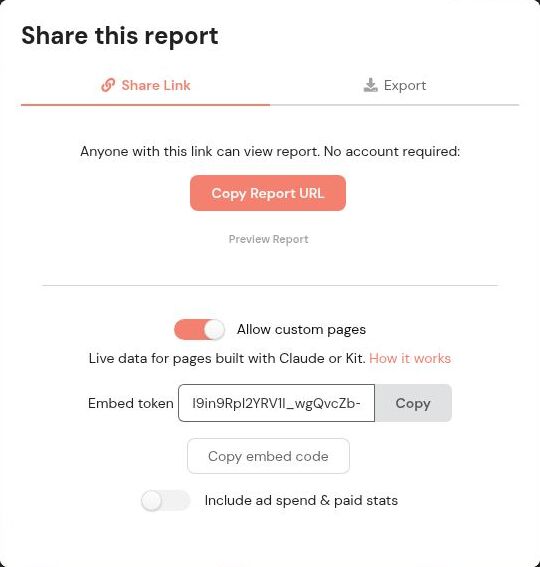
Once it’s on, you’ll see:
- Embed token: the key a page uses to read this report’s data.
- Copy embed code: a starter snippet with the token and the script the page needs.
- Include ad spend & paid stats: off by default (see below).
Custom pages are off for every report until you switch them on.
Build the page with Claude or Kit
Click Copy embed code and paste it into your conversation with Claude (connected to InfluenceKit, see Using InfluenceKit with AI assistants) or with Kit. Then describe what you want, for example:
Make a one-page recap of this campaign. Purple and white, a serif headline, the four main numbers at the top, impressions by platform as a donut chart, and the six best posts by engagement.
You get back an HTML page. Open it in a browser, publish it on your website, or save it as a file. The posts’ images keep working, even on a saved copy, for as long as custom pages stay on.
What the page can show
The same posts and stats the shared report shows: totals such as impressions, reach, views and engagements, rates like engagement rate, charts by platform, creator, post, week or month, and post cards with the image, caption and stats.
Stats you’ve hidden on a post stay hidden on custom pages too.
Ad spend and paid stats
Ad spend, paid impressions, paid clicks, paid reach and other cost figures are left out of custom pages unless you switch on Include ad spend & paid stats. A custom page is often more public than a link you email, so turn this on only if you’re happy for those numbers to appear on the page.
Turn custom pages off
Switch off Allow custom pages. Every page built on that report stops loading its data and images straight away. The report’s share link isn’t affected.
If you switch it back on, the report gets a new embed token. Pages built with the old token stay off; give the new embed code to Claude or Kit to update them.
Who can use custom pages
Anyone who can edit the report can turn custom pages on or off. Custom pages aren’t available for reports whose share link asks viewers for an email first (see Why your shared report link asks for an email).