Connecting Your Accounts
You can connect your external accounts to enable automated reporting for your deliverables. Connecting accounts is easy and private (we’ll never share your data, and we’ll only pull reports for specific deliverables which you enter into the system).
Here’s how to do it:
Click on the ‘Connected Accounts’ link in the settings menu.
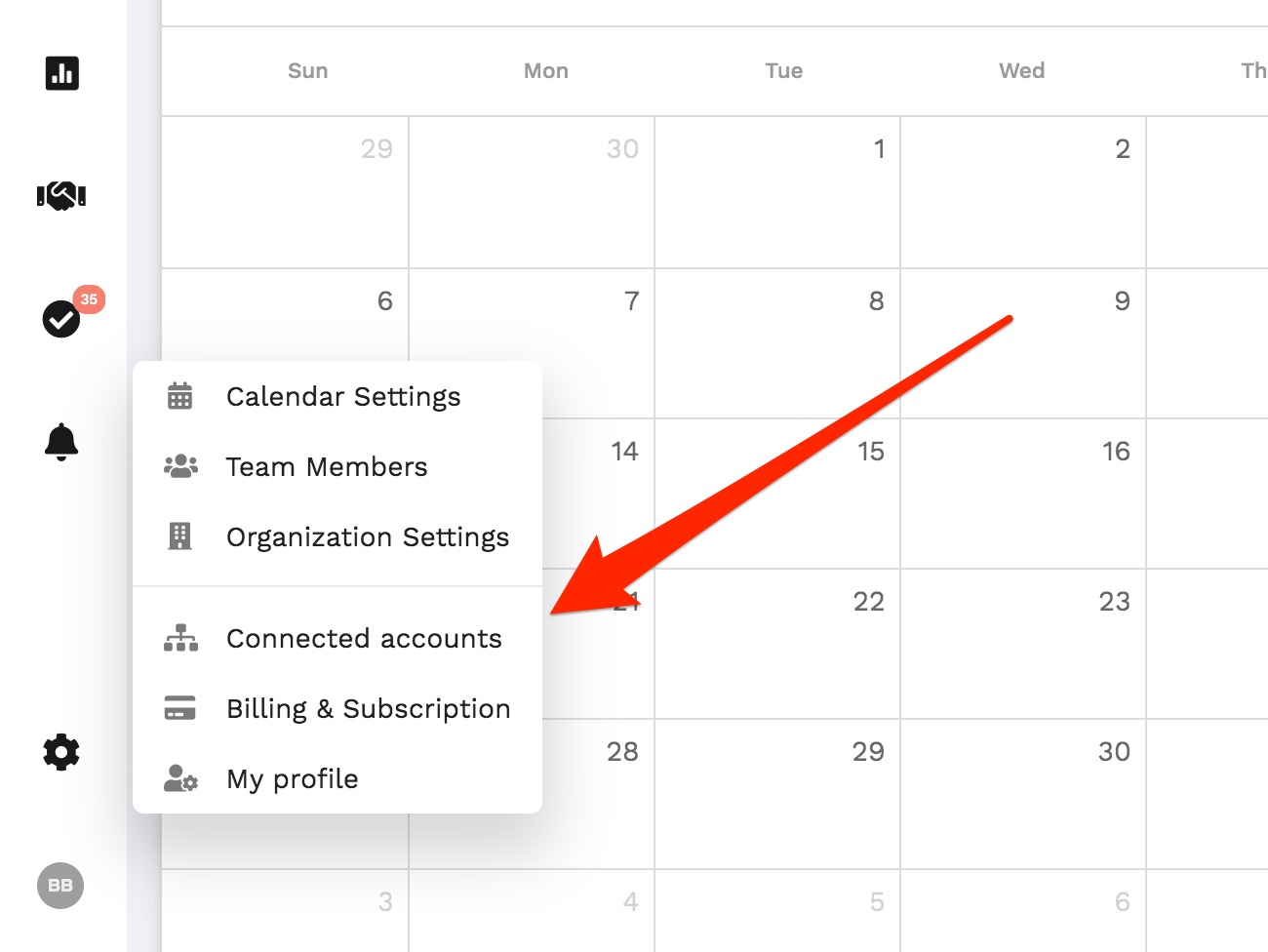
Choose which type of account you’d like to connect. We currently support:
- Facebook and Instagram
- TikTok
- Threads
- Google Analytics
- YouTube
- Twitch
- Mailchimp
- Campaign Monitor
- Kit (formerly ConvertKit)
- Drip
- ActiveCampaign
- Constant Contact
- AWeber
- Beehiiv
- MadMimi
- Klaviyo
- MailerLite
- One Signal
- Push Engage
- Bitly
- Short.io
- Sendfox
- Omny Studio
- Art19
- Transistor
- ExpertSender
The authorization process differs for each provider, but generally, you can just follow the steps as shown, and accept the prompts. When finished, you’ll see your new external account shown within InfluenceKit, like this:
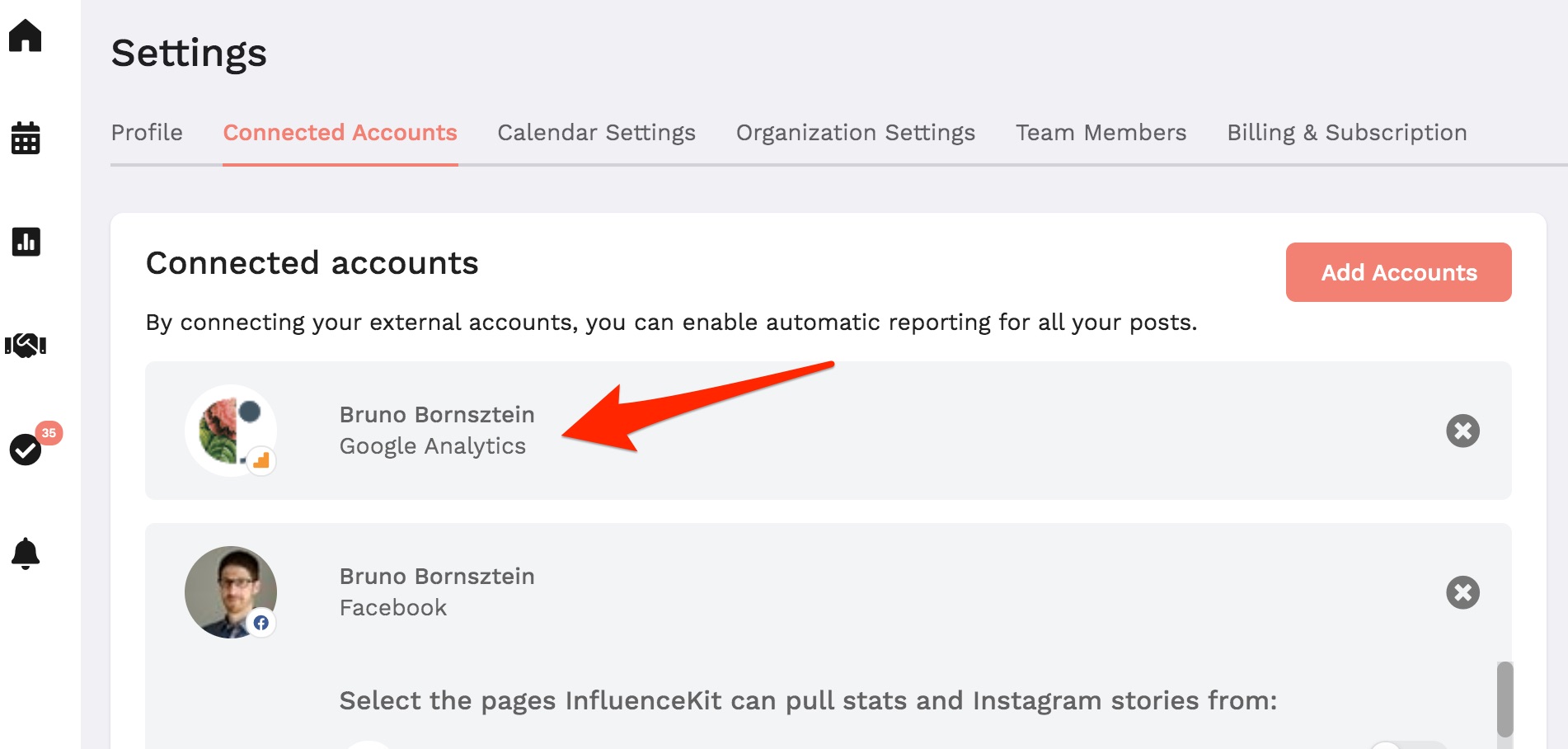
Now, when you enter deliverables from that external platform (in this case, Facebook), InfluenceKit will automatically pull performance statistics.
Adding a platform we can’t connect
If you’re on a platform that isn’t in the list above (Strava, Substack or anything else with a public profile URL), you can still add it as a custom profile. At the bottom of the Connected Accounts page, under Custom profiles, fill in:
- Platform, for example “Substack”
- Profile URL
- Followers (optional)
- Image (optional)
Then click Add custom profile. To remove one, click the trash icon next to it.
Custom profiles show on your media kits, and in pitches created after you add them, with a Custom label. We don’t pull stats for them or check them, so the follower count is whatever you enter. Keep it up to date yourself.
Talent managers can add custom profiles for a creator on their roster from that creator’s calendar settings, on the Custom Profiles tab.
Platform-Specific Tips
Facebook and Instagram
If you manage multiple Facebook pages, InfluenceKit will automatically figure out which one to pull statistics from, based on the URL of the deliverable you enter into the system.
If you want to prevent access to certain pages, you can disable them using the toggles:
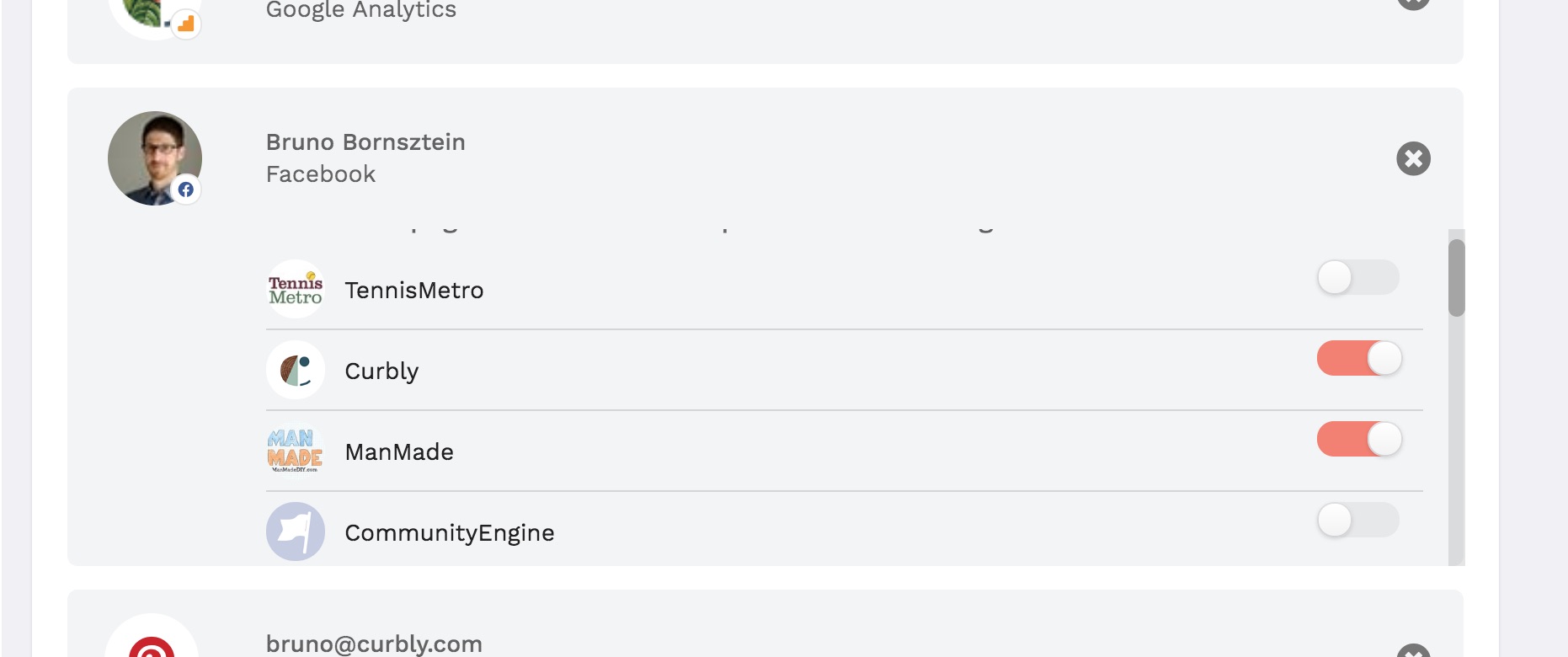
Note: we pull Instagram Stories for any Facebook Pages that are connected to an Instagram account. To prevent that, just toggle off that page.
Google Analytics
Google Analytics is how we pull stats for website and blog deliverables — anything where the deliverable’s link is a page on a site rather than a social post.
We match a deliverable to a property by the link’s domain. If you’ve connected several Google Analytics properties, InfluenceKit picks the one whose website matches the URL you entered, so you don’t have to choose per deliverable.
A link we have no property for won’t pull stats. That’s the one case worth knowing about: if the deliverable’s domain doesn’t match any Google Analytics property you’ve connected, there’s no data source for it and the numbers will stay empty — however healthy the Google connection itself looks on the Connected Accounts page. A working Google connection means we can reach your analytics; it doesn’t mean your account has a property for that particular site.
That usually turns out to be one of two things:
- Earned media. A write-up on someone else’s site — a press mention, a round-up, a guest post — is a page you don’t own analytics for, so nobody can pull its traffic. Add the numbers by hand on the deliverable, or use the estimated-impressions figure if you’d rather not.
- The property isn’t connected yet (or the link points at the wrong domain, a redirect, or a staging URL). Connect the Google Analytics property for that site under Settings → Connected Accounts, and double-check the deliverable’s URL points where you expect. Once the property is connected, the next refresh picks the deliverable up.
Still stuck? Get in touch and we’ll take a look.
LinkedIn reporting works with the Company Pages you’re an admin of — not your personal LinkedIn profile. That’s a limit of LinkedIn’s API: it only opens up analytics for Pages, and only to Page admins.
So after you connect LinkedIn, each Page you administer shows up on your Profiles page with its follower count:
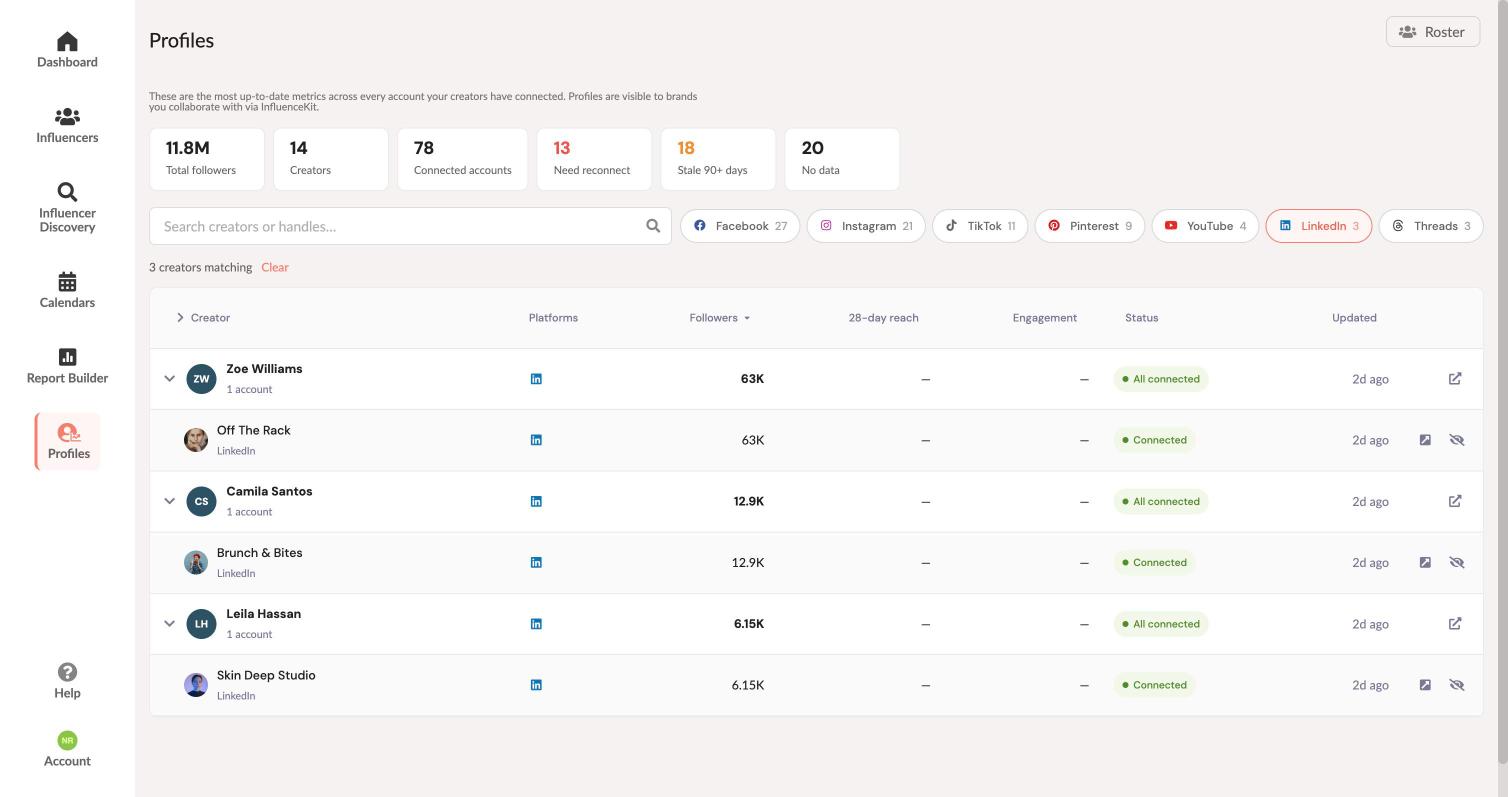
If nothing appears after connecting, it’s almost always one of these:
- You’re not an admin on any Company Page. Being an employee, or following a Page, isn’t enough — LinkedIn has to list you as an admin.
- You have a role on the Page that isn’t admin. Some roles can see the Page but not its analytics, and LinkedIn won’t release the numbers to us.
Post statistics for LinkedIn deliverables work the same way: paste the URL of a post published by a Page you administer. You can use the post’s address from your browser, the link from Copy link to post in the post’s ··· menu, or a lnkd.in short link.
Kit.com (formerly ConvertKit)
Find your Kit.com API secret here: https://app.kit.com/account_settings/developer_settings
Drip
Find your Drip API secret here: https://www.getdrip.com/user/edit
ActiveCampaign
Details on adding an ActiveCampaign account are here.
MadMimi
Details on adding a MadMimi account are here.
SendFox
Details on adding a SendFox account are here.
Short.io
Details on adding a Short.io account are here
One Signal
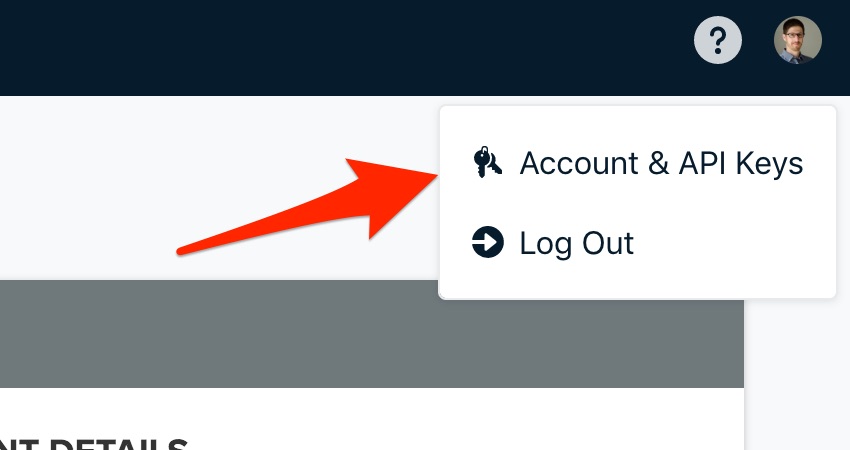
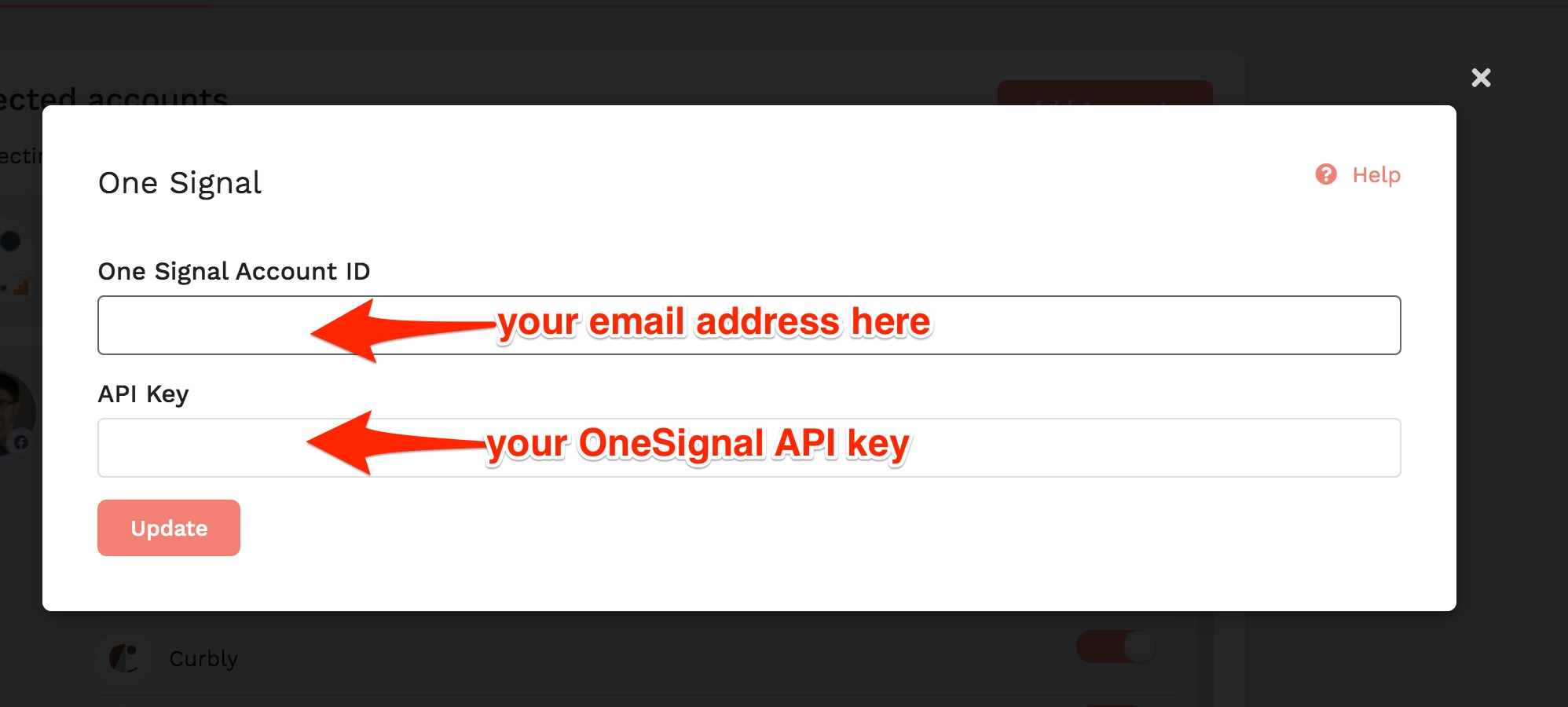
You API key can be found here:
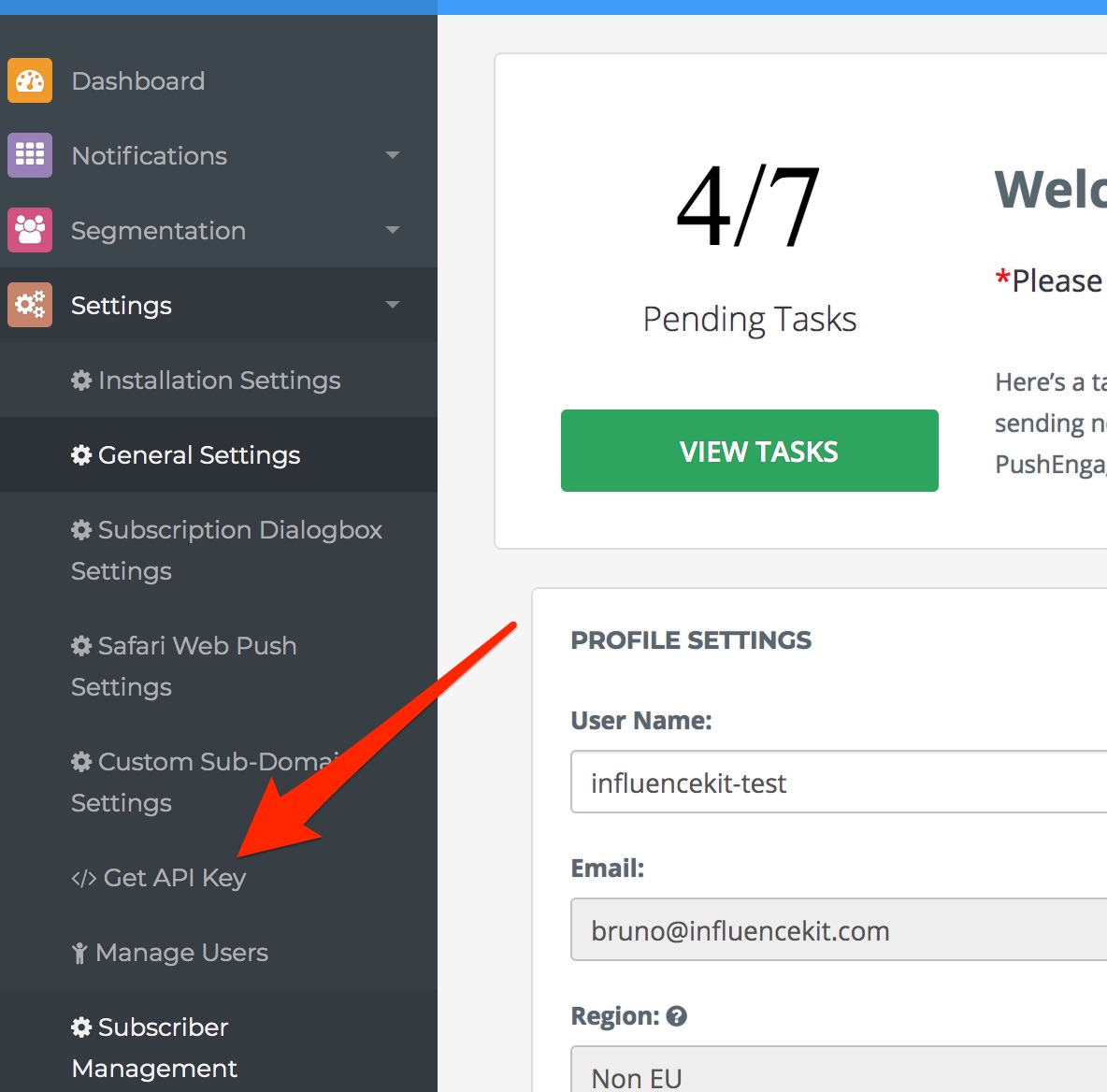
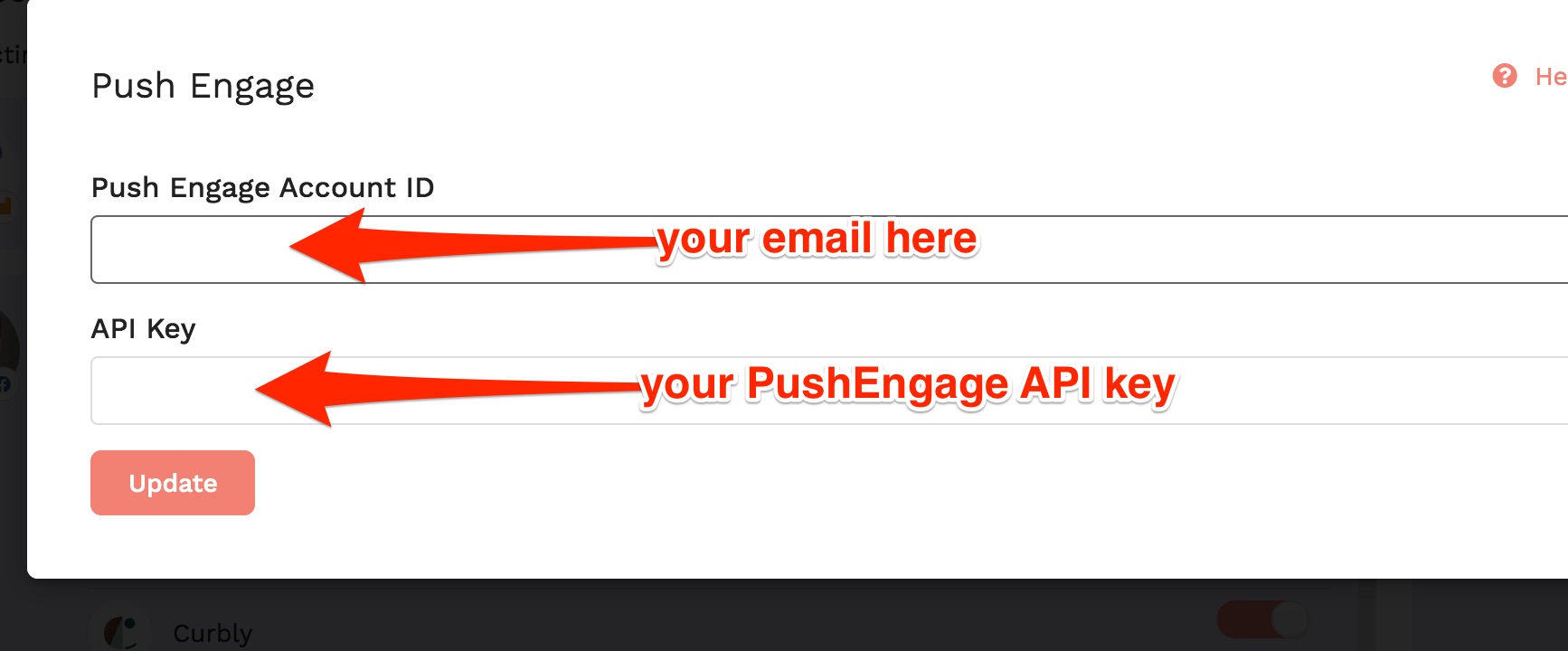
PushEngage
Access your PushEngage API key here:
Omny Studio
Details on adding an Omny Studio account are here.
Transistor
Details on adding a Transistor account are here.
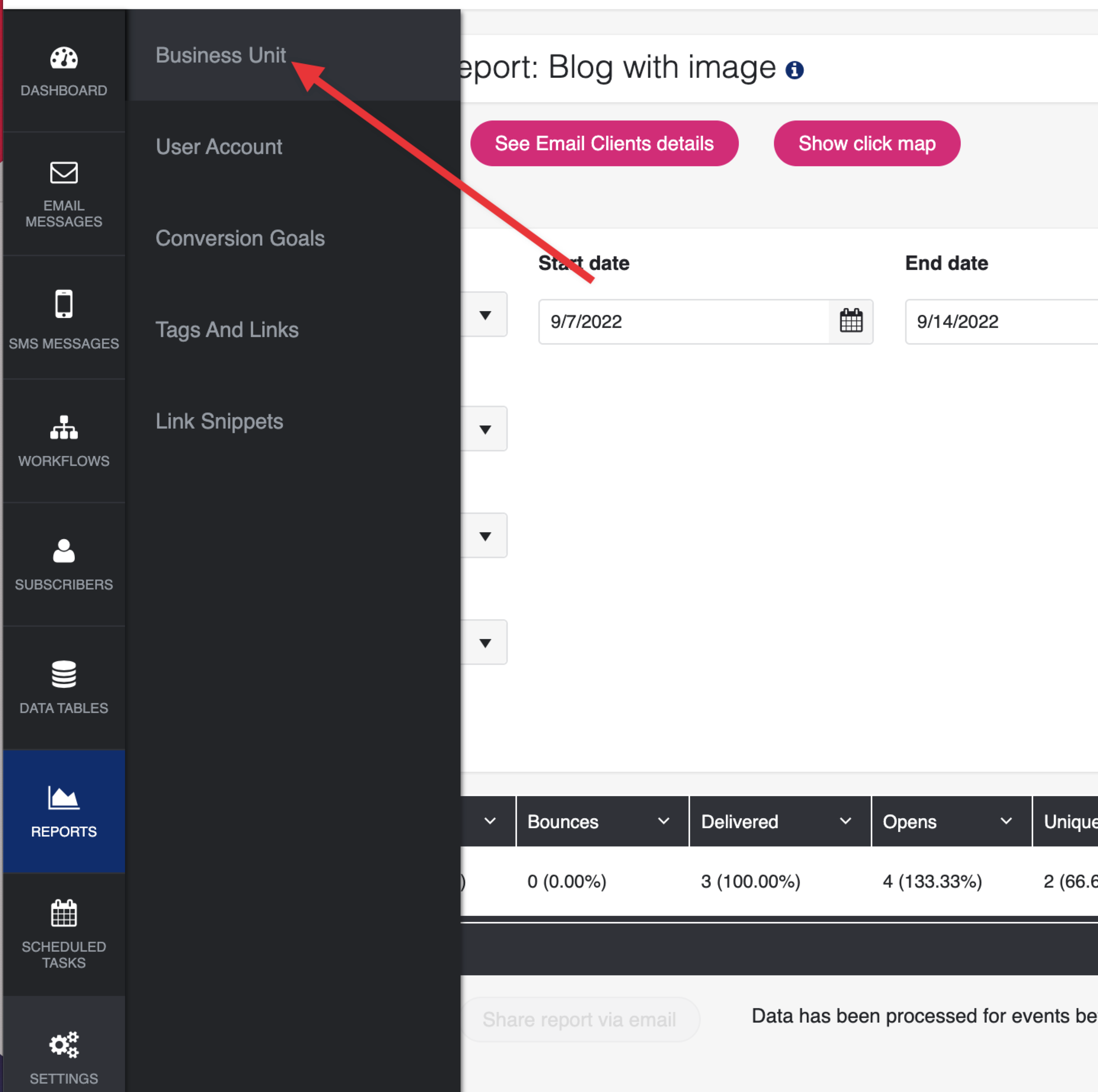
ExpertSender
Access your ExpertSender API key here:
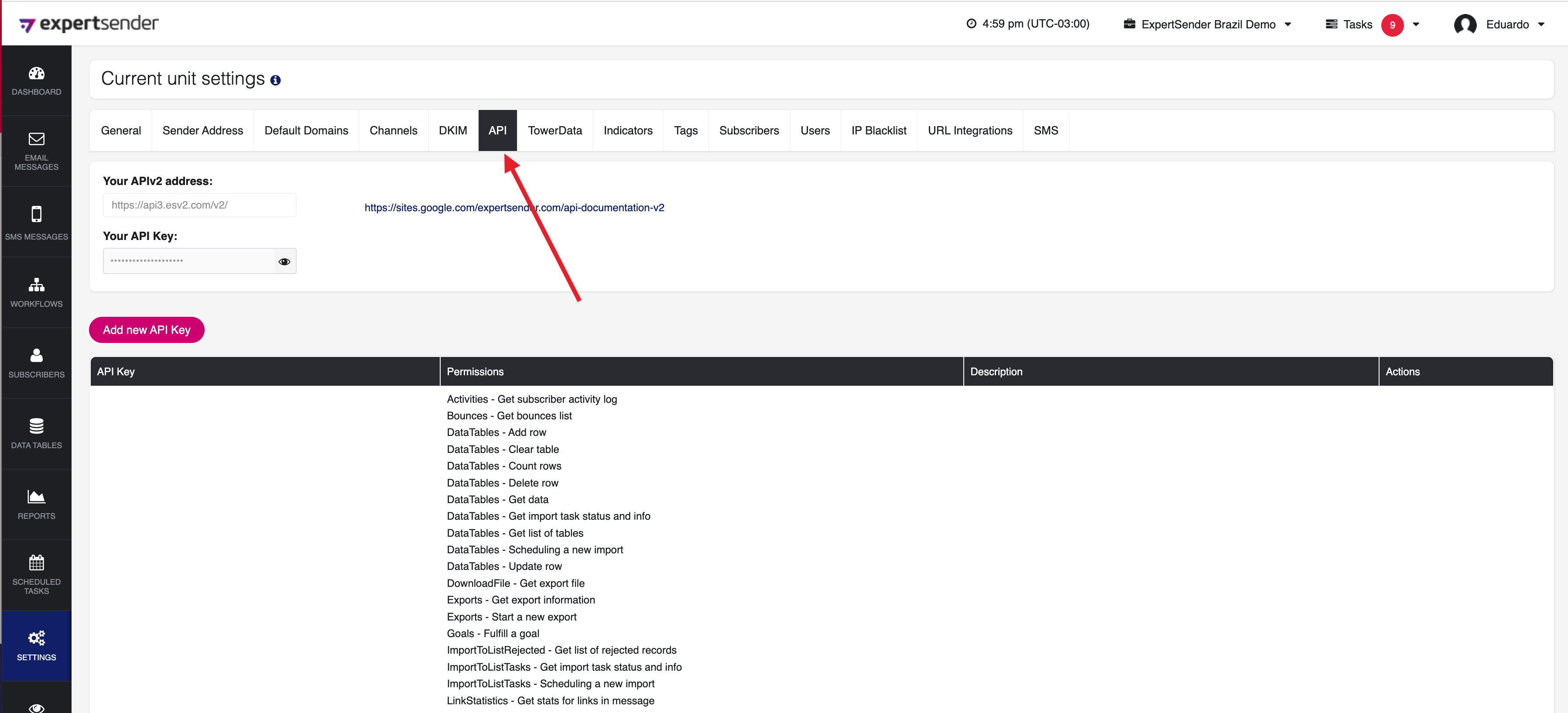
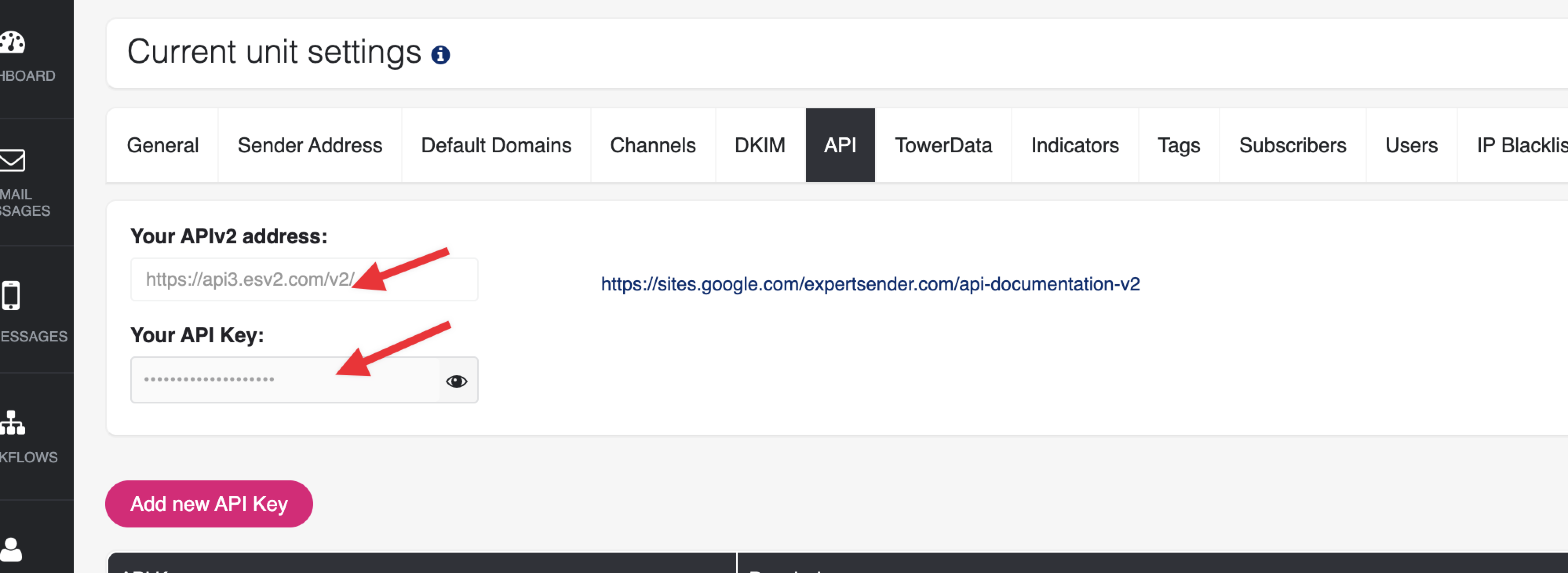
Copy your APIv2 address and your API key into the form: