
Competitive Intelligence: Track Competitors, Hashtags, and Brand Mentions
InfluenceKit’s competitive intelligence shows you which creators are working with your competitors, who is mentioning your own brand, and which influencers are using the hashtags you care about. Use it to spot proven influencers, understand competitor activity, and find new partnership opportunities for your campaigns. You’ll find it all under Signals.
How it works
When you first open Signals, InfluenceKit analyzes your brand’s website to build a profile of your brand, then automatically suggests and discovers competitors for you. This profiling and discovery step runs in the background and usually takes a few minutes. Once it finishes, your results appear on Signals’ Competitors, Hashtags, and Mentions pages.
Behind the scenes, InfluenceKit scrapes and analyzes each competitor (and any hashtag you track) to surface the creators associated with them, along with reach, engagement, and mention data.
Getting started
- Open Signals from your InfluenceKit navigation.
- The first time you visit, InfluenceKit analyzes your brand website automatically. If it can’t reach your site, you’ll be prompted to enter or correct your Brand Website URL (for example, https://www.yourbrand.com) and try again.
- Once profiling completes, InfluenceKit discovers an initial set of competitors. Wait a few minutes for the analysis to finish, then review your results.
Where to find things
Signals opens on a hub page with a card for each area: Competitors, Hashtags, Mentions, and AI Search. Each card shows a quick count and links through to its own page:
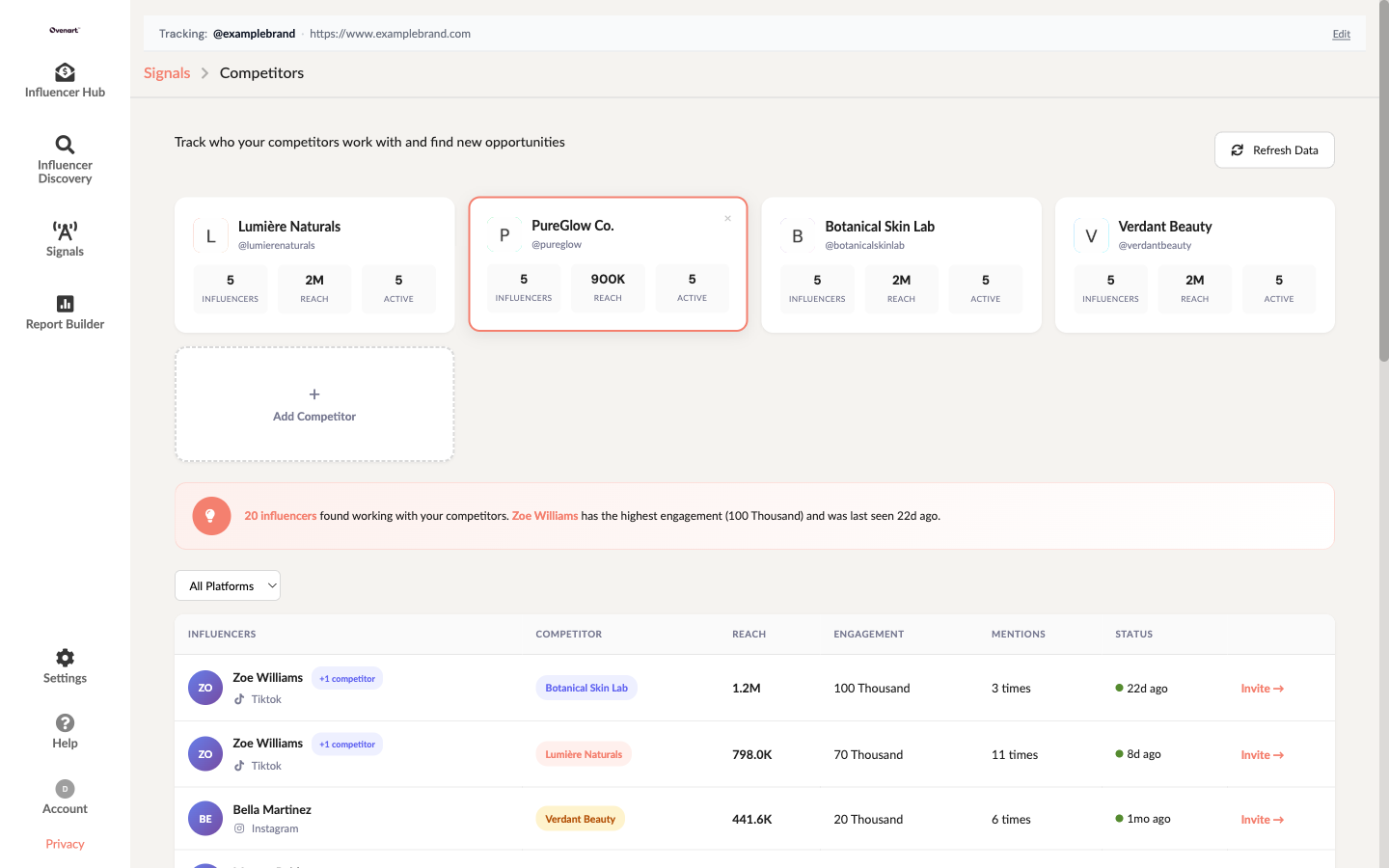
- Competitors — a tile for each competitor you track, along with the creators associated with them.
- Hashtags — the hashtags you’ve chosen to track and the creators using them.
- Mentions — who is mentioning your own brand.
Each page includes summary tiles and a list of the influencer relationships found:
- Reach is the creator’s follower count.
- Est. engagement is the typical engagements per post: the creator’s followers times their engagement rate. It shows “—” when we don’t have an engagement rate for the creator.
- Posts is the number of distinct posts we found that tie the creator to the competitor or hashtag.
Add a competitor
Competitors are tracked by website URL, not by social handle.
- Go to the Competitors page.
- Select the Add Competitor tile.
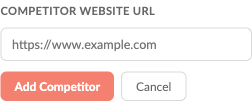
- Enter the competitor’s website URL (for example, https://www.competitor.com) in the Competitor Website URL field. Be sure to include https://.
- Select Add Competitor. InfluenceKit begins scraping and analyzing that competitor in the background; their tile may appear as pending until results come in.
A newly added competitor can take a few minutes to populate with creators and data. Some websites block automated access — if a URL won’t analyze, try an alternative URL for the same brand.
Track a hashtag
- Go to the Hashtags page.
- Select the Track Hashtag tile.
- Enter the hashtag you want to monitor and confirm. InfluenceKit will begin finding creators using that hashtag.
Instagram limits how many new hashtags can be searched each week. If a new hashtag has to wait for that limit, its tile says “Waiting on Instagram’s weekly hashtag limit”. The limit frees up over the following 7 days; select Retry on the tile to search again.
Suggested competitors and hashtags
When InfluenceKit finds competitors or hashtags that fit your brand and you aren’t tracking them yet, they appear in a Suggested row at the top of the Competitors or Hashtags page.
- Accept starts tracking that suggestion. The first scan begins right away.
- Accept all tracks every suggestion at once. It only appears when your plan has room for all of them.
- The × dismisses a suggestion. A dismissed suggestion won’t come back.
Accepted suggestions count toward your plan limit like any other competitor or hashtag. When you’ve reached the limit, the row says Limit reached and you can’t accept more until you free up a slot.
Some tiles carry a short note, such as Generic hashtag (a tag too broad to tell you much) or Not a destination (a business that isn’t a peer of your destination). Use Remove on that tile if you agree. Nothing is removed unless you remove it.
Remove a competitor or hashtag
To stop tracking something, open its tile and use the remove option. You’ll be asked to confirm before it’s removed.
Plan limits
Your plan includes a set number of competitors and hashtags you can track. If you’ve reached your limit, InfluenceKit will let you know when you try to add another — remove an existing competitor or hashtag to free up a slot, or upgrade your plan for more capacity.
Tips
- Start with your 2–3 closest competitors, then add more as you refine your strategy.
- Use the Mentions page to keep an eye on creators already talking about you — they’re often your warmest partnership leads.
- Always include https:// in website URLs so InfluenceKit can reach the site.