

Deliverable Tags: Group and Filter a Report by Package
Deliverable tags are short, client-facing labels you attach to individual deliverables on a report — for example Social Media Package May 2026. Once a deliverable is tagged, the tag shows up as a chip on the report, and anyone viewing the shared report can filter or group by it.
Tags solve two everyday reporting problems:
- Grouping deliverables into named packages. If a single sale bundles several posts, stories, and newsletters together, one tag per package lets you keep everything in one report while still showing the client each package on its own.
- Letting a client slice a big report down to what they care about. On a report with dozens of deliverables, a viewer can filter to a single tag and see only that slice — no separate report needed.
Where you’ll see tags on a report
Deliverable tags appear on the shared report (the link you send a client, or the public share URL). There are three places they show up.
Tag chips on each deliverable card
Every deliverable that has tags shows them as small chips on its card. Clicking a chip filters the report down to that tag, so a client can start from any card and drill into its package.
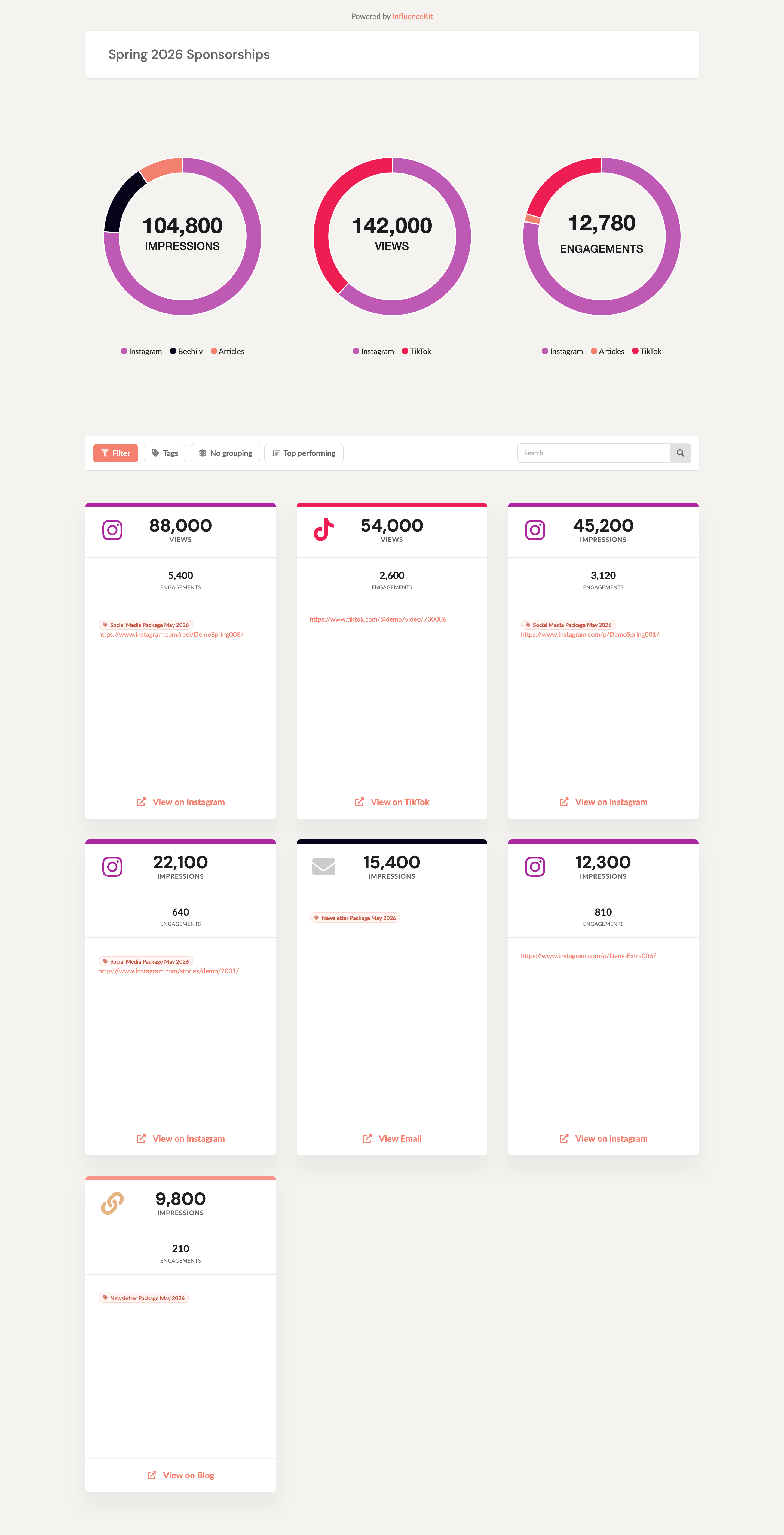
The Tags filter
Near the top of the report, next to the existing Filter, Group, and Sort controls, is a Tags control that lists every tag used in the report. Select one or more tags to narrow the report to just those deliverables — the filter is multi-select, so a client can combine packages. Deselect the tags (or click an active chip again) to widen the report back out.

Group by: Deliverable tag
Open the Group control and choose Deliverable tag to bucket the report by tag. Each tag becomes its own section with its own header, and any deliverables that don’t have a tag collect in an Untagged group, which always sorts last.
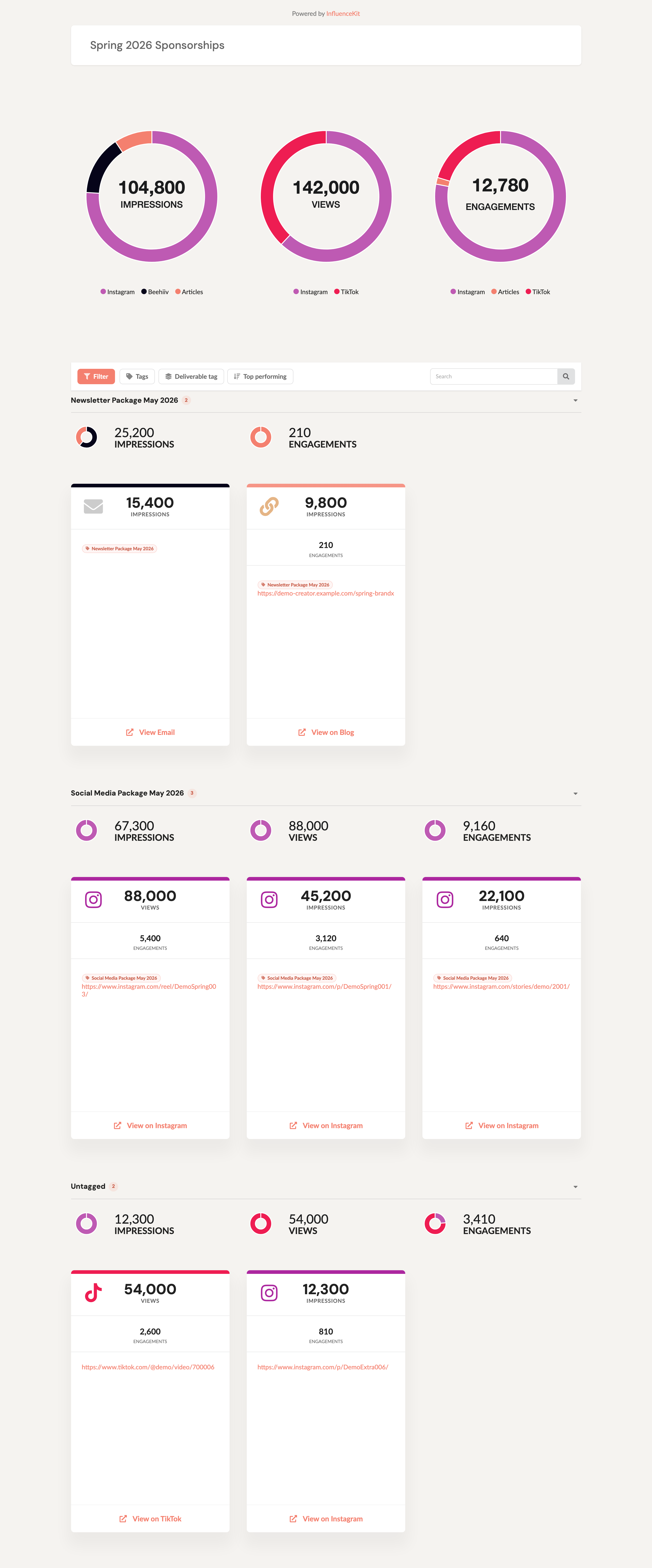
Filtering, sorting, and grouping stack together: the Tags filter narrows the set first, then the report sorts and groups within whatever is left.
A note on how grouping and filtering behave for the client: grouping and sorting choices a viewer makes are just for their session. They’re a quick way to look at the report from a different angle, and they reset when the page is reloaded — the client never changes your saved report.
Who this is for
Deliverable tags touch two groups of people:
- Anyone reviewing or sharing a report. You don’t have to do anything special — if the deliverables on a report are tagged, the chips, the Tags filter, and the Group-by-tag option appear automatically on the shared report. You (and your clients) can filter and group from there.
- Report owners who need to pull out a theme. Search the report for a name, product, or talking point and tag every match in one step.
- Teams automating InfluenceKit through the MCP integration. If you build reports programmatically — for example, syncing completed deliverables from Airtable — you set tags at the same time you add the deliverable. This is how a “package” field in your source system becomes a client-facing tag on the report.
Tag everything a search finds
You can tag content straight from a report you own. This is the quickest way to answer a question like “how much of this year’s coverage mentioned our spokesperson?”
- Open the report and type a word or phrase into the Search box above the cards.
- The report narrows to the content that mentions it. For articles and other links, the search covers the article’s text, not just its title, so a mention halfway down a story still counts.
- Click Tag all under the search box. The tag name starts as your search phrase; change it if you like, then click Add tag.
Every result gets the tag, and any tags it already had stay. Clear the search, and you can use the Tags filter or Group by: Deliverable tag to show just that content, with its own totals.
The Tags filter on a report only changes what you’re looking at. To keep a separate report of just the tagged content, use Report Builder:
- Click Report Builder in the sidebar.
- Add a Tag rule and pick your tag.
- Click Apply Filters, then Save.
The report includes everything carrying that tag, plus anything on an assignment with the same tag. Report Builder comes with the Unlimited plans.
A few things to know:
- Tag all only appears for the report’s owner, not on the shared link.
- Content you don’t have permission to edit is skipped, and the confirmation tells you how many were skipped.
- Searching inside article text covers articles added after this feature was released. Articles you added earlier are included once we’ve processed them; until then, search still finds them by title, description, and link.
- Some sites block automated reading, or load their text in a way we can’t read, so a mention on those pages won’t be found. Skim the results before you send a number to a client.
- A tag can’t contain a comma, because commas separate one tag from the next.
Setting tags through the MCP integration
Tags can also be set through InfluenceKit’s MCP integration, the same interface used to add deliverables, attach descriptions, and create reports programmatically. Both the add_deliverable and update_deliverable tools accept a tags argument.
tags accepts either an array of strings or a single comma‑separated string, so it fits whatever your automation produces:
{ "tool": "add_deliverable", "arguments": { "event_id": 4321, "urls": "https://www.instagram.com/p/abcd1234/", "tags": ["Social Media Package May 2026"] }}{ "tool": "add_deliverable", "arguments": { "event_id": 4321, "urls": "https://www.instagram.com/p/abcd1234/", "tags": "Social Media Package May 2026, Spring Launch" }}To change the tags on a deliverable that already exists, use update_deliverable with the same tags argument. Setting tags on an update replaces the deliverable’s entire set of tags, so the record in your source system stays the single source of truth:
{ "tool": "update_deliverable", "arguments": { "deliverable_id": 9001, "tags": ["Social Media Package May 2026", "Spring Launch"] }}- Pass an empty array (
"tags": []) to clear all tags from a deliverable. - Omit
tagsentirely to leave the existing tags untouched while you change something else (a title, a description, manual stats, and so on).
If you’re wiring this into an Airtable + MCP workflow (one tag per package within a sale, passed over when you send the completed deliverable), the full walkthrough — connecting your automation, creating reports, and mapping fields to tags — lives in InfluenceKit’s MCP automation guide. Reach out to support and we’ll point you to it.
Coming soon: editing tags on a single card
Adding and changing tags on one deliverable at a time, right on its card, is on the roadmap. Until then, tag from a report search as described above, or through the MCP integration.
Turning this on for your account
Deliverable tags are available on every account — there’s nothing to turn on. Tag a deliverable and the chips, the Tags filter, and Group‑by‑tag option start showing up on your shared reports automatically; reports with no tagged deliverables render exactly as before.