
How to add a Kit (formerly ConvertKit) Deliverable
First, connect your Kit account
- Go to the Connected Accounts page in InfluenceKit
- Click Add Accounts, and then select Kit.com (formerly ConvertKit)
- Enter your Kit API Secret in the field, and click Update. To find your API Secret, go to: https://app.kit.com/account_settings/developer_settings
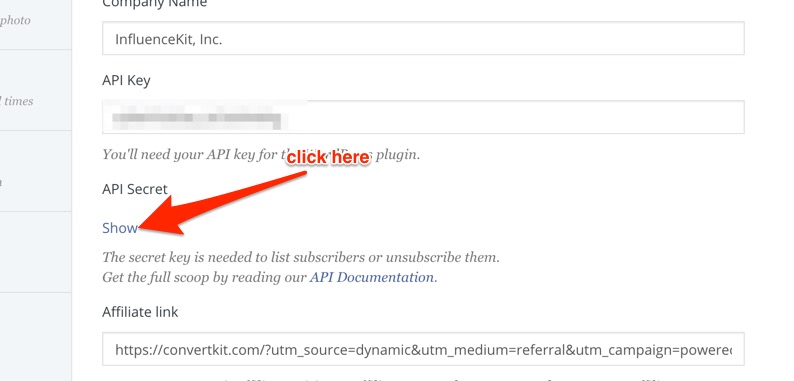
- Click ‘Show’ to reveal your secret key.
Next, find the correct Kit.com broadcast URL
- Go to: https://app.kit.com/campaigns
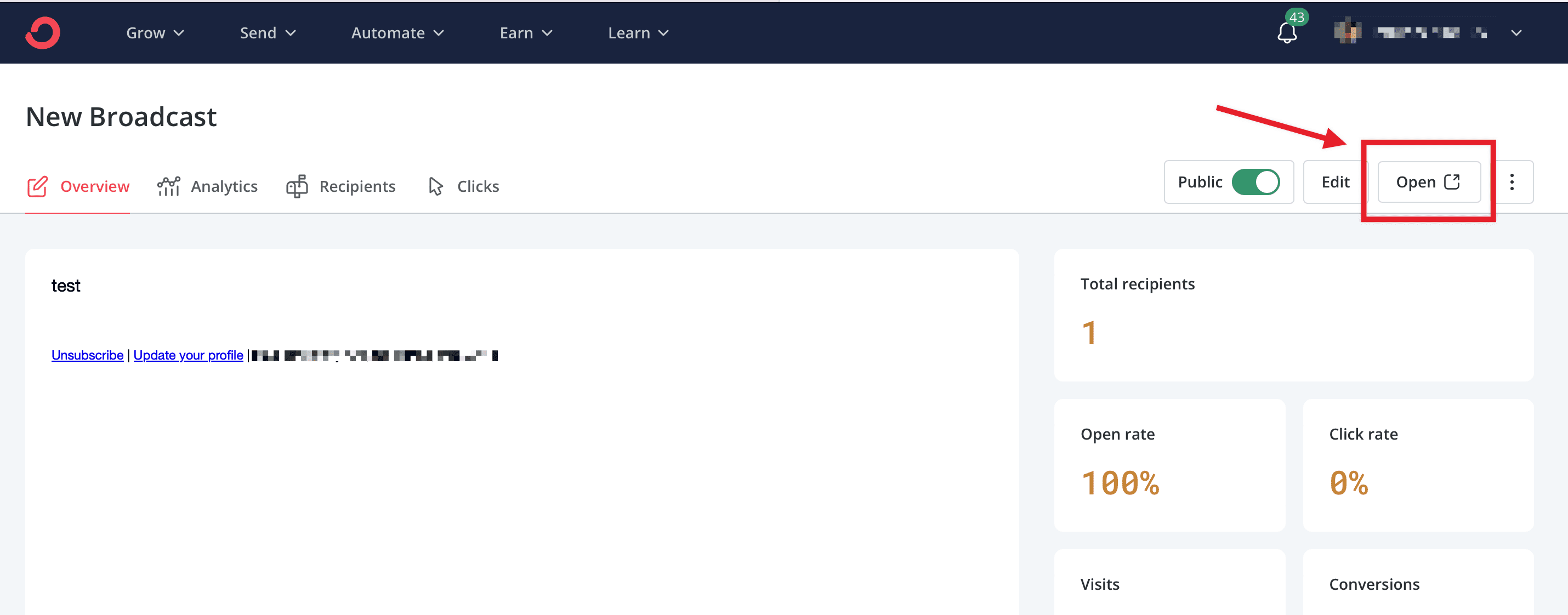
- Click on the name of the broadcast you’d like to add.
- Toggle your broadcast to “Public”
- Click the “Open” link and copy the URL of the public page for the broadcast
The correct URL will have a format like this: https://[yoursubdomain].kit.com/posts/[your-broadcast-title]
Once you have the public broadcast URL, paste it into InfluenceKit like any other deliverable.
Don’t use the Kit report link from your address bar
The link Kit shows while you’re looking at a broadcast’s report — it starts with
https://app.kit.com/ and usually looks like
https://app.kit.com/publications/12345678/reports/overview — only works while
you’re signed in to Kit. We can’t open it, so a deliverable using that link will
never pull stats and will show an error asking you to swap the link.
Use the public broadcast link instead
(https://[yoursubdomain].kit.com/posts/[your-broadcast-title]), following the
steps above. You can paste it straight over the old one on the existing
deliverable — the stats will come through on the next refresh.
What happens if Kit isn’t pulling any stats for my email?
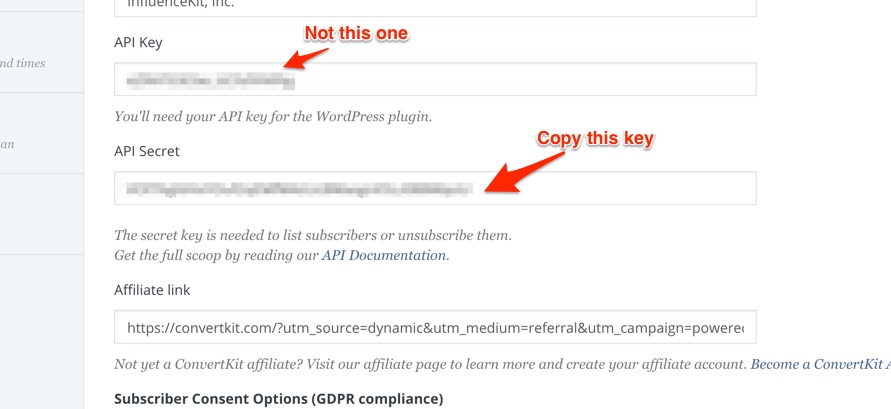
The most common error is entering the “API KEY” instead of the “API Secret” (see screenshot above). Make sure you’ve entered the right one when connecting your Kit account to InfluenceKit.