
Reporting on Meta Ads (paid metrics on your deliverables)
If you’re boosting creator content or running paid ads against the same campaign, InfluenceKit can pull the paid metrics straight from your Meta Ads account and show them next to the organic numbers on your deliverables and reports. You link a Meta ad to the deliverable it maps to, and the paid impressions, spend, reach, and clicks show up automatically.
Meta Ads reporting is available to account admins only.
Before you start
You need a Facebook account connected with the ads_read permission, and that account must have access to at least one Meta Ads account. This is the same Facebook connection you use for Instagram/Facebook reporting — it just needs ads permission too.
1. Connect your Meta Ads account (one time)
-
Go to your Connections (the same place you connect Google Analytics, Instagram, etc.) as an account admin.
-
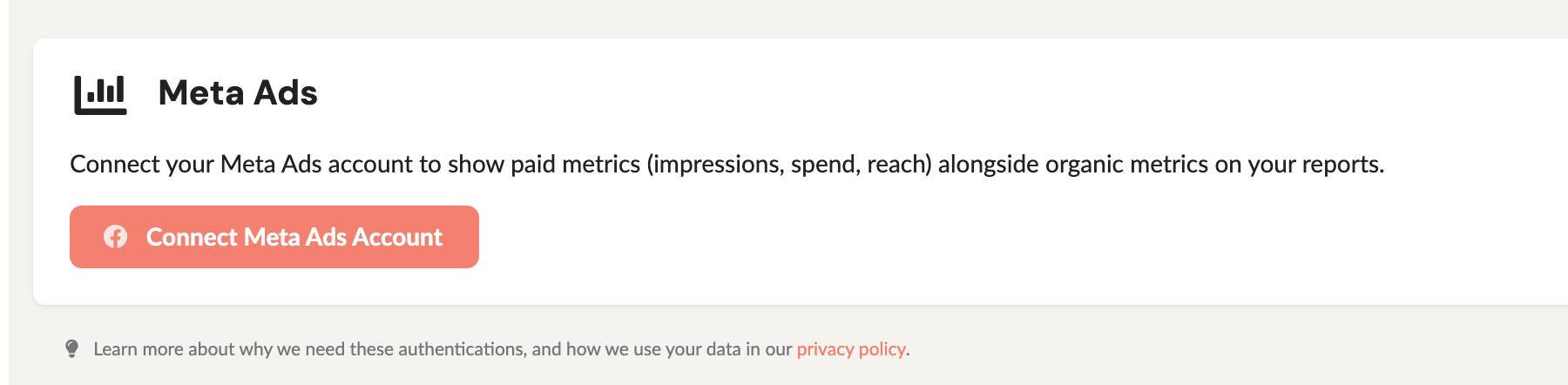
Find the Meta Ads card.
- If you haven’t connected Facebook at all yet, click Connect Meta Ads Account.
- If Facebook is already connected but you haven’t chosen an ad account, click Select Ad Account.
-
Choose which ad account to use.
InfluenceKit then syncs your ad metrics in the background. (You can re-sync at any time, and disconnecting later preserves the metrics already pulled in.) Once connected, the card shows Manage, which takes you to the Meta Ads page described below.
2. Link an ad to a deliverable
Paid metrics attach to the specific deliverable the ad promoted:
- Open the deliverable and click to edit it.
- In the Linked Ads section, click Link Ad (or Link Another Ad).
- Pick the ad account, then check the ad(s) you want to link and confirm.
You can link more than one ad to a single deliverable; the metrics are combined.
Add paid results by hand (no Meta Ads connection needed)
If you boosted a post from the Instagram or Facebook app, or you just have the numbers from Meta’s results screen, you can type them in yourself:
- Open the deliverable and click to edit it.
- Open the Ads section.
- Under Paid results, fill in what you have: Ad spend, Impressions, Reach, Views, Clicks and Profile visits. Leave anything you don’t have blank.
- Click Save paid results.
These numbers are kept separate from the post’s organic stats. They never overwrite them and are never added into them. They show up as their own Paid metrics (Paid Reach, Paid Views, Paid Profile Visits and so on) in the card’s stat details and in the report’s paid totals. To put one on the face of the card, use Show or hide stats. To change them, edit the fields and save again. To take them off, click Remove.
You can also ask Kit to do it, for example: “Add the boost results to this Reel: 2,742 reach, 3,416 views, 207 profile visits.”
If you’d rather fold the boosted numbers into a single total, add a custom stat to the deliverable instead (see How to add custom deliverable stats).
Organic and paid split from the platform
For boosted posts, some platforms report the paid share of a post’s numbers themselves. InfluenceKit pulls it in on every refresh, with no ad linking or Meta Ads connection needed:
| Platform | What’s split |
|---|---|
| Views. Reel plays have no paid split from Meta. | |
| YouTube | Views from ads, for channels connected to InfluenceKit. Videos tracked without a connection show one combined number. |
| Likes and comments on promoted Reels. Views stay organic only, and Reels cross-posted to Facebook have no split. |
The headline stat keeps the platform’s combined total. Its stat details list the two parts, Organic and Paid (boosted/ads), and a separate Paid Views stat appears when there are views from ads.
If ads are linked to the deliverable, or paid results were entered by hand, those numbers are used instead and the platform split is hidden. That way the same boost is never counted twice.
3. Where you’ll see the reporting
Once ads are linked (or paid results are entered by hand), the paid metrics show up in three places:
On the deliverable (and anywhere that deliverable appears in a report):
- Paid Impressions
- Ad Spend
- Paid Reach
- Paid Clicks
- Paid Views and Paid Profile Visits (when you enter them by hand)
Each is broken down per ad/campaign (hand-entered numbers are listed as “Entered manually”) in the card’s stat details, alongside the organic metrics.
In the report Summary / charts: The report rolls the paid numbers up into totals across everything linked in that report — Paid Impressions, Ad Spend, Paid Reach and Paid Views — so you get a campaign-wide paid view next to the organic totals.
On the Meta Ads page (Connections → Meta Ads → Manage): An account-level overview for the connected ad account — total spend, total impressions, how many deliverables and ads are linked, and a per-deliverable breakdown of spend and impressions with the linked ads.
Troubleshooting
- “No ad accounts found.” The connected Facebook account needs the
ads_readpermission and access to at least one Meta Ads account. Reconnect the account with ads permission, or make sure your Facebook user has access to the ad account in Meta Business settings. - I linked an ad but don’t see numbers yet. Metrics sync in the background after you connect/link — give it a few minutes and refresh.
- Paid metrics aren’t on every card. That’s expected — paid metrics only appear on deliverables you’ve linked an ad to or entered paid results for.
Related
- Connecting Your Accounts — how to connect Facebook/Meta
- Reports and Analytics — what each report metric means