
Creating and Managing Media Kits
Your media kit — we call it your Work With Me page — is the link you send a brand when they ask “what are your numbers?”. It pulls live follower counts, engagement rates and audience demographics straight from your connected accounts, so it’s never out of date the way a PDF is.
Where to find it
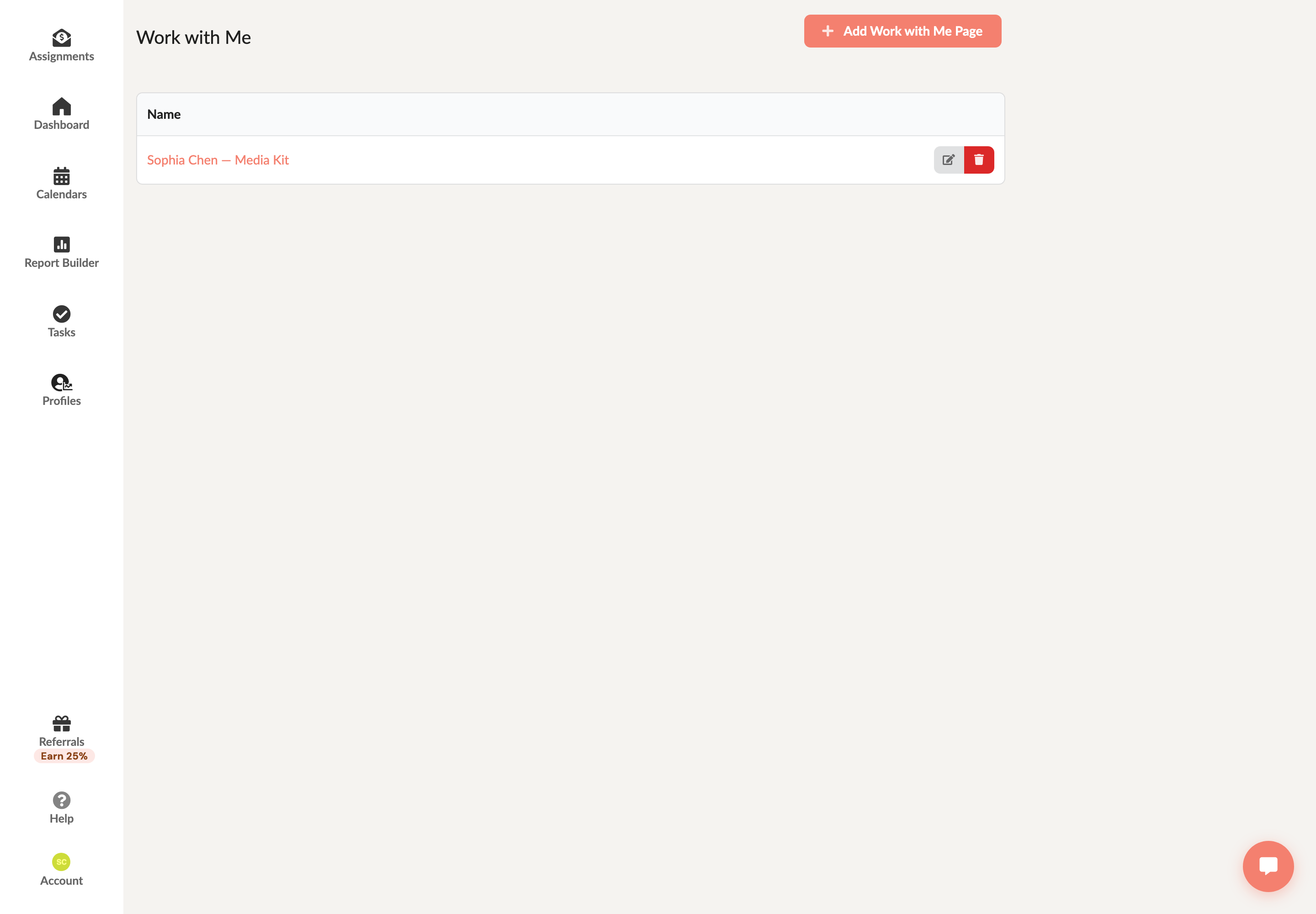
In the left sidebar, hover Profiles and choose Work With Me. That’s the list of every page you’ve built.
Creating your page
- Click Add Work with Me Page.
- Give it a title — this becomes the page heading and the web address.
- Pick the social profiles you want to feature from the profile picker.
- Click Create.
InfluenceKit fills in the rest for you: your headshot, your contact block, and a stats card for each profile you picked.
Editing your page
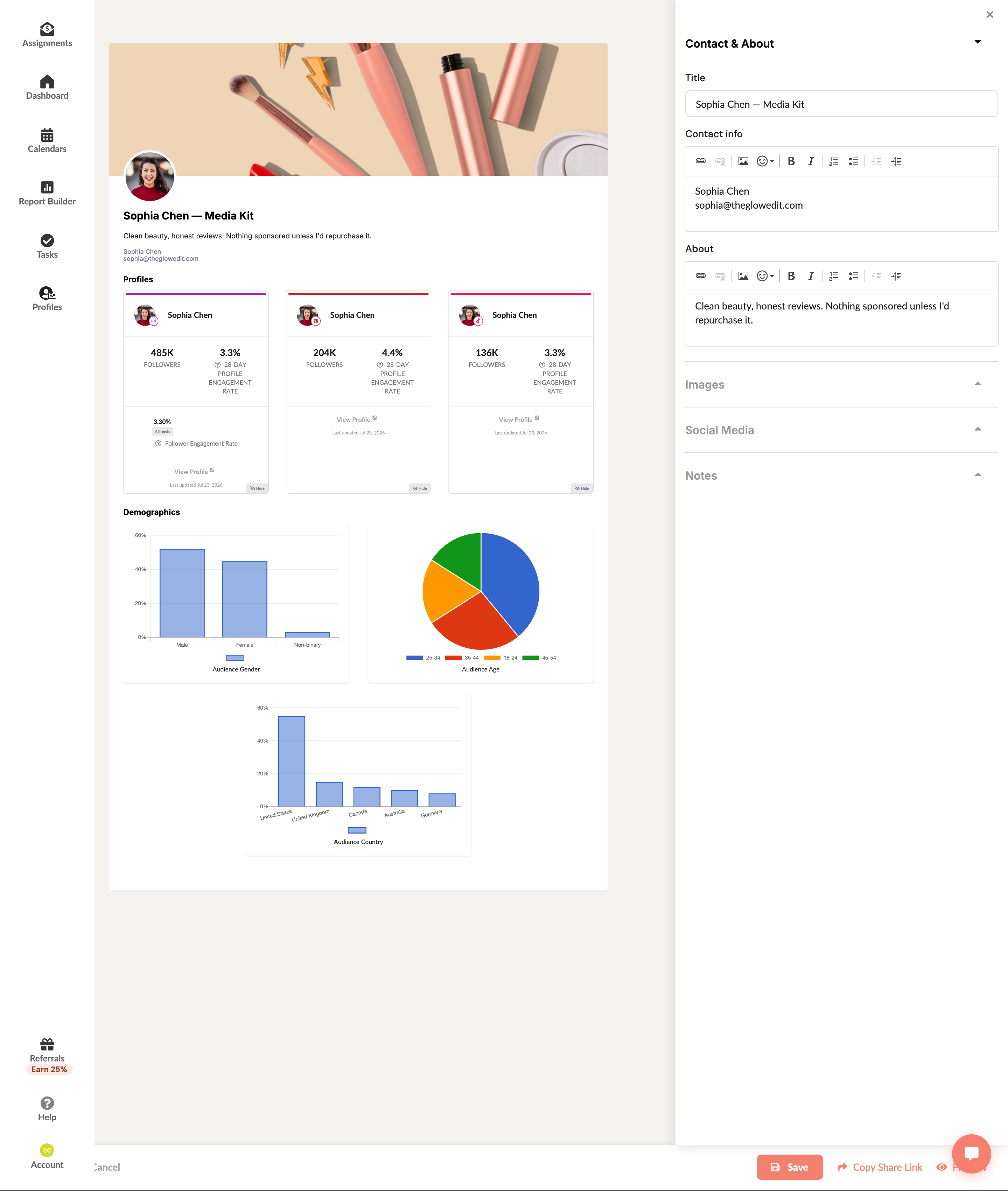
The editor puts your live page on the left and the controls on the right, grouped into five sections.
Theme & Sections: an Accent color for your page, and a Sections switch for each of Highlights, Demographics and Notes. Turn a section off and it disappears from the preview and from your public page. If you leave the accent color unset, your page uses your agency theme when you have one (talent managers set this in Organization Settings), or the default InfluenceKit color.
Contact & About: the page title, the contact block a brand will email, and your bio.
Images: your logo (the round headshot) and a header image for the banner across the top.
Social Media: which connected profiles appear as stats cards. To keep your audience breakdown private, switch off Demographics under Theme & Sections.
Notes: a free-text block at the bottom, useful for rates, past partners or what you’re looking for.
Changes save as you type. Save commits them immediately if you’d rather not wait.
What the stats cards show
Each card is one connected account, and the numbers come from that connection — not from anything you type in:
- Follower count
- 28-day profile engagement rate
- When it was last updated
Below the cards, the Demographics charts break your audience down by gender, age and country.
Any custom profiles you’ve added (a platform we can’t connect, like Substack) also show as cards, with a Custom label. Their numbers are the ones you typed in.
Because these read from your connected accounts, the fastest way to make your page more convincing is to connect more of them — see Connecting Your Accounts.
Sharing it
Click Copy Share Link in the bottom bar to copy your page’s public address. It looks like your-name.influencekit.com/wwm/your-page-title, and anyone with the link can open it — no InfluenceKit account needed.
Preview opens that public version in a new tab, so you can check what a brand will actually see before you send it.
Good places for the link: your Instagram bio, your email signature, the “work with me” page on your site, and any pitch you send.
Keeping it useful
- Feature the accounts that matter. Three strong profiles read better than six thin ones.
- Write the About section for a brand, not a follower. What you make, who watches, what you’re open to.
- Put your rates in Notes if you’d rather not repeat them in every email.
- Add a header image that looks like your actual content. The banner is the first thing a brand sees.
- Check it after connecting a new account — the new profile won’t appear as a card until you add it under Social Media.