
Managing Your Influencers as a Talent Manager
If you manage a roster of creators, InfluenceKit gives you an Influencers page. Each influencer you manage gets their own calendar and report, kept separate from everyone else’s, so content, deliverables and performance never get mixed up between creators.
Accounts created through the talent manager signup get the Influencers page right away. If your account was set up another way and you don’t see Influencers in the left sidebar, ask support to turn it on.
Finding your Influencers
The Influencers page is your home page: it opens when you sign in, and Influencers in the left sidebar brings you back to it. At the top you’ll see how many creators you manage and their combined audience. Below that is the list of creators on the left, and the creator you’ve selected on the right.
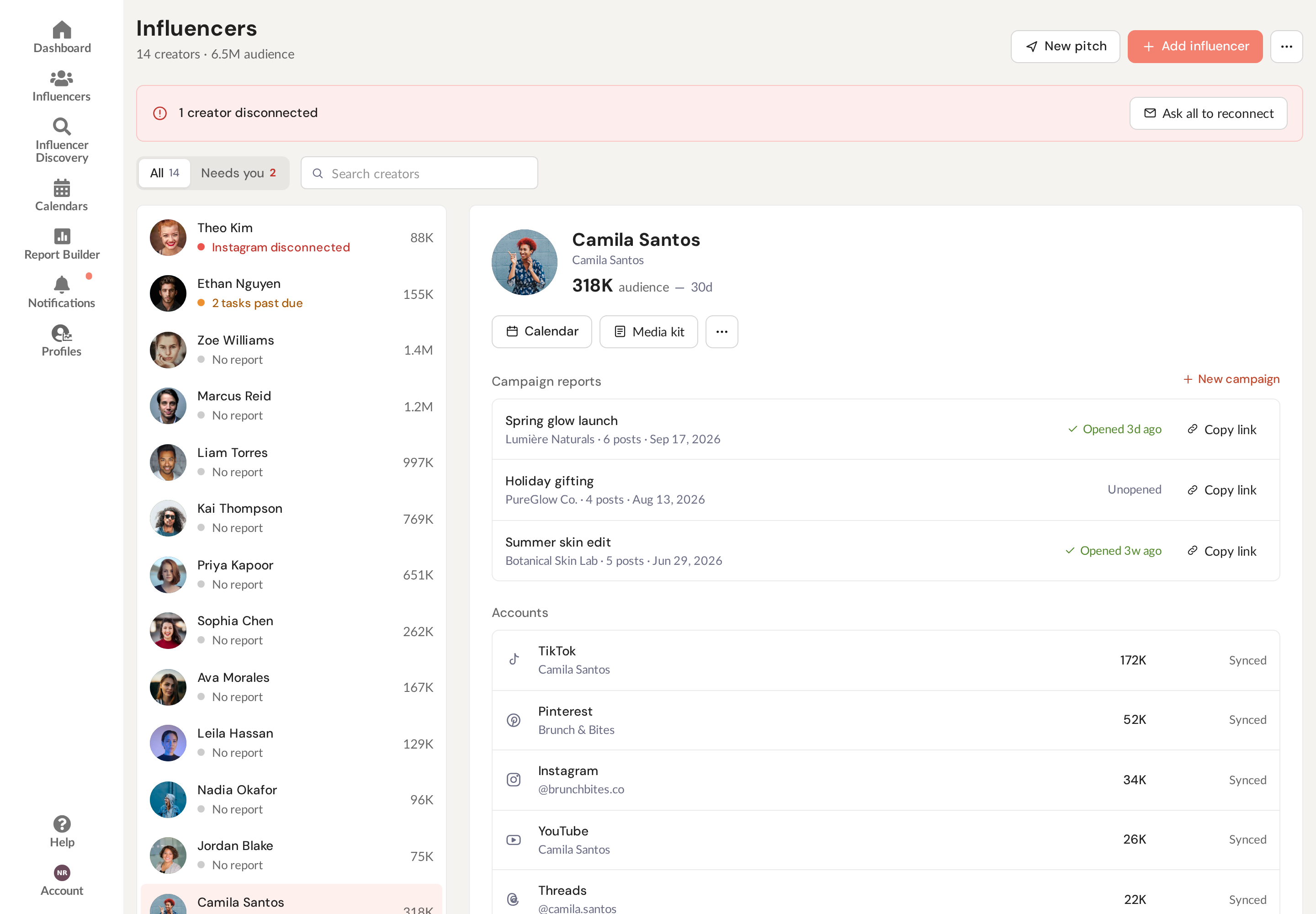
Each row shows the creator’s photo, name, audience and one status line, so you can see who needs something at a glance:
- Instagram disconnected (or TikTok, YouTube and so on): an account stopped connecting, so its stats stopped updating.
- 2 tasks past due: the creator’s calendar has overdue tasks.
- TikTok stale: an account is still connected, but its stats haven’t refreshed in a while.
- Reconnect requested: you’ve already emailed them to reconnect.
- Link opened 3d ago: someone outside your team (usually the brand, but anyone with the link) last opened one of their report links 3 days ago. Your own team’s views don’t count.
- Report created or No report: they have a report nobody outside your team has opened yet, or no report at all.
Creators who need you are sorted to the top. Click Needs you above the list to see only the ones with a disconnected account, overdue tasks or stale stats, or type in Search creators to find someone by name.
People with connected accounts in your workspace who don’t have a calendar of their own (for example, creators who share one calendar) are in the same list and counted in the same totals.
A creator’s profile
Click a creator to open their profile on the right. It shows:
- Their audience, how it changed over the last 30 days, and their posts, open tasks and anything past due.
- Calendar, which opens their calendar, and Media kit, which copies their media kit link (or takes you to set one up if they don’t have one yet).
- A Reports tab: each campaign report with its brand, number of posts and date. Link opened 3d ago means someone outside your team opened the report’s link (hover it to see who counts); a report nobody has opened shows nothing there. Edit opens the report, Copy link copies the shareable link, and the ⋮ has Add posts and View as brand. New campaign starts another one.
- An Accounts tab: every connected account with its audience and status: Synced, Synced 9d ago, No data yet, Disconnected or Reconnect requested.
The ⋯ button beside Media kit has the creator’s calendar settings, their other calendars, All accounts, New pitch and Archive.
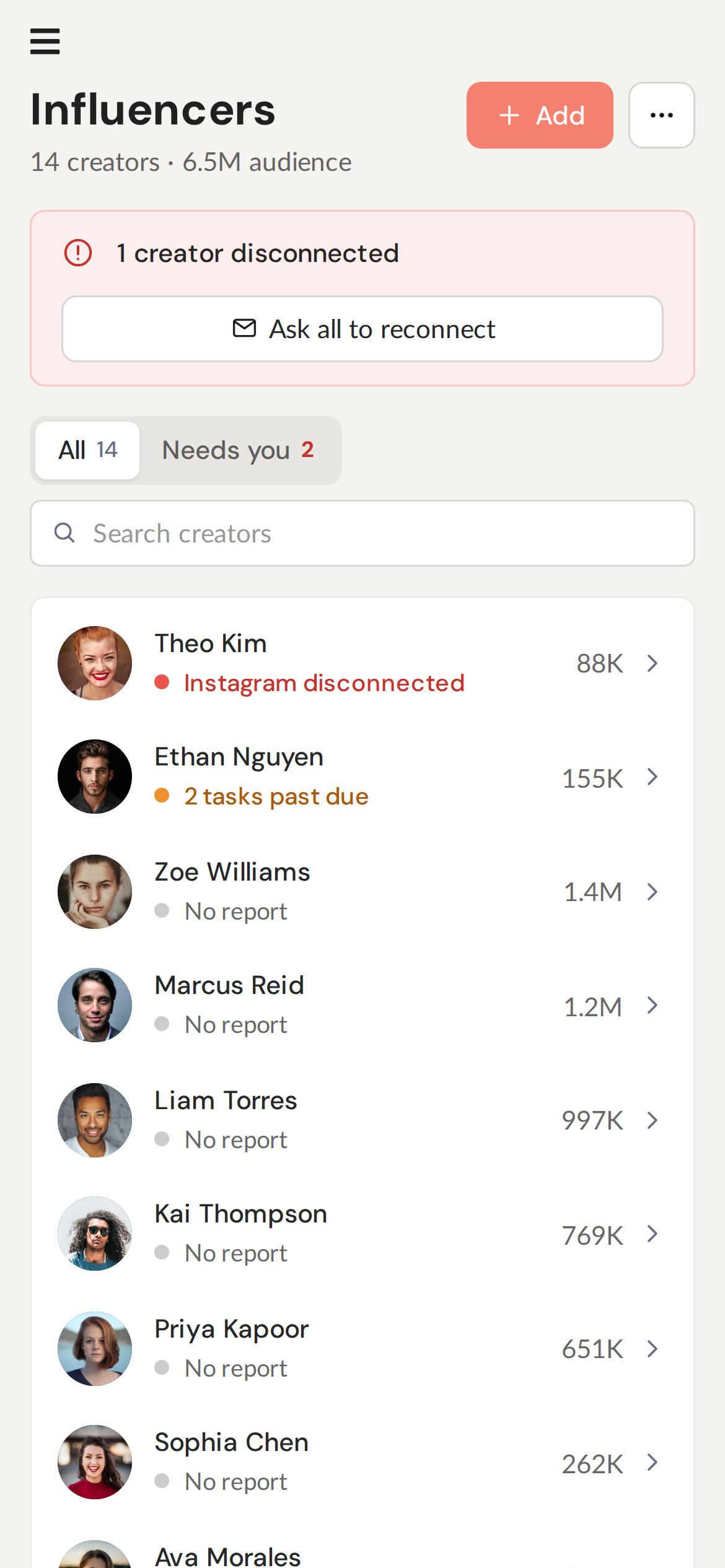
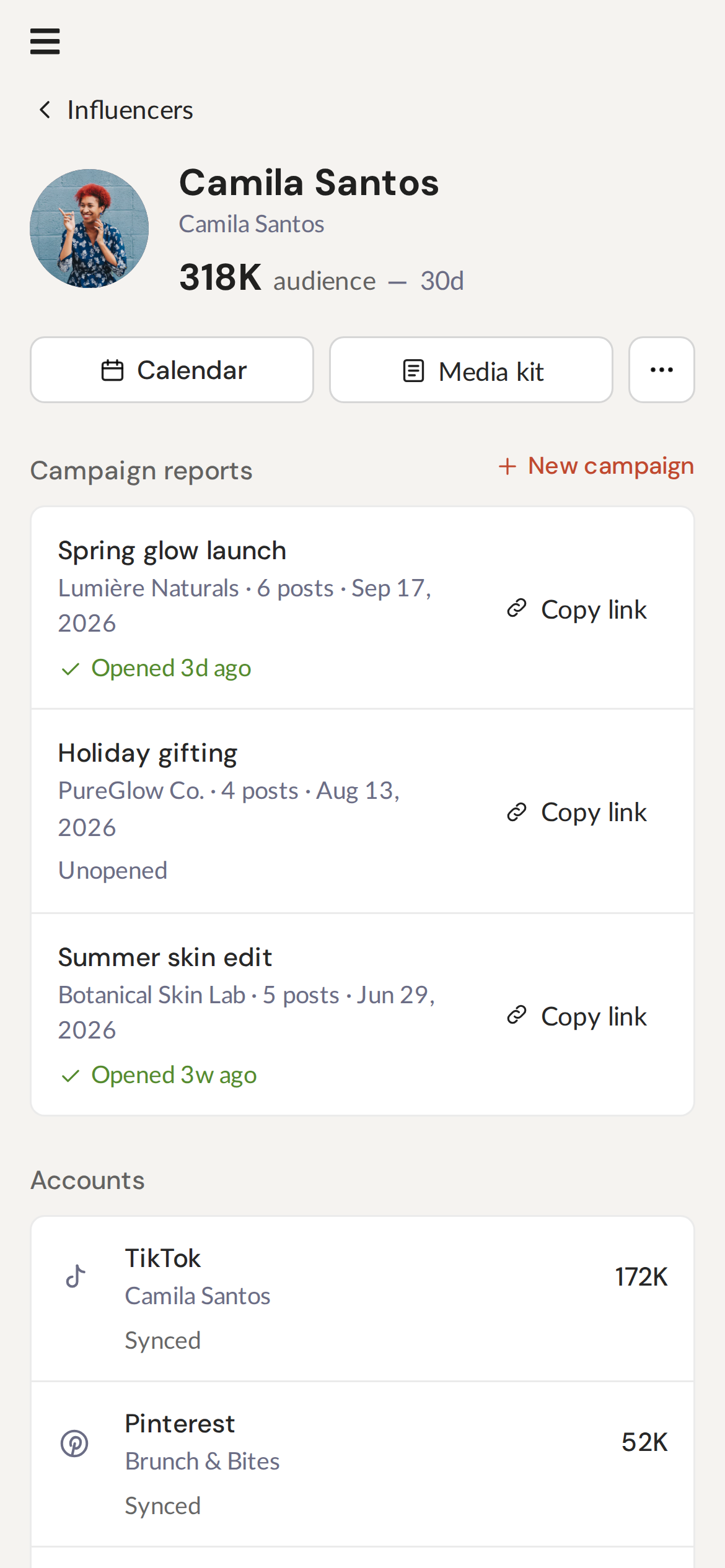
On your phone, tap a creator to open their profile, and tap Influencers at the top to go back to the list.
Keeping creators connected
When a creator’s account disconnects, their profile shows which account it is and when it last synced, with an Ask to reconnect button. Click it and they get an email for each disconnected account, with a link to reconnect it.
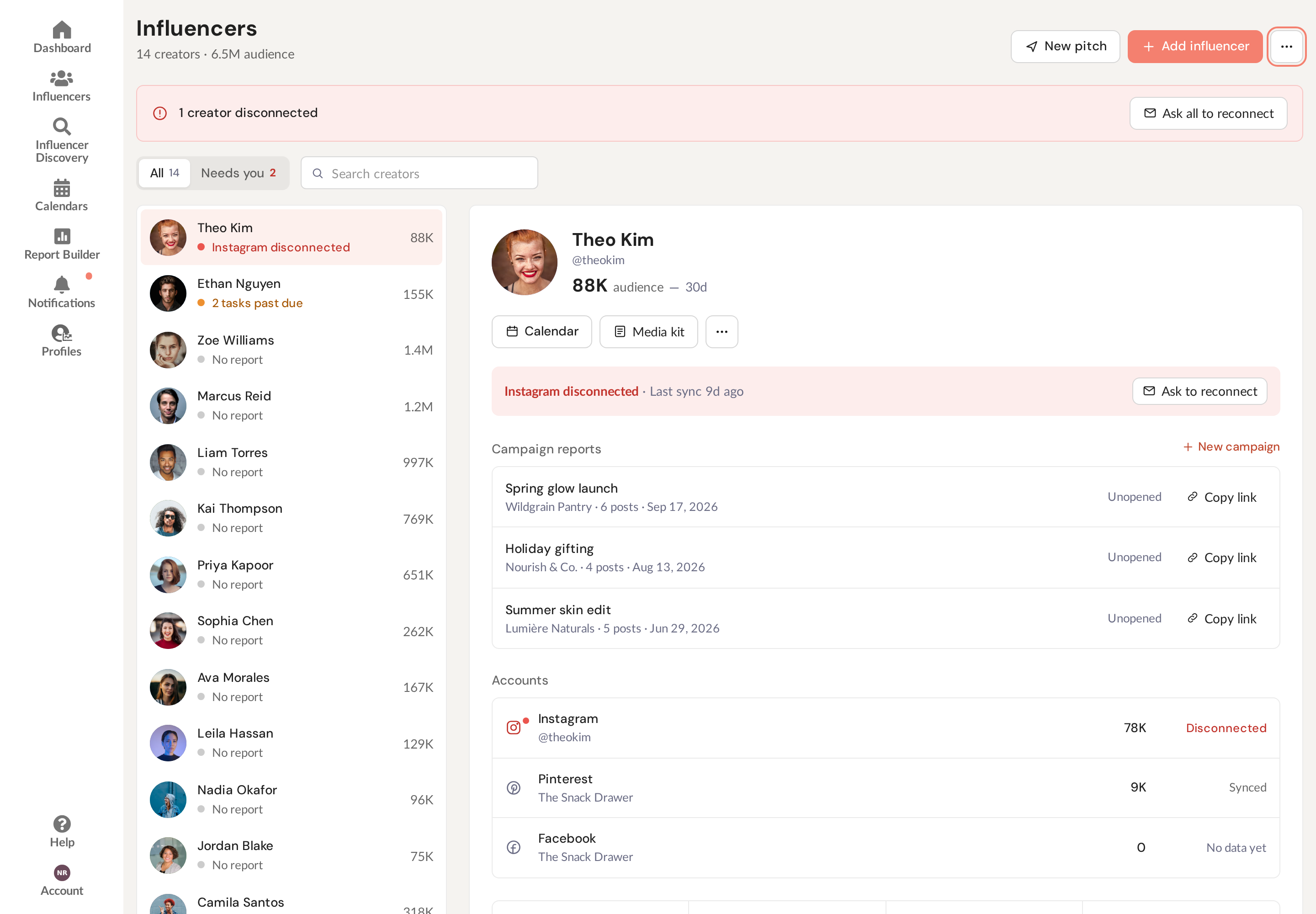
When any creator is disconnected, a banner at the top of the page counts them. Ask all to reconnect emails every one of them at once, after you confirm.
You can ask each creator once a day. Asking to reconnect is available to admins on your account.
Adding an influencer
- Click Add influencer.
- Enter the influencer’s name. That’s all that’s required. It becomes their dedicated calendar and report.
- Optionally, give them a login:
- Add their email if you want the creator to be able to log in and collaborate.
- Choose their access: Can edit their own calendar (member) or Can manage their calendar (admin).
- Tick Email them an invitation to set up their login to send them a link.
- Click Add Influencer.
If you leave the email blank, no login is created and no invitation is sent. You manage that creator’s calendar and report yourself, and you can invite them later from the calendar’s settings.
Letting creators add themselves
Your join link lets creators sign themselves up. Copy it with Invite link at the top of the Influencers page (on a phone, Copy join link in the ⋯ menu), or from the Add influencer page, and send it to a creator. They create a login, tell you what kind of content they make, connect their accounts, and appear on your roster.
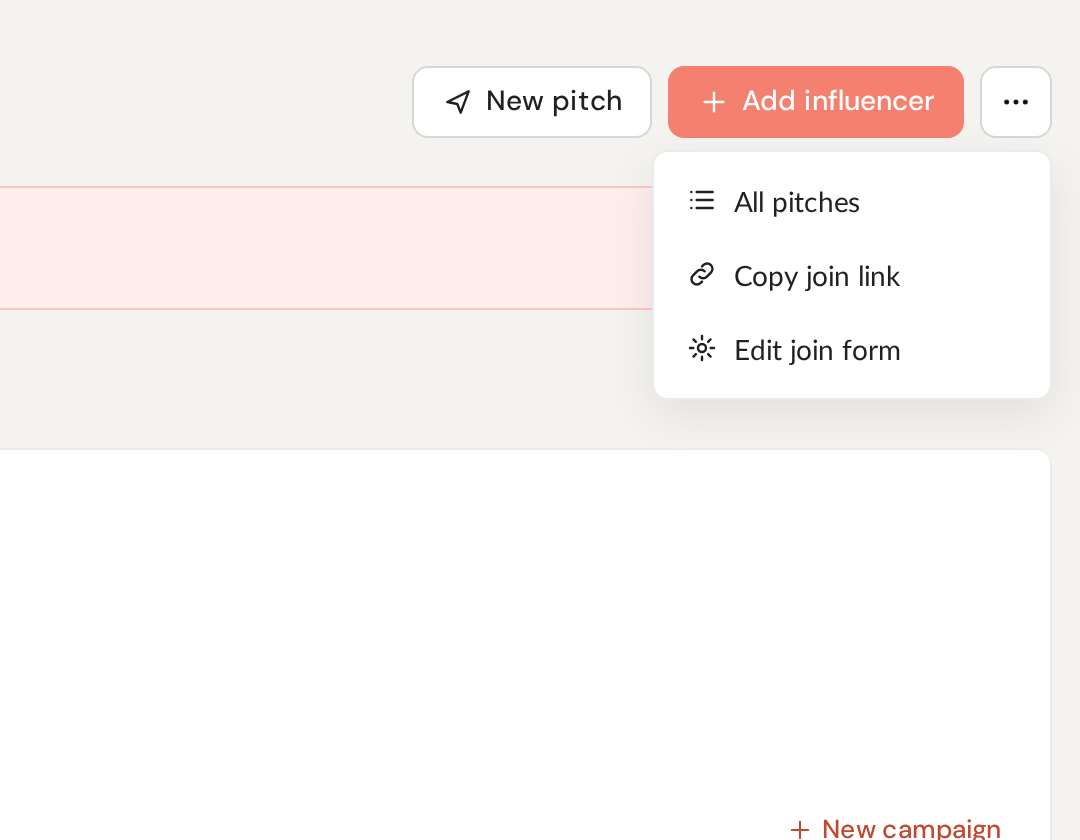
Edit join form in the same menu lets you choose which content categories creators can pick from when they join.
Pitching creators to a client
Click New pitch at the top of the Influencers page to build a shareable shortlist from your roster. Your existing pitches are under All pitches in the ⋯ menu. See Pitches: share a shortlist with a client for the whole flow.
Your agency theme
Your pitches and media kits can use your agency’s colors. Go to Organization Settings, find Agency theme, pick an Accent, light mode and an Accent, dark mode color, and click Save.
Any pitch or media kit without its own accent color uses the light mode color. Clients whose device is set to dark mode see the dark mode color instead. If you pick a different accent color on one pitch or media kit, that one keeps its own color in both modes.
Platforms you can’t connect
If a creator is on a platform we can’t connect (Substack or Strava, for example), you can add it as a custom profile. Open the creator’s calendar settings and go to the Custom Profiles tab. Enter the platform, the profile URL and, if you like, a follower count and an image, then click Add custom profile. It shows on their media kit, and in pitches you create after adding it, with a Custom label. We don’t pull stats for custom profiles, so the follower count is whatever you enter.
Your Monday recap
Every Monday, account admins get one email about the roster: how many creators you manage and their combined audience, which creators are disconnected, pitches that were published or answered last week with the client’s answers, reports shared, and the content your creators published. To stop it, use the unsubscribe link at the bottom of the email.
You can also ask Kit, the assistant in the app, about your roster: who is disconnected, how to add a creator, or where to find your join link.
Do I need a seat for each influencer?
No. Talent-manager accounts are billed per influencer with a connected account, so there’s no fixed “seat” limit to run into. Add as many influencers as you manage. Your own team isn’t billed: an admin on your account only counts as an influencer if they’re the creator on one of your calendars. The Influencers page, your itemized bill and the weekly recap all count influencers the same way. (If you ever see a billing or seat message while adding people, contact support. You shouldn’t be blocked.)
Removing an influencer
Select the creator, open the ⋯ menu on their profile and choose Archive. Archiving hides the creator from your Influencers list but keeps their calendar and reports, so nothing is lost.