
Payments (creator payments & reimbursements)
Payments is where brands pay creators and creators get paid — for their work (a fee or invoice), a bonus, or an expense the creator fronted (a flight, a hotel, meals on a sponsored trip). You can pay a creator directly, or review and pay what a creator requests — all with a card in InfluenceKit, instead of tracking it over email and paying separately through Stripe, PayPal, or a bank transfer.
Every payment is labelled with what it’s for — Work, Expense, or Bonus — so your list stays legible at a glance. Only expenses need a receipt.
Payments is still rolling out account by account rather than included on every plan. If you don’t see Payments in your sidebar, ask us to turn it on for your account.
For brands
Payments is a top-level item in your sidebar. The badge on it counts the payments that need your attention — ones waiting for review, plus approved ones that are ready to pay.
Pay a creator directly
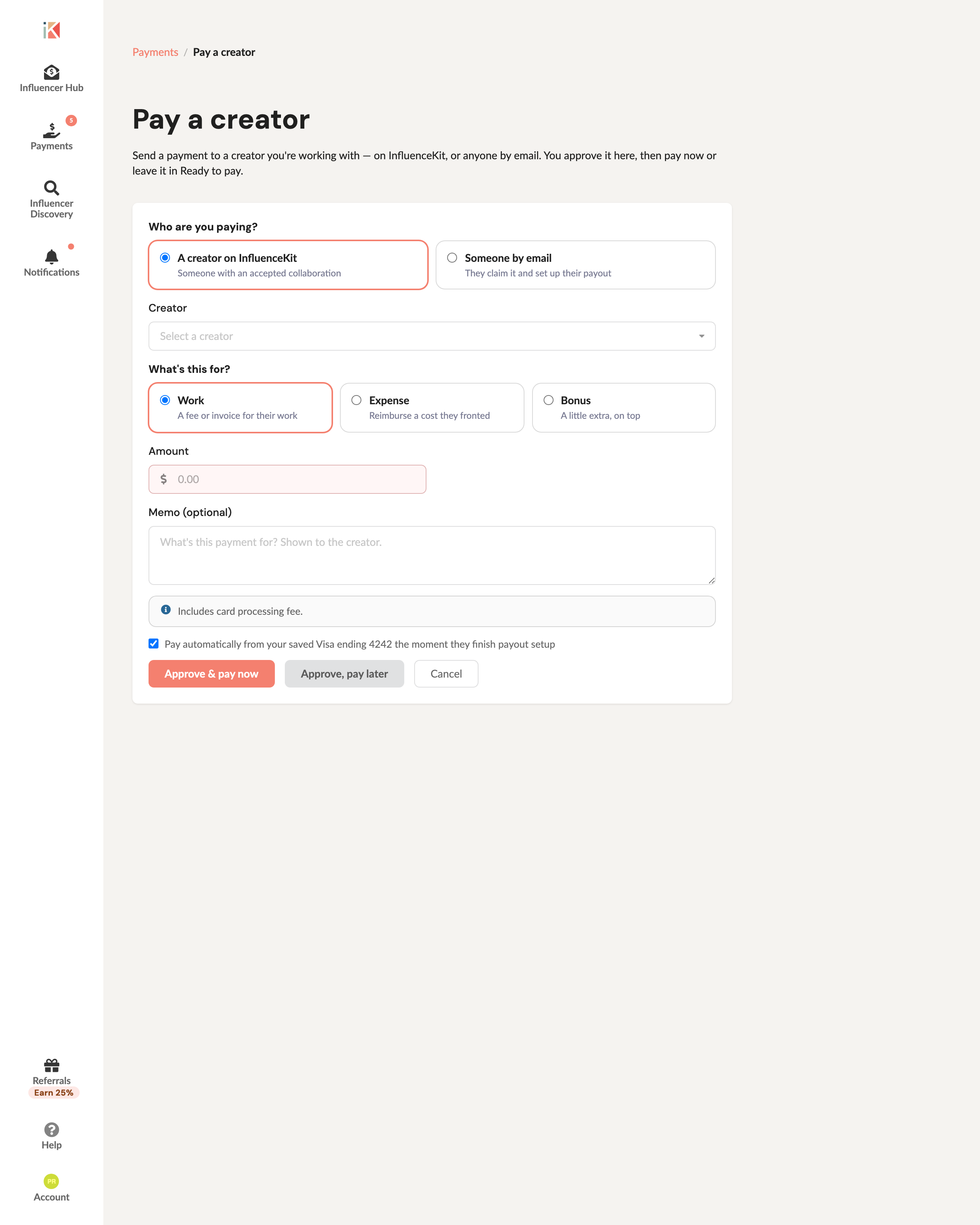
Don’t wait for a request — click Pay a creator from the Payments list (or Pay {creator} from a collaboration). Pick the creator, choose what it’s for (Work, Expense, or Bonus), enter an amount and an optional memo, then either:
- Approve & pay now — checks out with your card immediately (if the creator has connected a payout account), or
- Approve, pay later — the payment lands in Ready to pay so you can send it whenever you’re ready.
A payment you start this way is approved the moment you create it — there’s no separate review step. If you started it and haven’t paid yet, you can Void it from the payment page; nothing is charged.
Pay a creator who isn’t on InfluenceKit yet
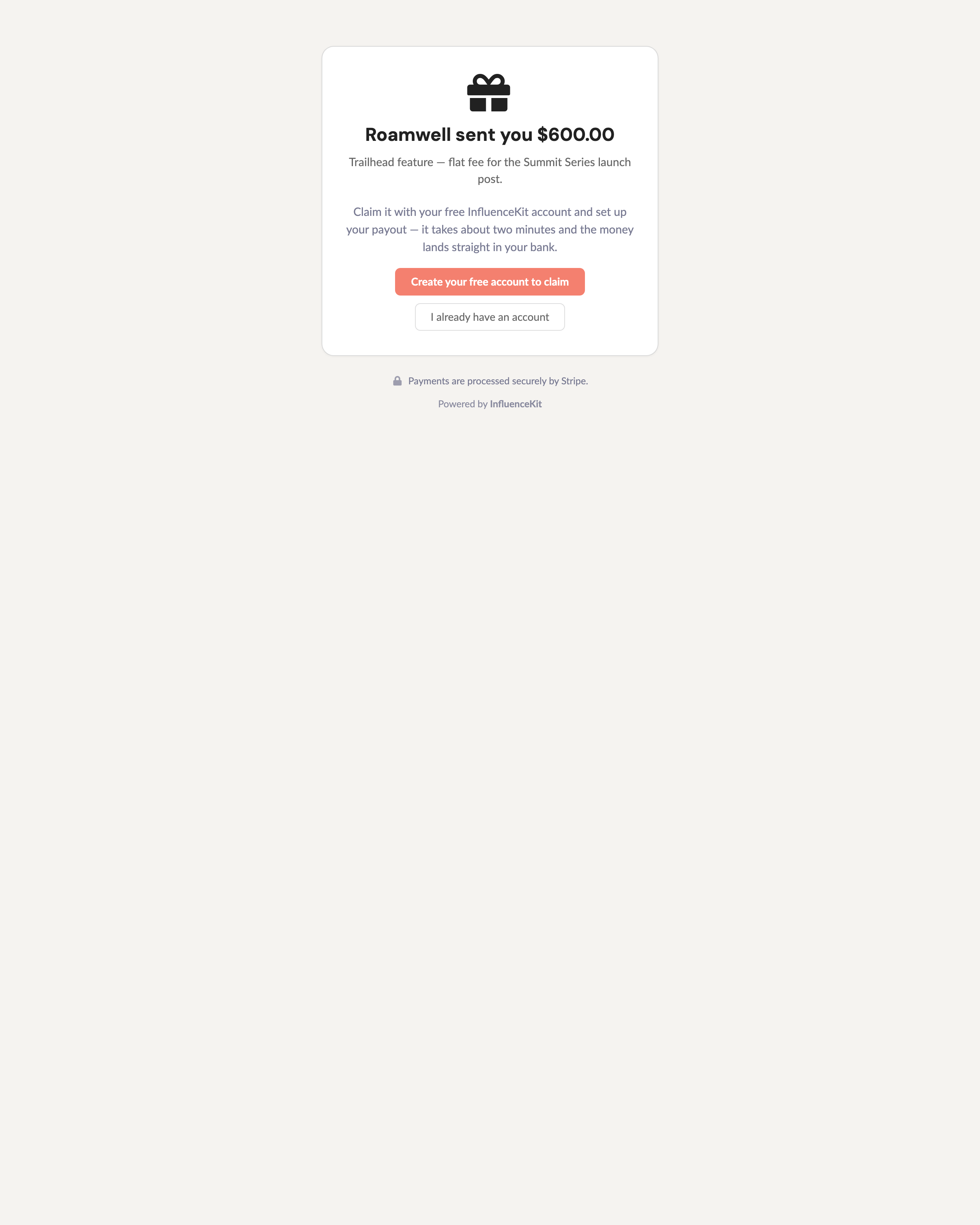
On Pay a creator, choose Someone by email and enter their email address. We’ll email them a link to claim the payment — they create a free account and set up their payout in about two minutes. Nothing is charged until they claim it and you send it: until then the payment sits with a Waiting for {email} to claim note, and the claim link is shown on the payment page so you can resend it. Once they’ve claimed and connected a payout account, pay it like any other.
Per-campaign view
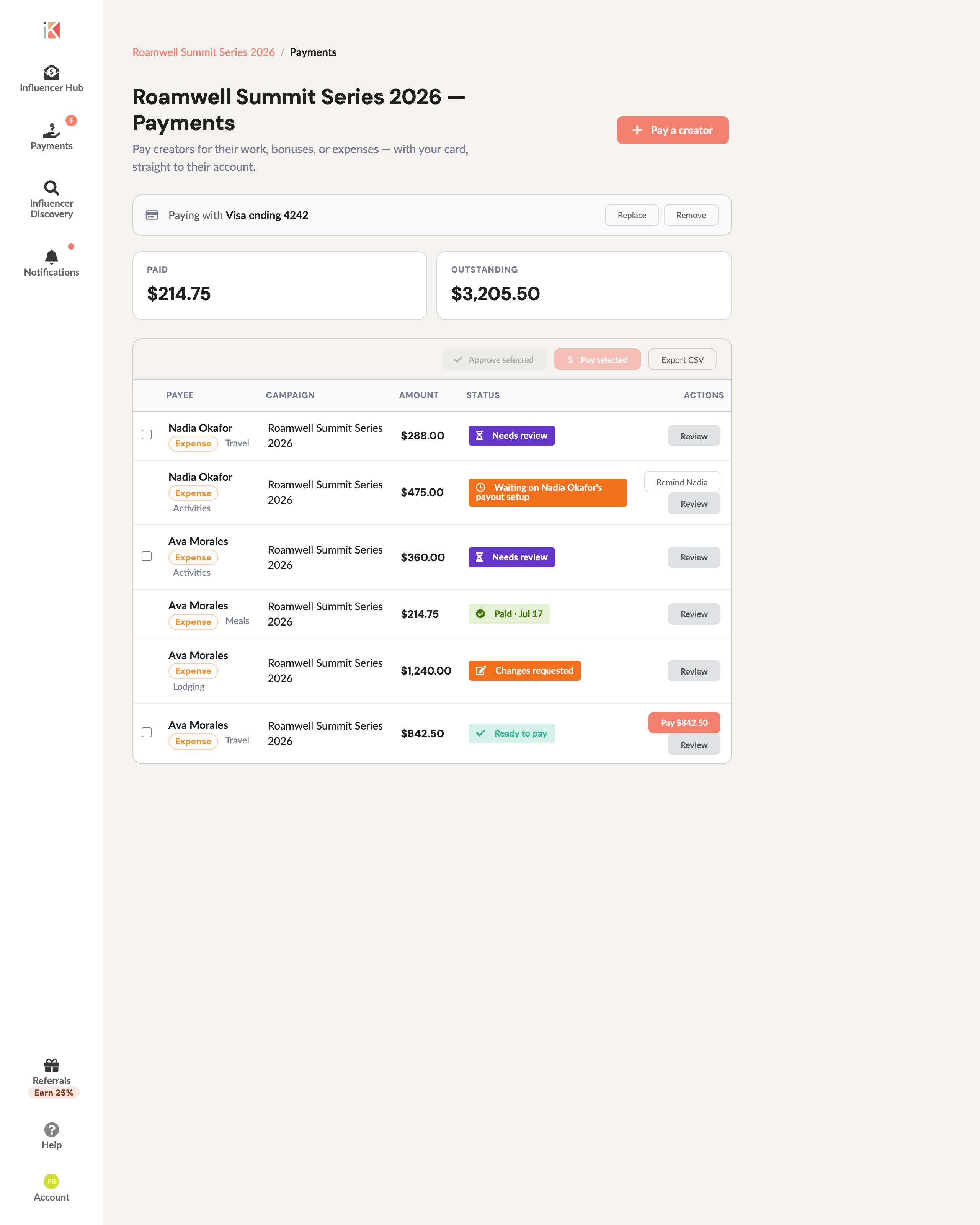
Open a campaign and click its Payments tab to see just that campaign’s payments, with a Paid / Outstanding budget strip at the top. Each collaboration also has a Payments panel with a Pay {creator} shortcut.
Save a card to pay faster
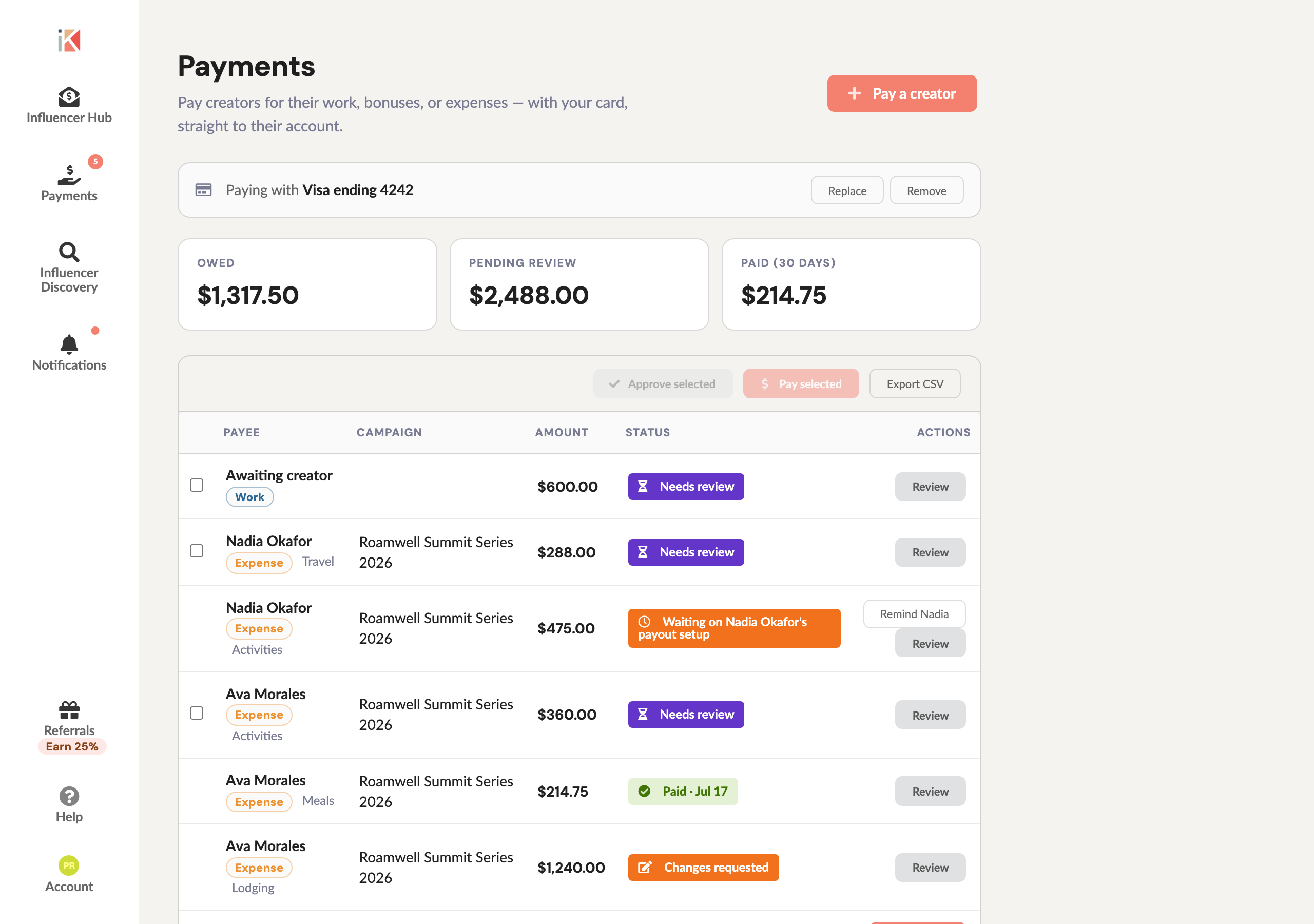
At the top of the Payments list, click Save a card to store a card on your account. Once a card is saved, you can pay creators without going through checkout each time — pay one in a single click, pay several at once, or have a payment go out automatically the moment a creator finishes their payout setup. You can Replace or Remove the saved card from the same spot at any time.
Saving a card doesn’t charge anything — you’re still only charged when a payment actually goes out, and the card processing fee (2.9% + 30¢) is always added on top so the creator receives their full amount.
Approve several at once
On the Payments list, tick the checkboxes next to the requests you want to approve and click Approve selected. This approves them in one step — no money moves until you pay each one.
Pay several at once
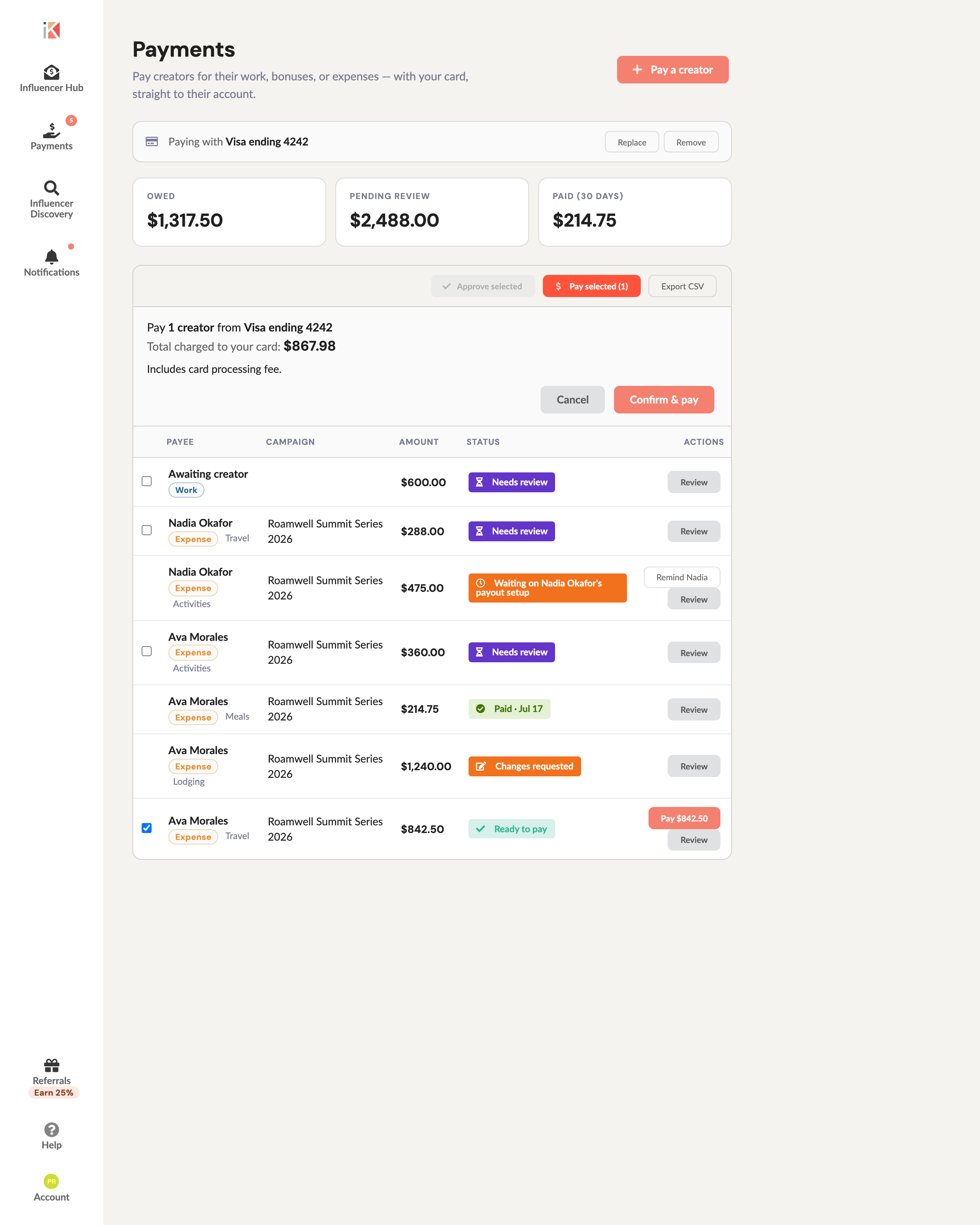
With a saved card, Ready to pay rows get a checkbox too. Tick the ones you want to pay and click Pay selected — you’ll see a quick summary of how many creators and the total charged to your card before you confirm. Each payment is charged separately, so if one card charge is declined it doesn’t hold up the rest; that row simply stays ready to pay and tells you why. Rows show Paying… while they settle and flip to Paid on their own.
1. Review what creators request
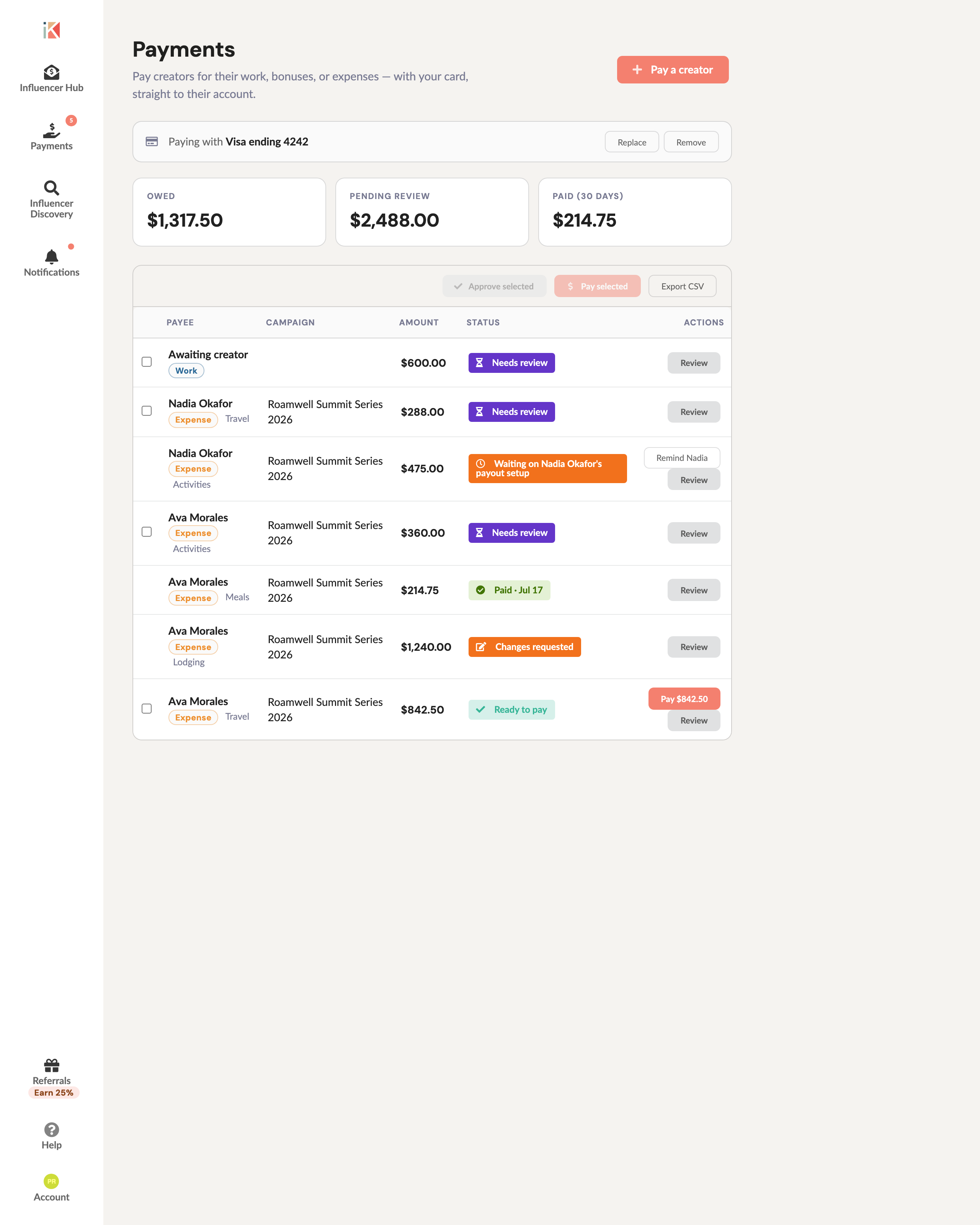
When a creator requests a payment with a receipt, you’ll see it under Payments, with the payee, campaign, and amount. Open it to see the receipt and:
- Approve it — no note needed.
- Request changes — leave a note explaining what’s missing or wrong; the creator sees it and can edit and resubmit.
- Decline it — optionally with a reason.
Every admin on your account gets an email and an in-app notification when a creator sends a request. If you haven’t approved, declined, or sent it back after 3 days, we email your admins a reminder, and once more around day 7. The Monday weekly email also lists how many requests are waiting on you and their total, with a link to review them.
2. Pay
Once a payment is approved, click Pay. If you’ve saved a card, it’s charged in one click — no checkout step. If you haven’t, you’ll check out with your card as usual. Either way your card is charged at that moment — there’s no balance to pre-fund.
What it costs. You can pay by card or, for payments in US dollars, from a US bank account. Stripe’s processing fee is added on top of the payment rather than taken out of it, so the creator always receives the full amount and you cover the processing. InfluenceKit adds nothing of its own: we take no cut of a creator payment. You’ll always see the exact total before you confirm.
- Card: 2.9% + 30¢ per payment, Stripe’s standard US online card rate. Because the fee is calculated on the total charged, a $100 payment comes to $103.30: the creator gets the full $100 and $3.30 covers processing.
- US bank account: 0.8%, capped at $5. A $100 payment comes to $100.81, and a $10,000 payment to $10,005.
Pay by bank account
Open the payment and click Pay $… by bank account, under the card Pay button. Stripe’s checkout asks you to pick your bank and sign in to it, which links the account instantly. A bank payment takes about 4 business days to clear, so until then the payment shows Processing. It can’t be paid again or voided while it’s processing. Once the money clears it turns Paid and the creator is notified, the same as a card payment.
If the bank payment fails (not enough funds, or a closed account), no money moves. The payment goes back to your approved queue, your admins get a notification, and you can pay again by card or with another bank account.
A saved card doesn’t apply to bank payments, and Pay automatically and bulk pay always use your saved card.
The money goes straight to the creator’s connected Stripe account and typically arrives in their bank within a couple of business days. If you check out and close the window without finishing, nothing is charged and the payment stays in your approved queue, ready to pay whenever you are.
Occasionally your bank asks you to confirm a charge (an extra security step). If that happens on a one-click payment, the row asks you to Confirm payment and walks you through your card’s secure checkout to finish — nothing is charged until you do.
Pay automatically when a creator connects
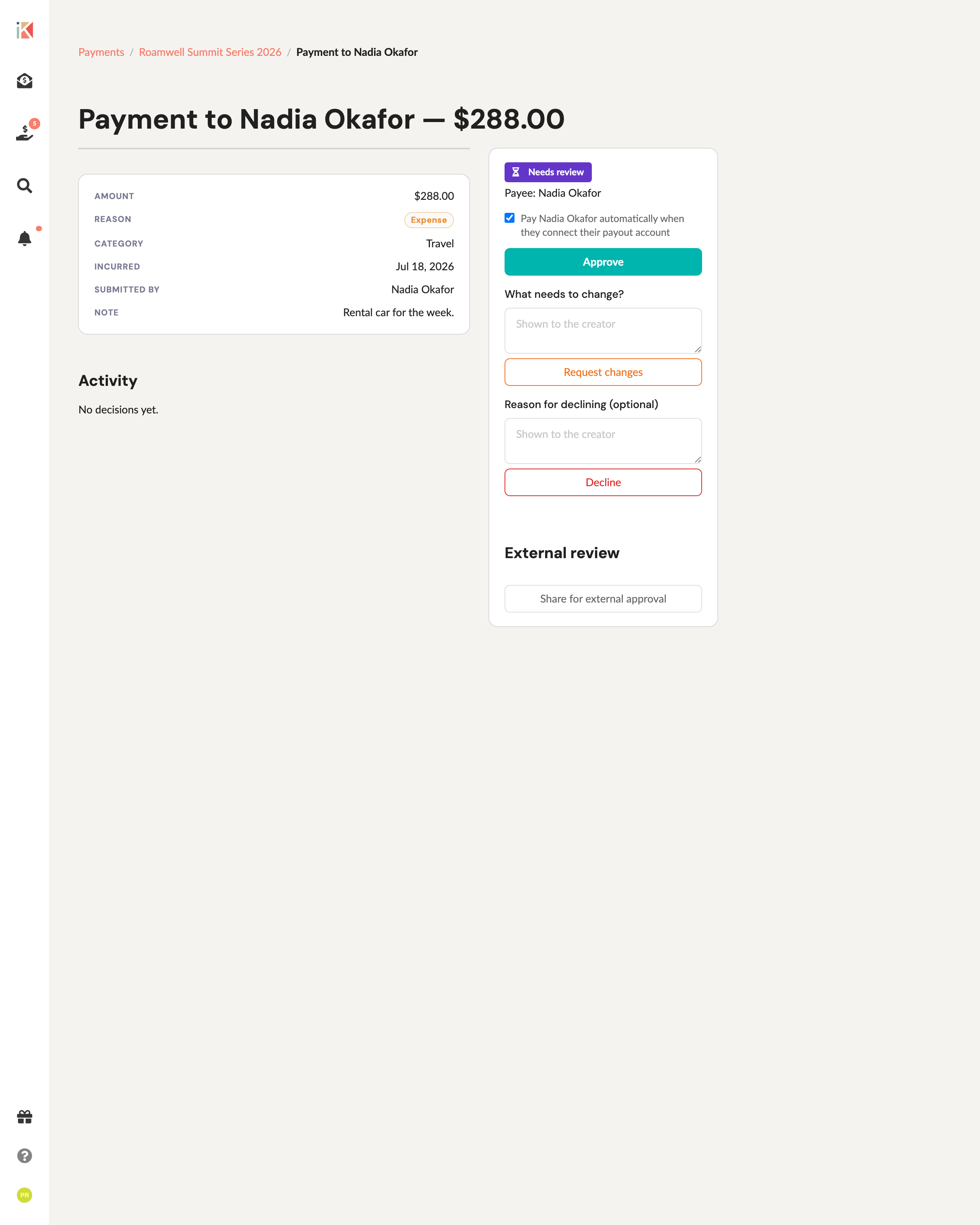
When you approve a payment (and you have a saved card), leave Pay automatically when they connect ticked. If the creator hasn’t set up their payout account yet, InfluenceKit will charge your saved card and send the payment the moment they finish — you don’t have to come back and click Pay. Untick it if you’d rather pay manually.
If the creator hasn’t set up payouts yet
You can approve a payment before the creator has connected a payout account, but you can’t send it until they do. On those rows you’ll see Waiting on {creator}’s payout setup and a Remind button that nudges them to finish setup (once every few days, so they’re never spammed). InfluenceKit also sends automatic reminders a few days after approval if the money is still stuck. As soon as they connect, the row becomes Ready to pay.
3. Export for your books
Export your payments as a CSV anytime — click Export CSV on the Payments list. Paid rows include the Stripe payment reference so you can reconcile against your card statement.
Loop in your bookkeeper or accountant — no account needed
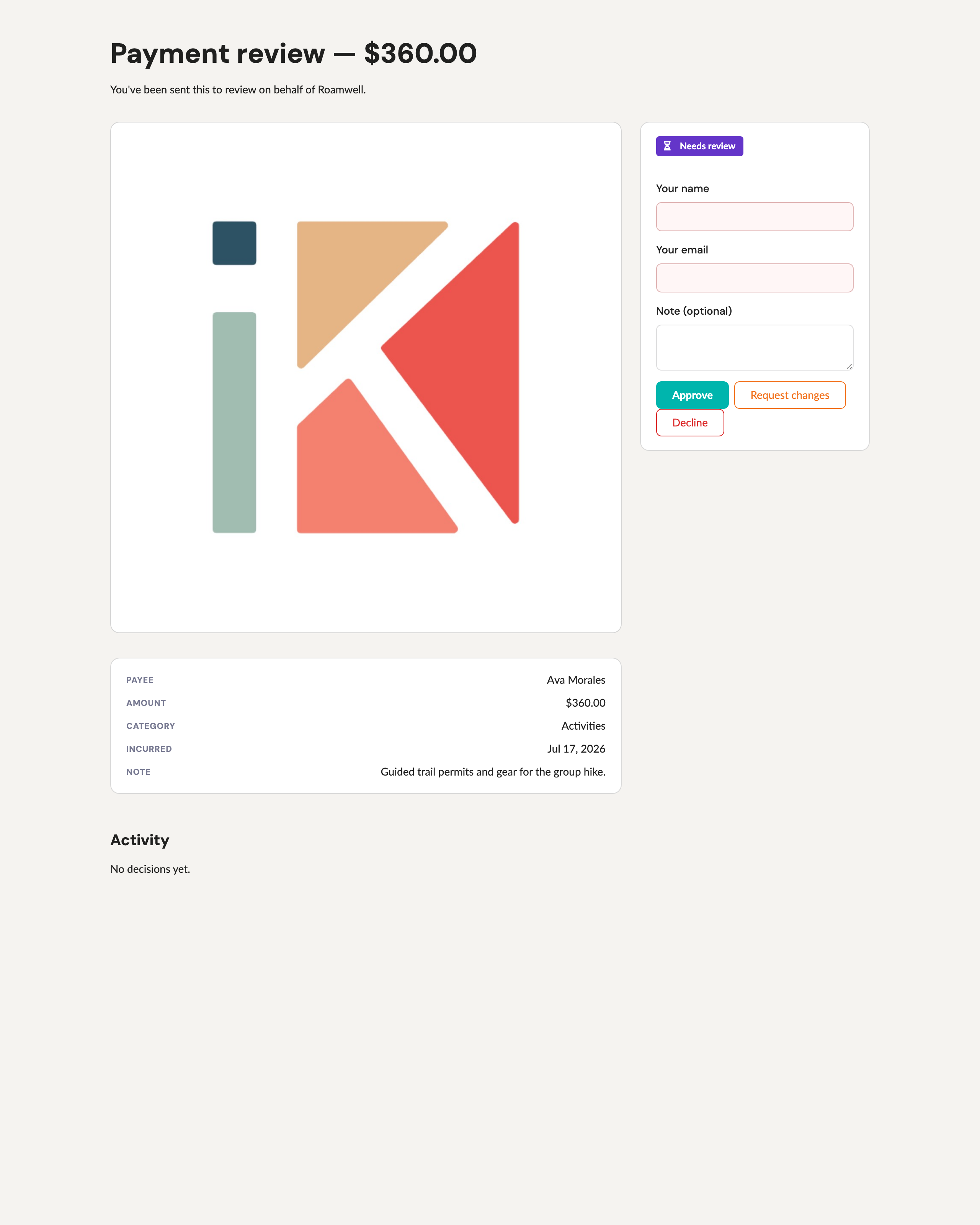
From a payment, click Share for external approval to generate a link. Send it to anyone — a bookkeeper, an outside accountant — and they can review the receipt and approve, decline, or request changes without an InfluenceKit login. They can’t send payment; only you can do that. Links expire after 7 days and you can revoke one anytime from the same page.
Tax forms
You don’t collect tax forms in InfluenceKit. Creators enter their tax information when they connect their payout account — Stripe collects it securely as part of onboarding, and InfluenceKit never stores tax IDs. If your payments to a US-based creator reach the IRS reporting threshold for the year, the 1099-NEC is handled through Stripe.
Refunds
If a payment needs to come back — you paid the wrong amount, or the expense turns out not to be covered — contact us. A refund pulls the money back out of the creator’s connected account, and the payment shows as Refunded. A partial refund pulls back the creator’s share of the refunded amount, and the payment stays Paid. The same applies if your card issuer rules against a payment in a dispute.
Ask Kit
You can also just ask Kit — InfluenceKit’s assistant — things like “What payments are outstanding for this campaign?” or “Why hasn’t [creator] been paid yet?” Kit will look up the payment and explain what’s going on: still waiting on your review, approved but the creator hasn’t connected a payout account, a card charge that needs authentication, and so on. Kit can only look things up for you — it can’t approve, pay, void, or cancel a payment; those still require you to act in the app.
For creators
Payments is where you request payment for what you’re owed and track it. You’ll find it in the Assignments menu in your sidebar: hover over Assignments (or tap it on your phone) and choose Payments. If you don’t have any assignments yet, it’s at the bottom of the sidebar instead. When money is approved and waiting, the page leads with how much is waiting for you and how much you’ve been paid this year.
Connect a payout account
Before you can be paid, connect a Stripe account. The quickest place is right from the Payments page: the Payout account card has a Connect payout account button, and you’ll see a prompt right after you send your first request. Stripe collects your tax information as part of that setup, so there’s no separate tax form to fill out in InfluenceKit. You can still request a payment before connecting, but you won’t be paid until it’s done.
Once you’re connected, your Stripe balance is paid out to your bank every day, so a paid request usually reaches your bank within a couple of business days. To see your Stripe balance and each bank payout, click View balance and payouts on the Payout account card. You’ll be signed in to your Stripe dashboard in a new tab.
Account credit for connecting
On some accounts, connecting a payout account also earns you account credit toward your InfluenceKit subscription. If it’s available to you, you’ll see the offer and the exact amount on the payout setup page before you start — if you don’t see it there, it isn’t on your account.
The credit is added once Stripe finishes verifying you, which is usually right away but can take a little longer if Stripe asks for more information. It’s a one-time credit per account, and it comes off your next InfluenceKit invoice automatically — there’s no code to enter and nothing to claim. If you’re not on a paid plan yet, the credit waits on your account and is applied to your first invoice.
Request payment
From Payments → Request payment, choose the campaign, pick what you’re requesting — Work (a fee or invoice) or Expense (something you paid for) — and enter the amount with a note describing what it’s for. For an expense, add the category and attach a photo or PDF of your receipt or invoice; a work request doesn’t need a receipt.
Whatever you request is what you receive. Card processing is added on top of your amount and paid by the brand, so no fee is ever deducted from your payment — and InfluenceKit takes no cut of it.
Request payment from any brand — even one that isn’t on InfluenceKit
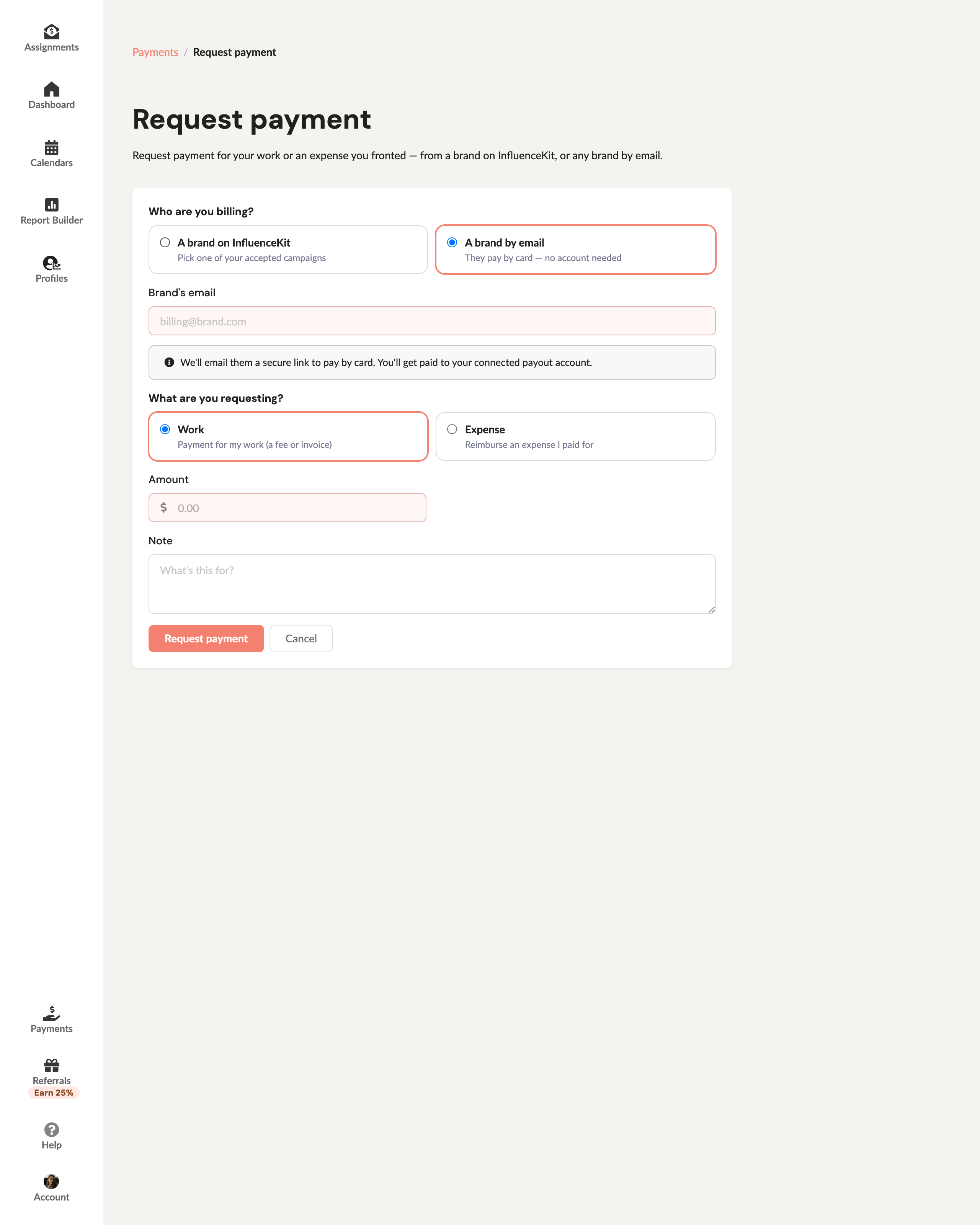
Once you’ve connected a payout account, you can bill any brand by email, not just the ones you have a campaign with. On Request payment, choose A brand by email and enter their billing email. We send them a secure page where they pay by card — no account needed — and the money lands in your connected payout account. US brands can also pay from a bank account, which costs them less but takes about 4 business days to clear; the request shows Processing until it does. You’ll find the same payment link on the request afterward, in case you want to send it to them directly.
The brand sees a simple, secure page with your name and the amount, and pays by card or bank account in a couple of clicks:
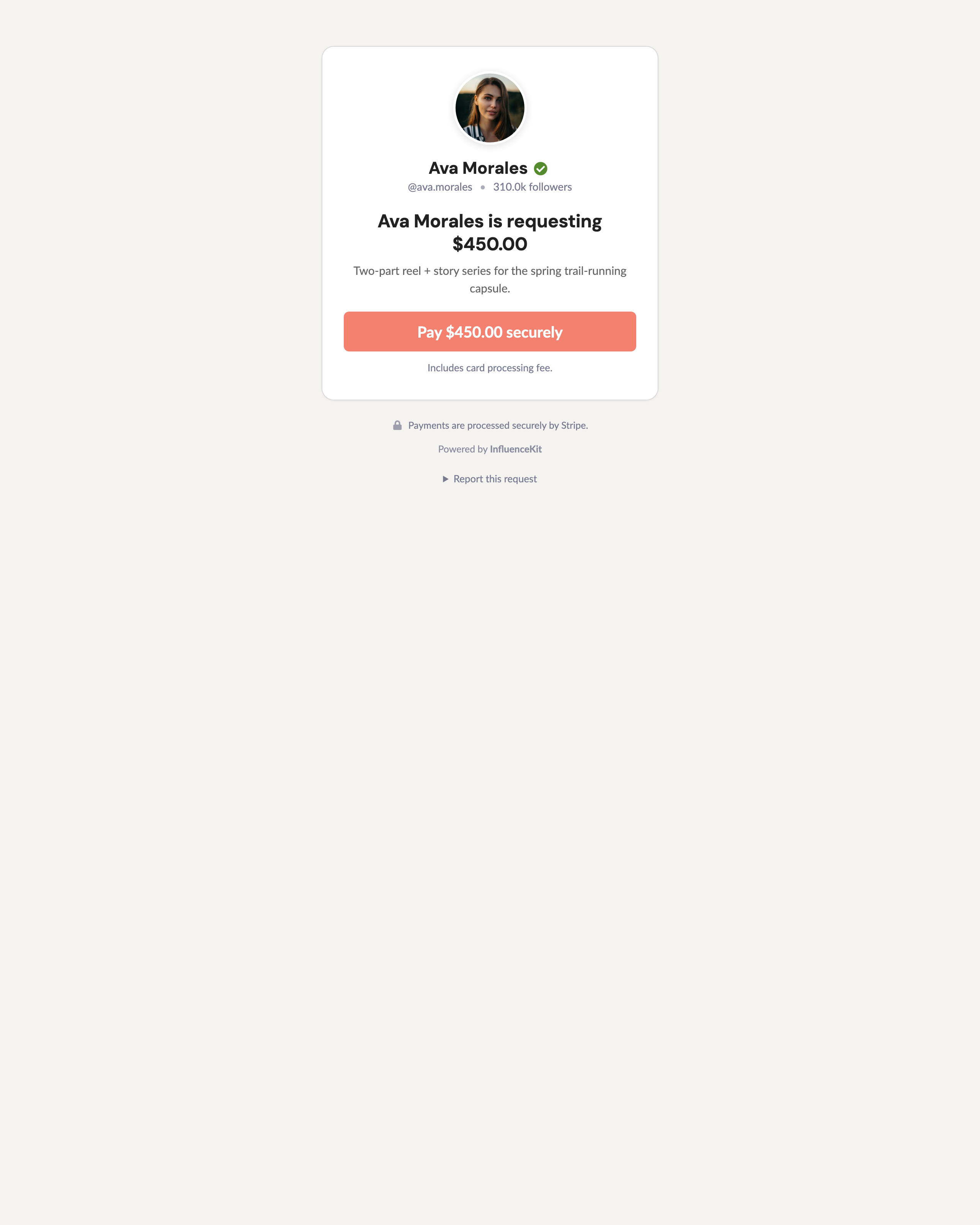
A few things keep this safe for everyone: only creators with a verified payout account can send these requests, there’s a daily limit on how many you can send, and every pay page has a Report this request link. Larger requests ask the brand to confirm their email before they can pay.
Bill a sponsor from your calendar
If you sell sponsorships or ad packages and track them on your calendar, you can bill one straight from the calendar item. Open a Proposed item and click Request payment at the top of the item (or choose Request payment from the item’s menu in the Proposed list).
The request form opens with the email of the item’s Sponsor contact and the item’s rate already filled in, and the item’s name as the note. Check them, change anything you need to, and send. The sponsor gets the same secure pay page as any request by email.
Once a request is out, the calendar item shows Payment requested with the amount instead of the button, so you don’t bill the same sponsor twice. When the sponsor pays, the item shows Paid. Paying doesn’t change the item’s status: move it to Approved (or anywhere else) yourself when you’re ready. Declining the item doesn’t withdraw the request either; withdraw it from the payment if you no longer want the sponsor to pay.
This needs a connected payout account, like any request by email. If you withdraw the request, the item gets its Request payment button back.
Withdraw a request
Changed your mind, or requested the wrong amount? Open the payment and click Withdraw request — anytime before it’s paid. (Once a payment has been sent, or while a bank payment is processing, it can’t be withdrawn.)
Track the status
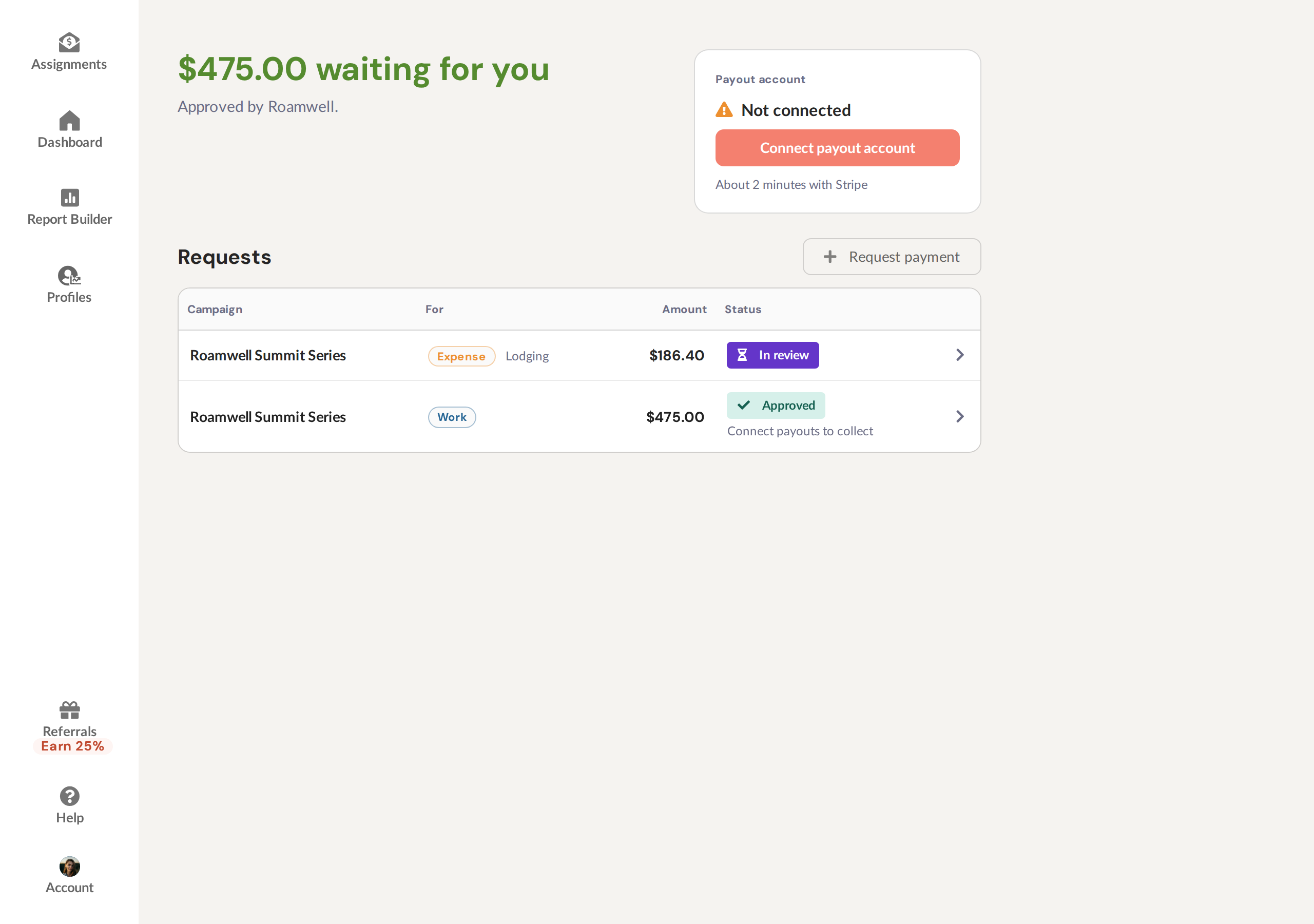
Click any request to open it and see its details and activity.
Your requests will show one of these statuses:
- Requested / In review — waiting on the brand to review it.
- Changes requested — the brand needs something fixed. Open the payment, read their note, and click Edit & resubmit to update the amount, category, note, date, or add another receipt, then send it back for review. The brand is notified when you resubmit.
- Declined — the brand declined it; check their note for why.
- Approved — approved and waiting to be paid. If you haven’t connected a payout account yet, the request also reads Connect payouts to collect.
- Processing — the brand paid from a bank account and the money is on its way. It usually clears in about 4 business days, then turns Paid. If the bank payment fails, you’re notified and the request goes back to Approved.
- Paid — sent to your connected Stripe account.
- Withdrawn — you withdrew the request.
You’ll get a notification (and an email) at every step.
Ask Kit
You can also just ask Kit things like “What’s the status of my payments?” or “Have I connected my payout account?” — Kit can check any of your own payment requests and explain what’s holding one up. Kit can only look, not act — approving, paying, or canceling a payment is never something it will do on your behalf.
Request payment from Claude or another AI assistant
If you’ve connected InfluenceKit to Claude or another AI assistant (see Using InfluenceKit with AI Assistants (MCP)), you can ask it to request a fee for you: “Ask Hearthside Bakery for the $1,200 fee for the holiday cookie series.” It uses the same campaigns and rules as Request payment: a campaign you’ve accepted with a brand that pays through InfluenceKit, or any brand by email once your payout account is verified, with the same daily limit. The assistant shows you the request first and sends it only after you confirm. Expenses need a receipt, so submit those in InfluenceKit.
FAQ
Is this the same as the InfluenceKit referral payouts? No — creators connect the same kind of Stripe account, but it’s a separate flow for campaign payments, not referral earnings. Campaign payments are paid by charging the brand’s card straight to the creator; referral earnings are paid out from InfluenceKit.
What does it cost to pay a creator? Stripe’s processing fee and nothing else. InfluenceKit takes no cut. By card it’s 2.9% + 30¢ per payment, so a $100 payment is a $103.30 charge. From a US bank account it’s 0.8%, capped at $5, so a $100 payment is $100.81 and a $10,000 payment is $10,005. The fee is added on top of the payment rather than deducted from it, so the creator receives the exact amount that was approved and the brand covers processing. (The creator’s money still lands in their bank account: that’s their connected Stripe payout, and it’s free to them.)
Can I pay a creator’s flat collaboration fee this way too? Yes. Choose Work as the reason when you pay a creator or when a creator requests payment — no receipt required. Use Expense for a cost the creator fronted (receipt required) and Bonus for a little extra on top.