

Creator lists
Your Saved tab holds every creator you’ve saved. Lists let you split that roster into named groups: a shortlist for one campaign, everyone who came in through your inbox, the creators one client keeps asking for.
A creator can sit in as many lists as you like, and adding them to a list never removes them from anywhere else.
Where lists live
Go to Discovery → Saved. Your lists run in a row above the roster, starting with All creators — everyone you’ve saved, whether they’re in a list or not. Each list after it shows how many creators are in it. Click a list to filter the table to just those creators.
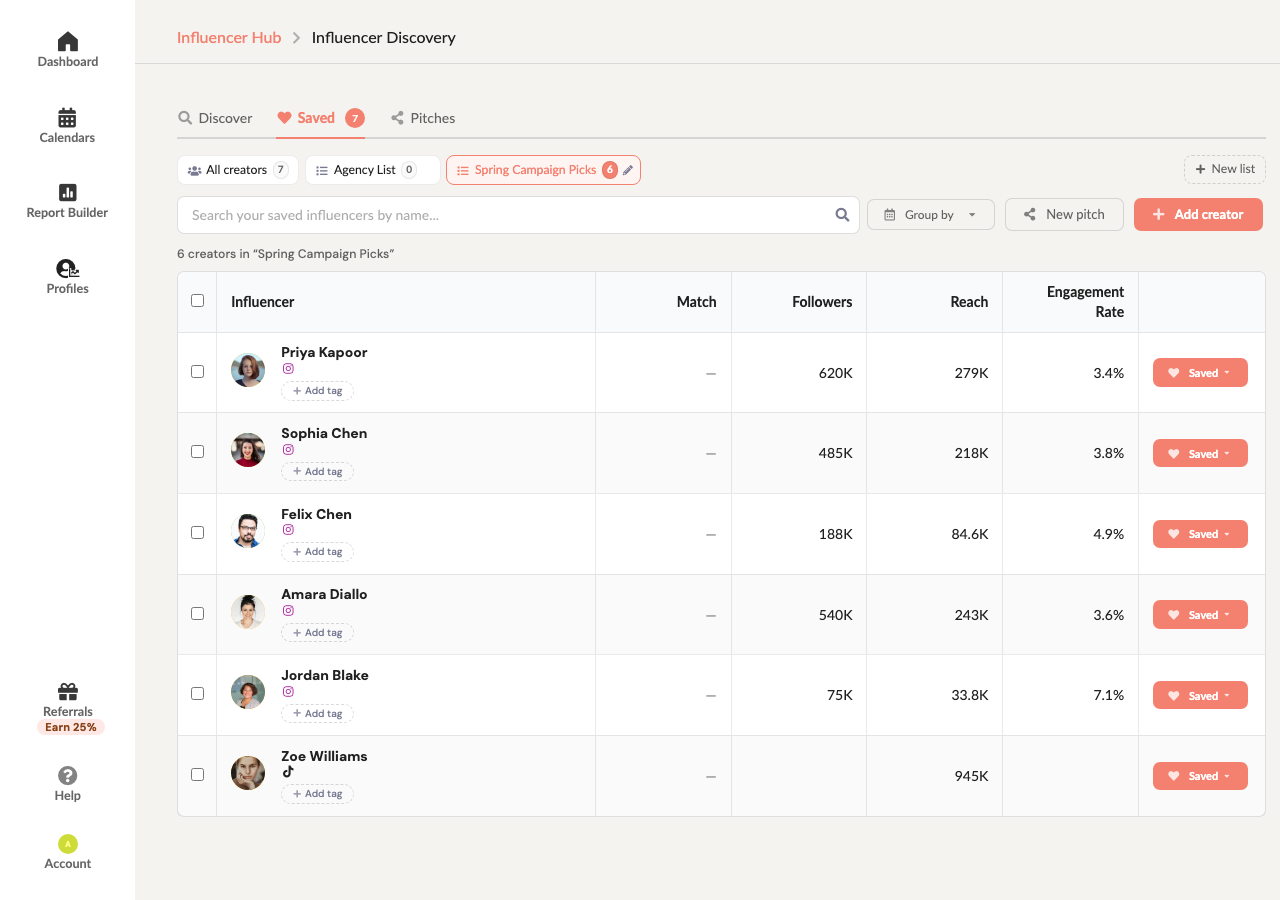
Creating a list
Click New list in the row (it reads Create a list until you have one). You’ll be asked for:
- List Name - what you’ll recognize it by, e.g. “Spring 2026 Shortlist”.
- Icon - search by keyword (heart, plane, palette) and pick one. It shows next to the list name everywhere.
- Description - optional notes for yourself.
Editing or deleting a list
Hover a list and click the pencil, or open the list and use the ⋯ menu. You can change the name, icon, and description at any time.
Delete List removes the list only. The creators in it stay on your Saved tab.
Adding creators to a list
Four ways, all landing in the same place:
- From Discovery - click Save on a creator and pick a list from the popover.
- From Saved - select creators with the checkboxes, then use Add to list in the toolbar that appears.
- From a campaign - open a creator’s page inside a campaign and use the Saved list panel in the sidebar.
- Automatically - creators join your Saved tab the moment they accept an assignment invite, ready to be filed into a list.
Asking Kit
Kit can do all of this for you. On a Discovery search, ask Kit to “save these to a list” and it saves the creators shown on your screen. You can also ask it to save a creator by handle, start a new list, rename or delete one, or take creators off a list.
When a change covers 5 or more creators, or deletes a list with 5 or more creators on it, Kit shows you who and which list first and makes the change only after you click Yes, go ahead.
The same actions work from Claude and other AI assistants connected to your account. See Using InfluenceKit with AI assistants.
Working with a list
Open a list and tick the checkboxes to select creators, then use the toolbar to Tag them or Add them to another list. Remove from Saved takes them out of every list, not just the one you’re viewing — to drop a creator from a single list without touching the rest of their Saved status, open their Save popover on the roster and untick that list.
Pitching a list to a client
Open a list and click New pitch. That creates a shareable, client-facing snapshot of the list, so you can send a shortlist to a client without giving them access to your account. Editing the list afterwards doesn’t change a pitch you’ve already sent.
Pitches are available on plans that include Discovery, and to talent managers.