
How to Accept an Assignment From a Sponsor
Brands can streamline their influencer marketing workflow by using Influencer Hub. Content creators keep control over their own data, share all the metrics brands need, and get to see the reports for their own sponsored content.
Here’s a walkthrough of how it works
https://www.youtube.com/embed/JmuQxR9NQK0
How to accept an assignment from a brand
If a brand invites you to participate in an assignment, you’ll receive an assignment signup link that looks like this:
https://www.influencekit.com/2020-acme-products-ambassador-program?assignment_id=1234You may also get an e-mail inviting you to join the assignment, like this:
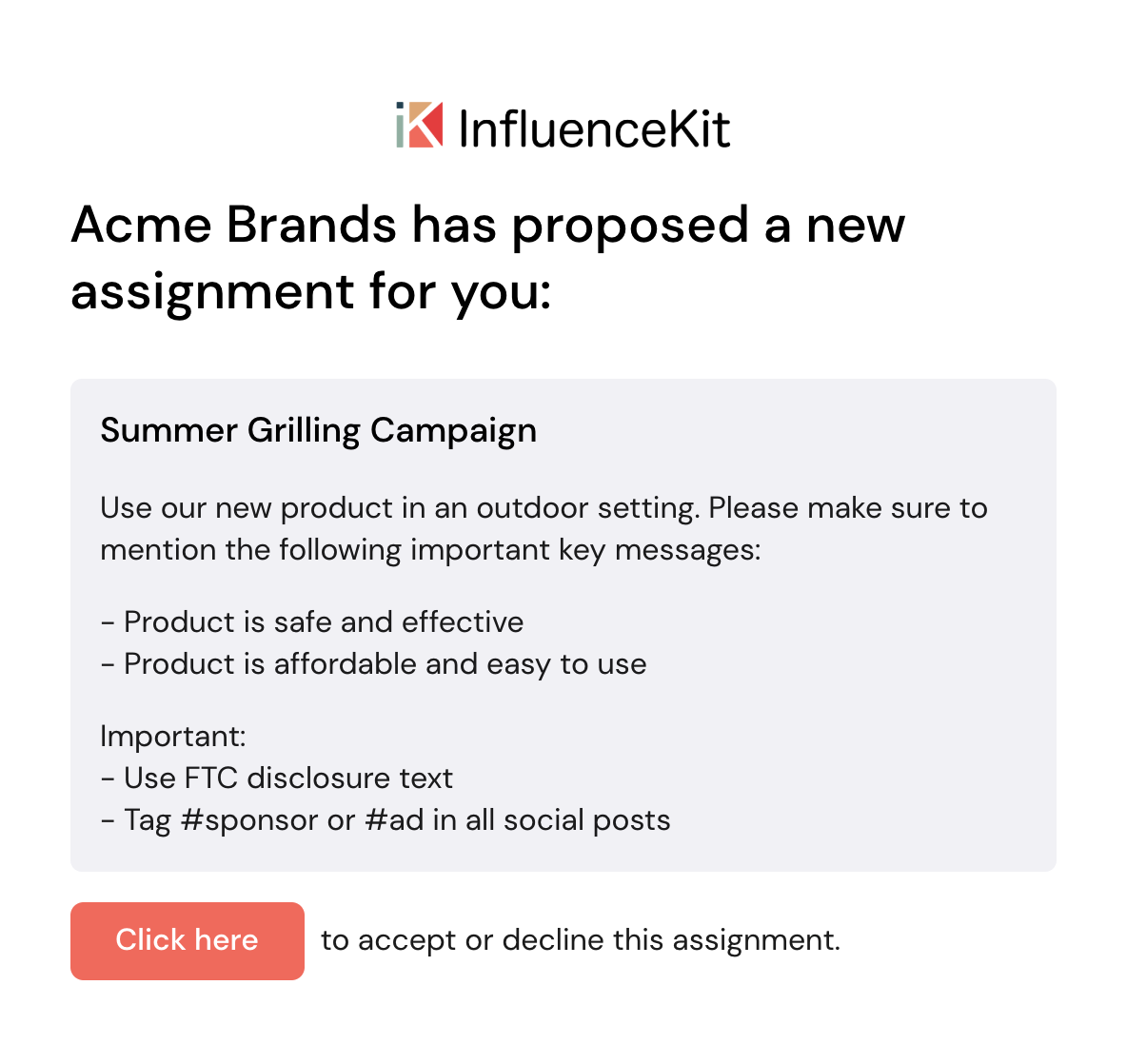
If you click the link, you’ll be asked to create a new InfluenceKit account. Enter the name of your blog/company to get started.
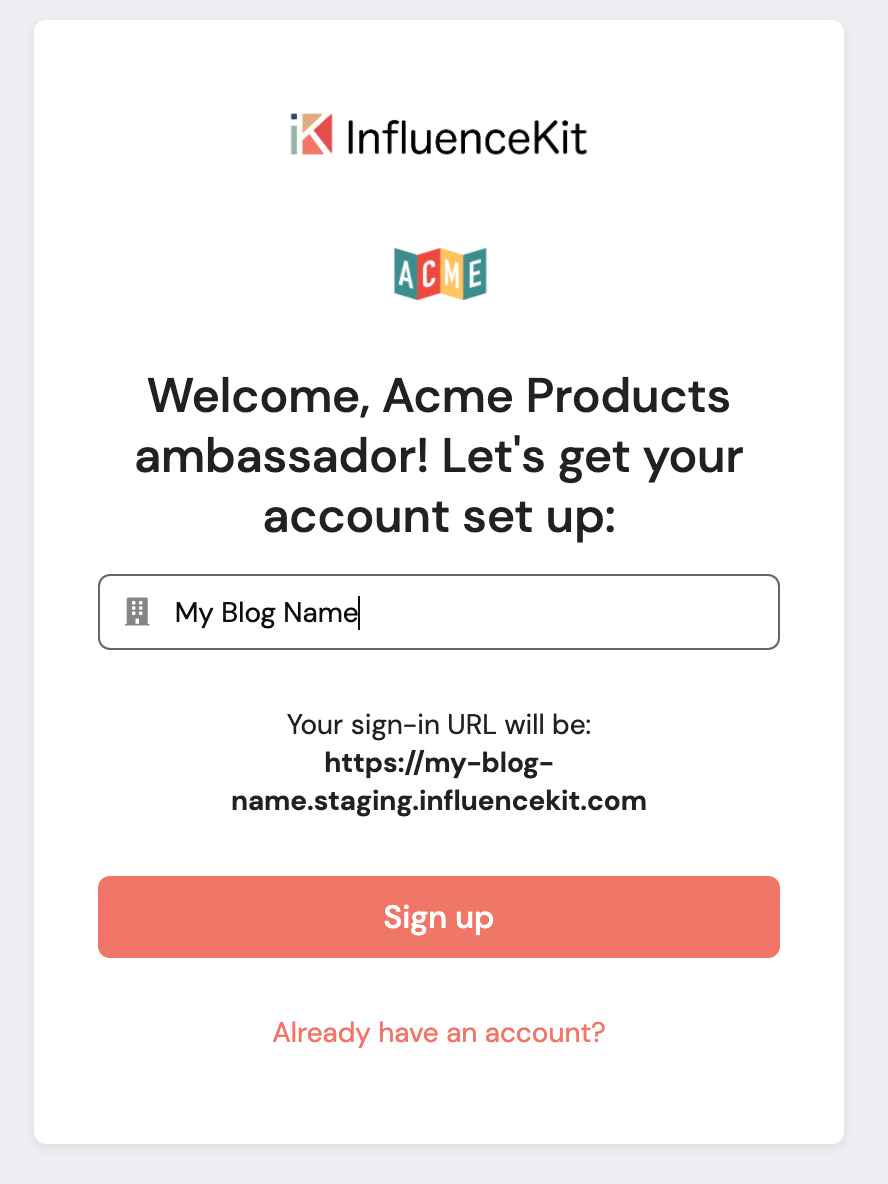
(Note, if you already have an InfluenceKit account, click ‘Already have an account?’ to sign in and view the assignment).
Using Instagram, TikTok or another social account to join? If you’re already logged in to InfluenceKit, the social account is connected to the account you’re logged in to. If you’re not logged in and the social account doesn’t give us an email address (Instagram and TikTok don’t), we’ll ask for your email and send you a 6-digit code — enter the email your InfluenceKit account uses, and the assignment and your social account stay together in that one account.
Then, you’ll be prompted to enter your account user information:
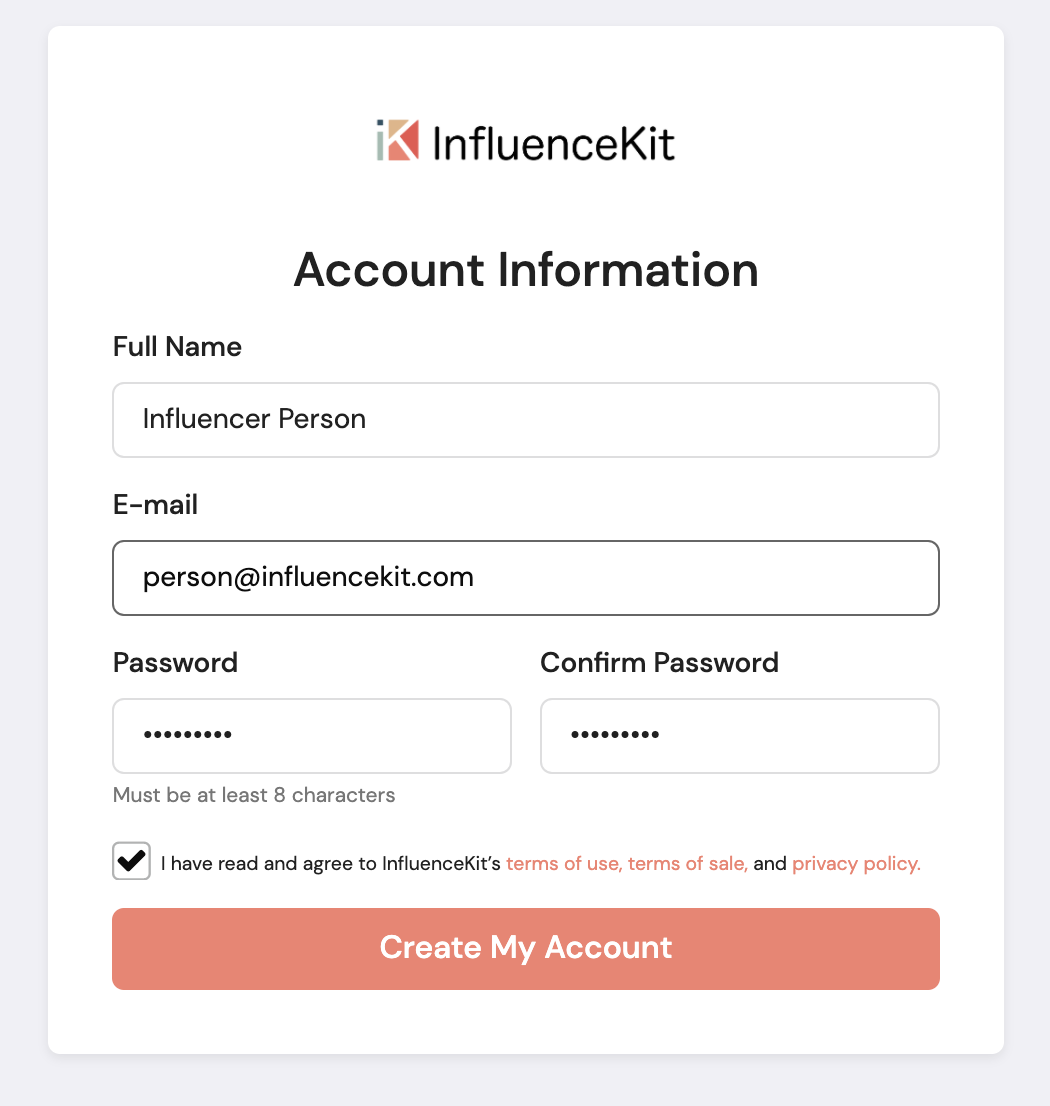
Remember: your InfluenceKit account belongs to YOU, not the brand or sponsor.
This means you remain in control over what content and metrics get shared with the brand. We want to make it easy for you to show your value to the sponsor, help them prove their ROI, while maintaining your privacy.
Next, add your logo:
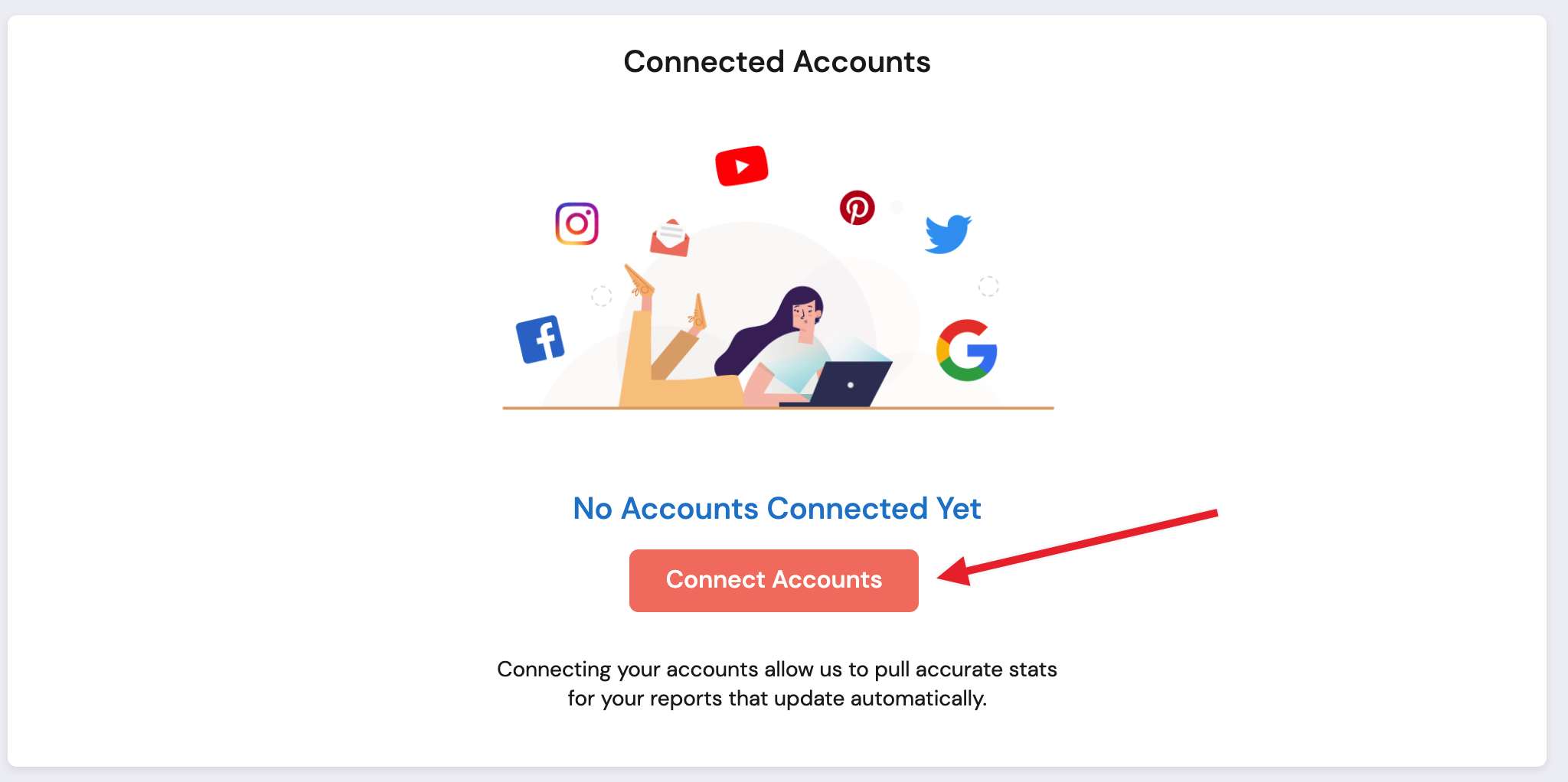
The next step is to connect your social and analytics account. Doing this makes it possible for InfluenceKit to pull metrics to show the performance of the content you create. You will always have control over who sees your reports. InfluenceKit never sells or shares your data.
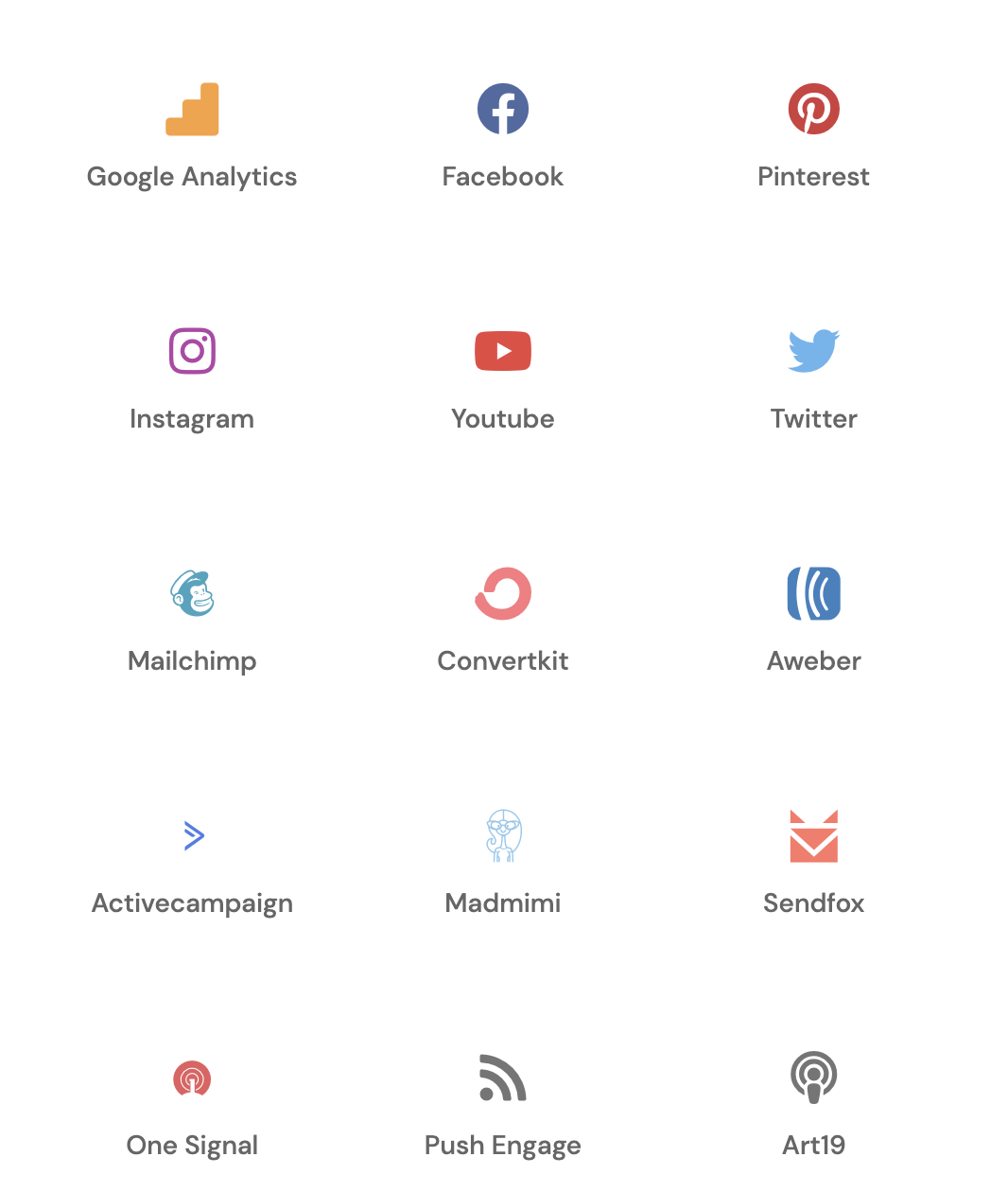
Click the platform you want to connect:
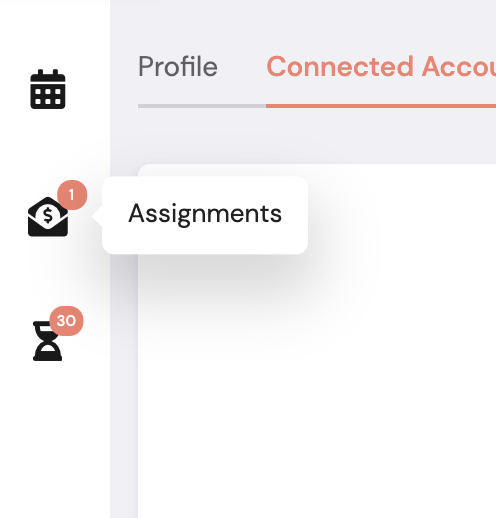
After your accounts are connected, click on the ‘Assignments’ icon in the sidebar navigation menu:
Then you can view all your assignments:

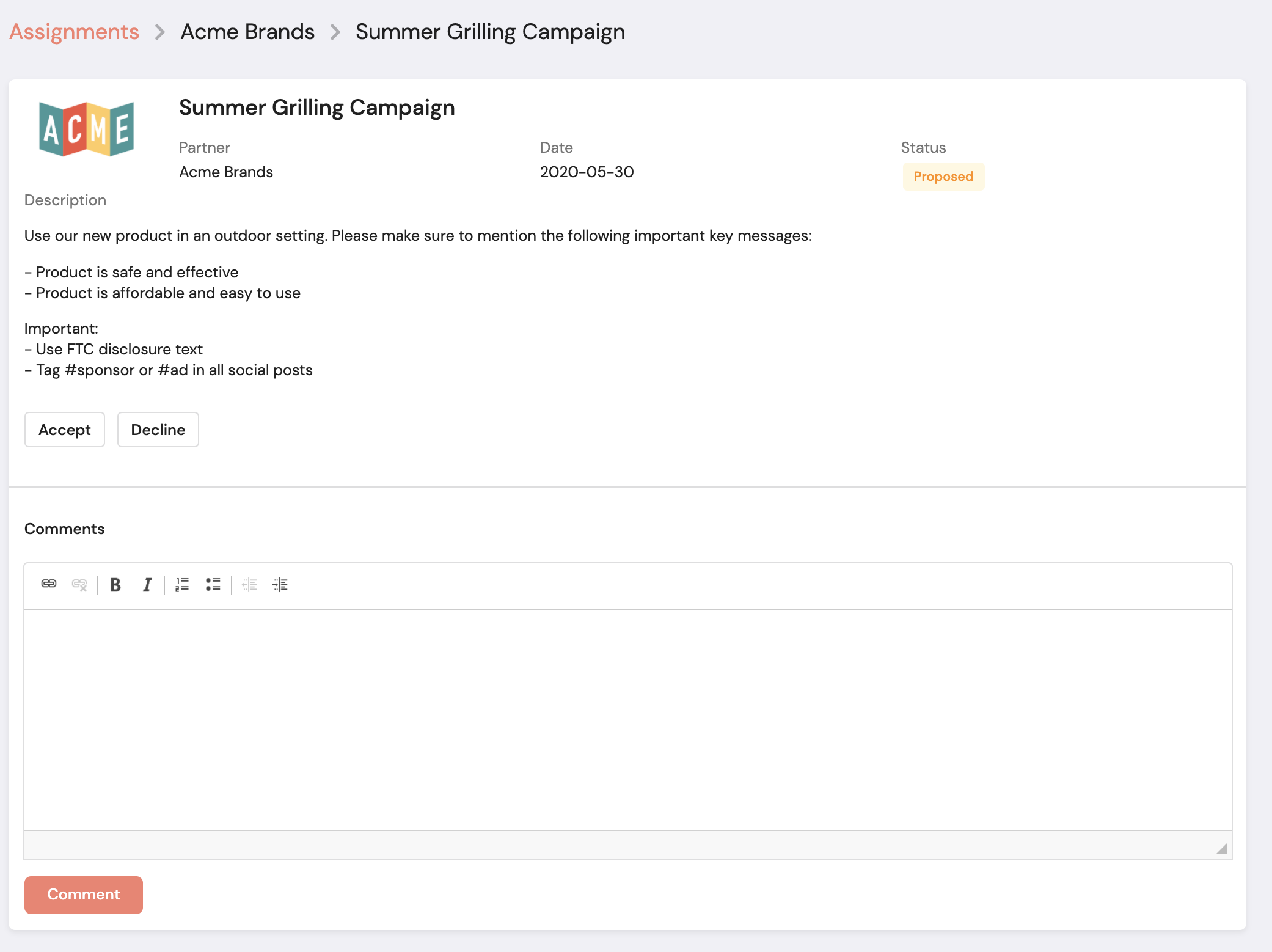
When viewing an assignment, you can accept, decline, or leave a comment for the brand/sponsor:
Getting Kit to draft your reply
Not sure how to answer? Open Kit from the assignment page and ask it to help you reply, for example “help me accept this and ask about the timeline” or “draft a reply countering at my Reel rate”. Kit reads the brand’s message, the rate they offered, the checklist and your conversation so far, along with the rates and availability on your Work With Me page. It writes a draft and gives you a link that opens the assignment with the draft already in the comment box.
Kit never sends anything for you. Edit the draft, click Comment to send it, and click Accept & Get Started or No thanks, I’m not interested yourself.
Next: learn how to add deliverables to an accepted assignment.