
How Do Report Logos Work?
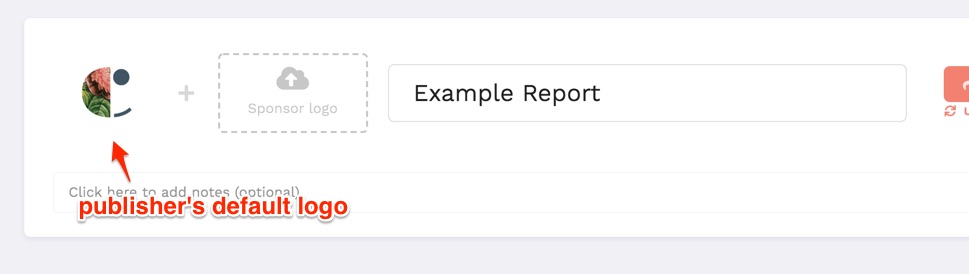
When you create an InfluenceKit report, we’ll automatically add your account logo, if you have one set (from your account settings).
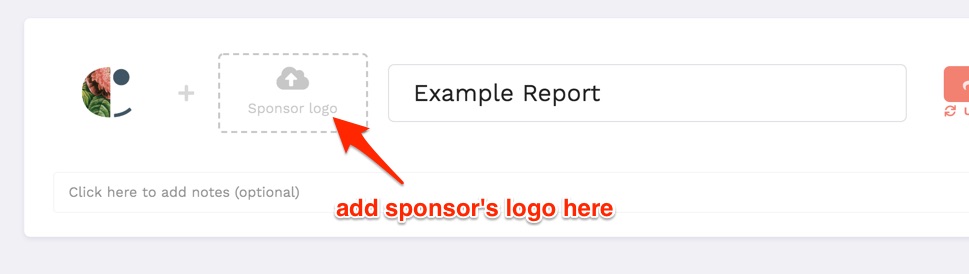
You can also add the sponsor (or brand, or agency) logo:
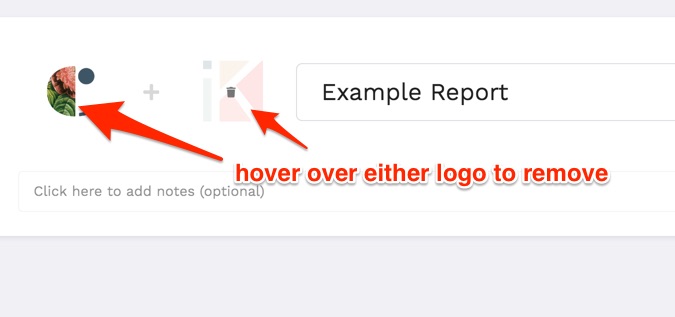
You can remove and replace either logo:
If you remove the default publisher logo and replace it with a different one, the new logo will be shown on the shared report page (not the default logo).
Finding a brand’s logo by name
When you’re editing a report, there’s a Brand name search box under the sponsor logo spot. Start typing and you’ll see up to six matching brands that are already in your account, with their logos. Pick one and the report gets that brand’s name and logo.
If the brand isn’t in your account yet, keep typing. Below the matches you’ll see Not listed? Company domain: with a guess at the brand’s website (for “Acme” it suggests acme.com). Fix the domain if the guess is wrong, and we’ll use the logo for that website.
Changes are saved automatically. To take the logo off, hover over it and click the trash icon. You can still upload your own logo file instead.