
Your Profiles page
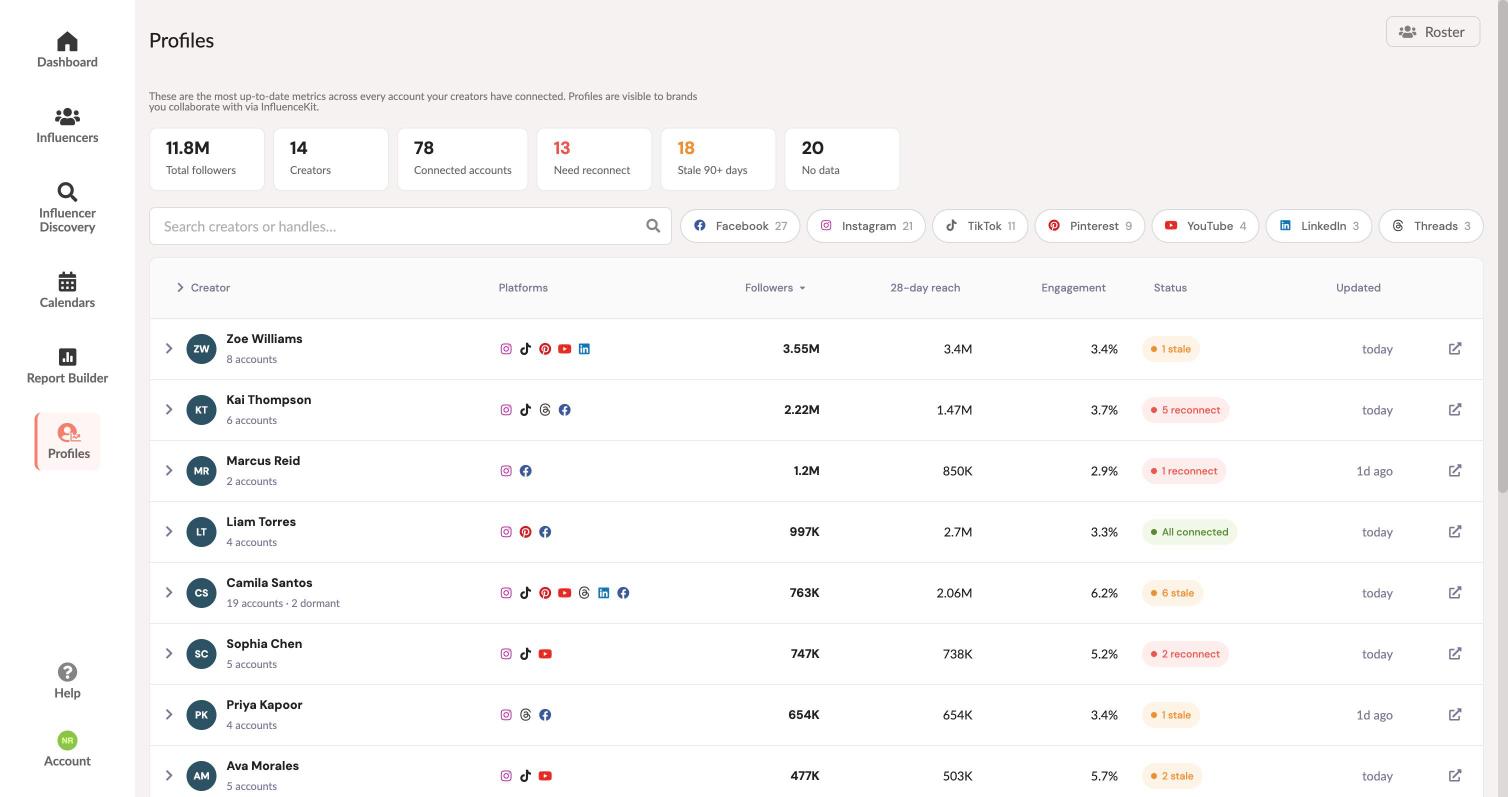
Profiles shows the live numbers for every social account connected to your InfluenceKit account — followers, 28-day reach and engagement rate, straight from each platform.
If you manage several creators, it’s one row per creator rather than one card per account, so a roster of twenty fits on a single screen. Click a creator to open their accounts underneath.
The numbers along the top
The row of figures above the table describes your whole roster, and the last three are also filters — click one to see just those accounts.
- Total followers — every connected account added together.
- Creators and Connected accounts — how many people, and how many accounts between them.
- Need reconnect — accounts whose connection to the platform has expired. These have stopped reporting, so any report built from them is showing old numbers.
- Stale 90+ days — connected, but nothing new has come back in three months.
- No data — connected, but the platform hasn’t returned any figures yet.
Fixing accounts that stopped reporting
Platforms expire their connections periodically, and when that happens the account quietly stops sending us data — the old numbers stay on screen, so it isn’t obvious.
Click Need reconnect to see exactly which accounts are affected and who they belong to.
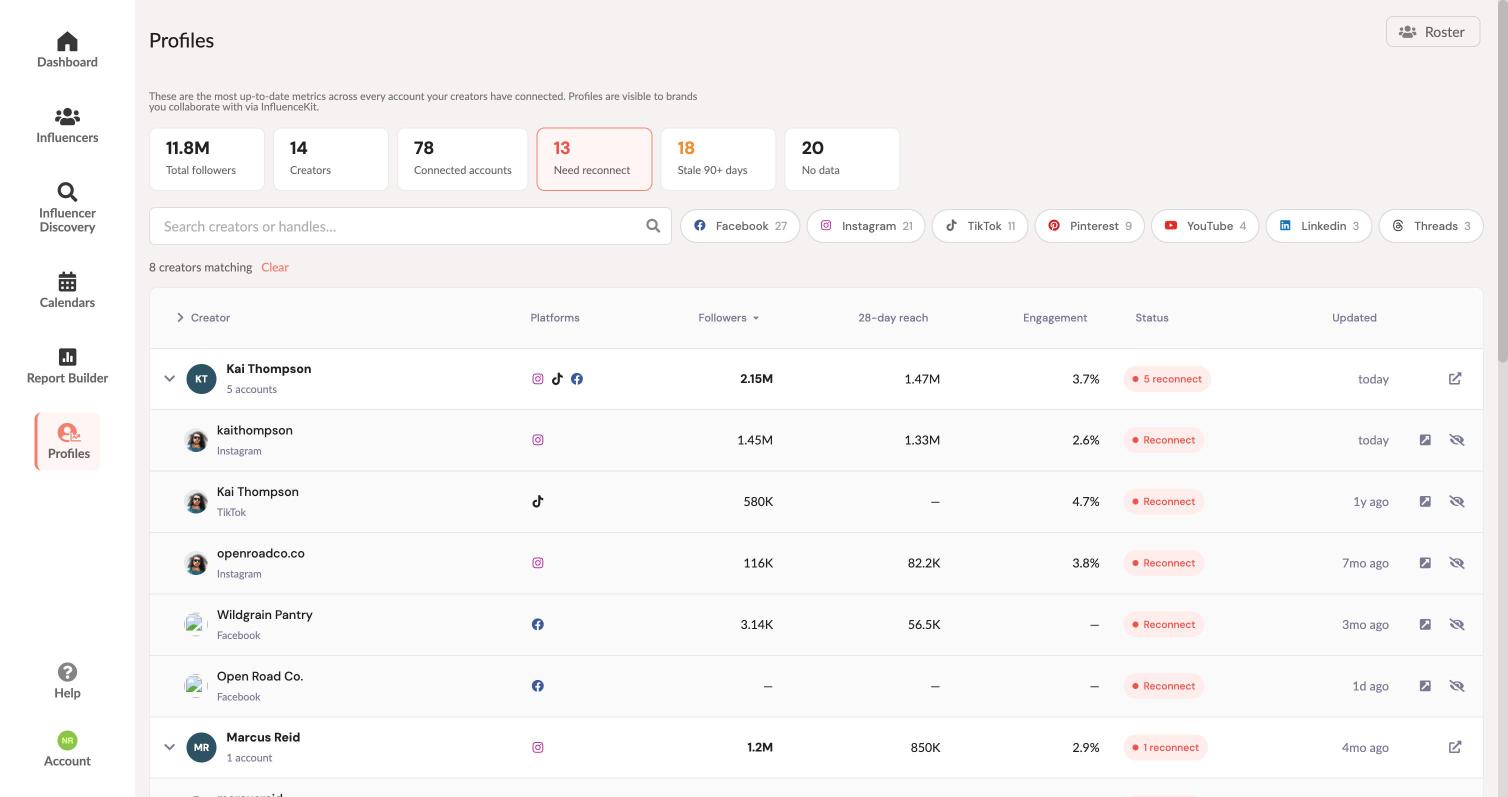
To fix one, the creator who owns the account reconnects it from Connected Accounts in their settings — see Connecting Your Accounts. Reconnecting doesn’t lose any history; the account starts reporting again from where it left off.
Finding a creator or an account
- Search — start typing a creator’s name or a handle. Searching a person’s name keeps all of their accounts; searching a handle narrows to that account.
- Platform — click Instagram, TikTok, Facebook and so on to see only those accounts.
- Sort — click any column heading: Followers, 28-day reach, Engagement, Status, or Updated. Updated puts the creators you’ve heard least from at the top.
- Expand or collapse everything — the chevron next to the Creator heading opens or closes every creator at once.
One creator’s accounts
Click the arrow at the end of a creator’s row to open a page for just that person, with the same figures and filters.
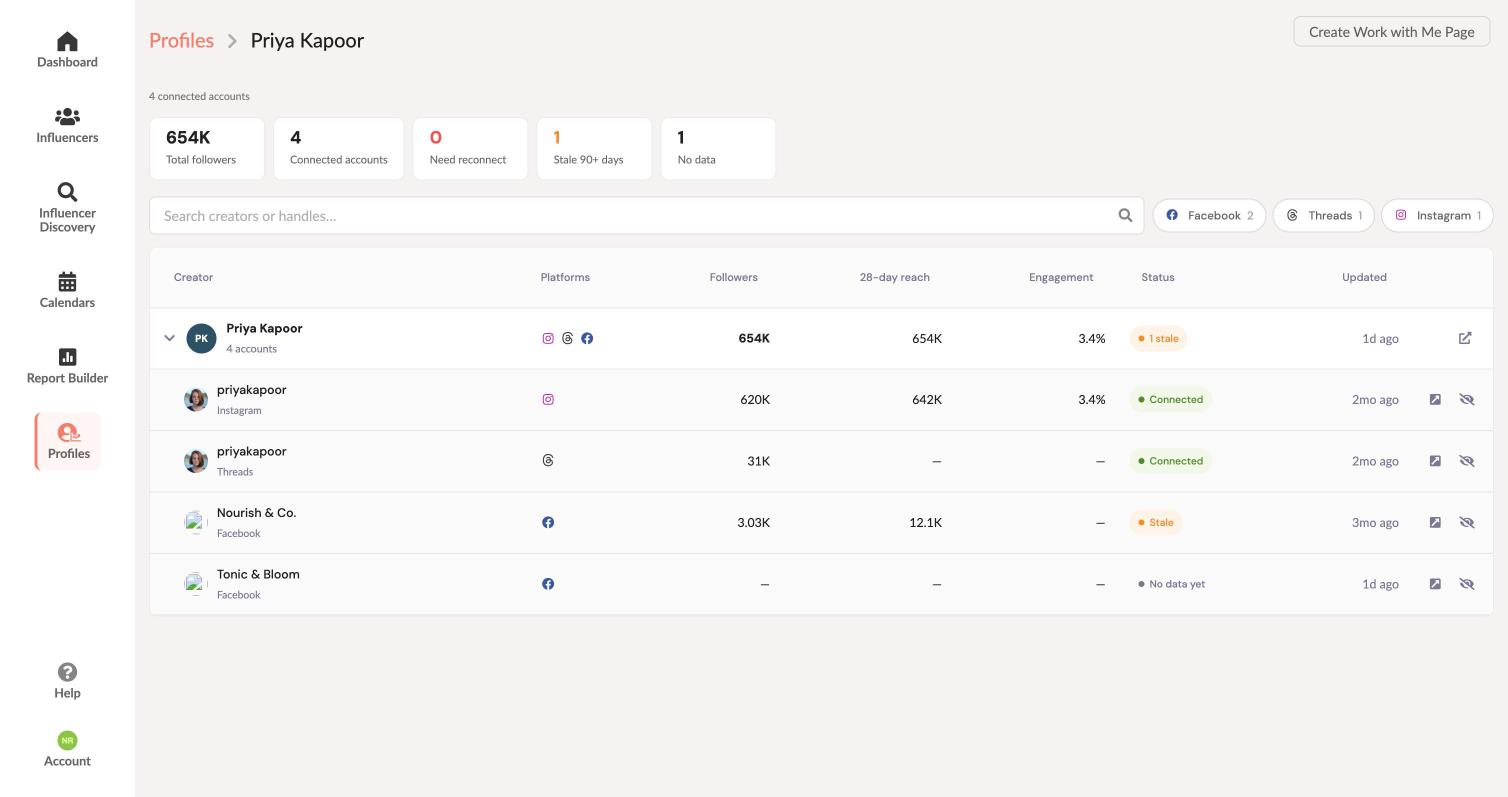
Click any account name to open its full detail page, including audience demographics — age, gender and top locations — where the platform provides them.
Channel insights
An account’s detail page also has a Channel insights section. It works for Instagram, TikTok, YouTube, Facebook, Threads, Pinterest, LinkedIn, X and Google Analytics.
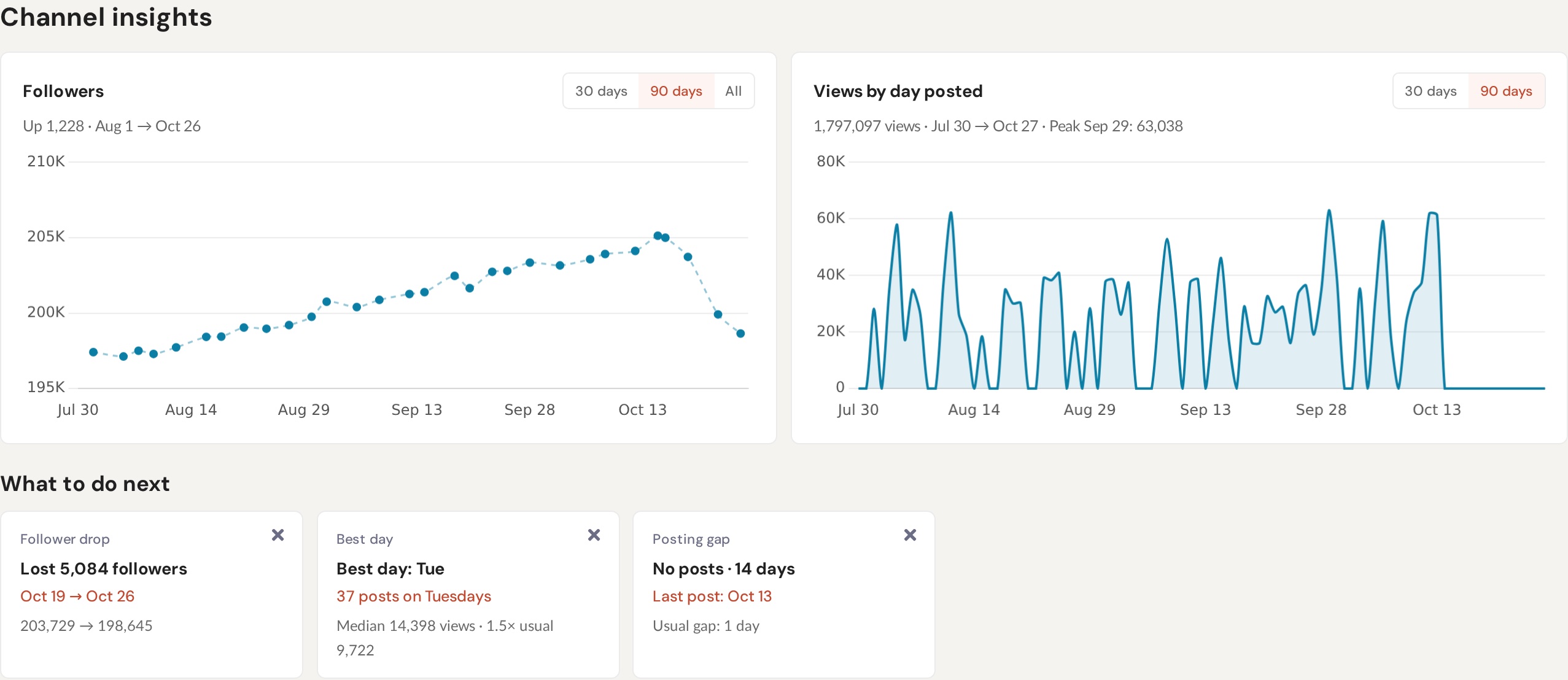
- Followers — the follower count over time, from a daily reading. Switch between 30 days, 90 days and all time. Google Analytics and X don’t report a follower count we can chart, so their accounts show views only.
- Views by day posted — the views on everything posted that day, for the last 30 or 90 days.
Below the charts, What to do next points out:
- Outlier — a post that got several times the account’s usual views.
- Posting gap — a longer break from posting than usual.
- Best day — the weekday its posts do best.
- Follower drop — followers lost over the last week or so.
Click the × on a suggestion to dismiss it. Dismissed lists what you’ve hidden, and you can restore any of it.
Channel insights stay inside your account: brands you collaborate with don’t see them. If you manage several creators, each creator sees insights for their own accounts only, and admins see everyone’s.
Channels: all your social accounts together
The Channels tab at the top of Profiles puts your social accounts side by side, so you can see how each one is doing on one screen.
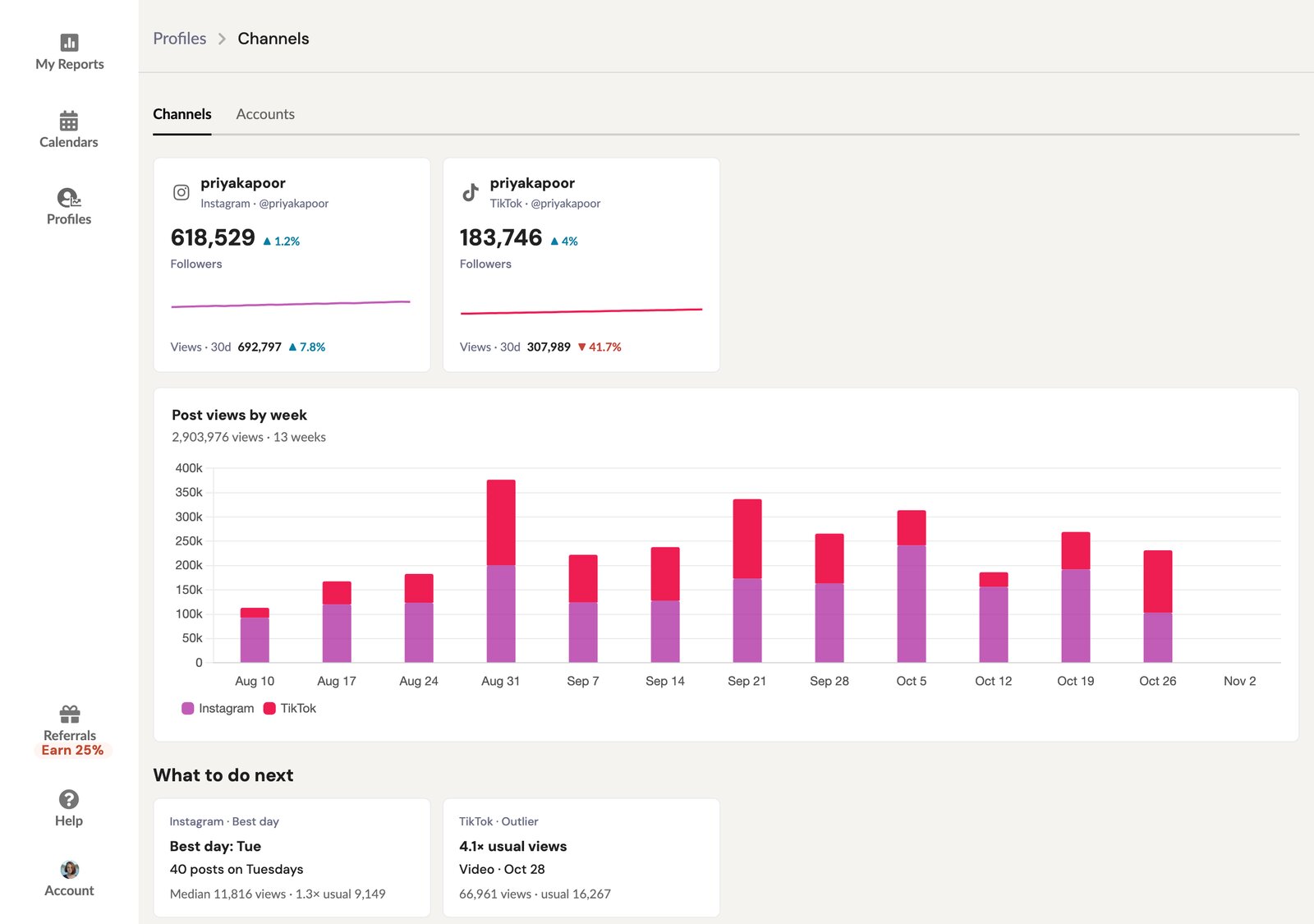
- A card for each channel. Each card shows followers, how much they’ve changed over the last 30 days, and views of what you posted in that time. Click a card to open its full page.
- Post views by week covers the last 13 weeks. Views are grouped by the week each post went up, with one colour per platform.
- What to do next lists up to five suggestions across all your channels, such as the day of the week your posts do best. A post shows up once, even when there’s more than one thing to fix on it.
On a brand account, open Channels from the side menu. It appears once your brand has connected a social account of its own.
You can also ask Kit how your channels are doing.
If you manage creators
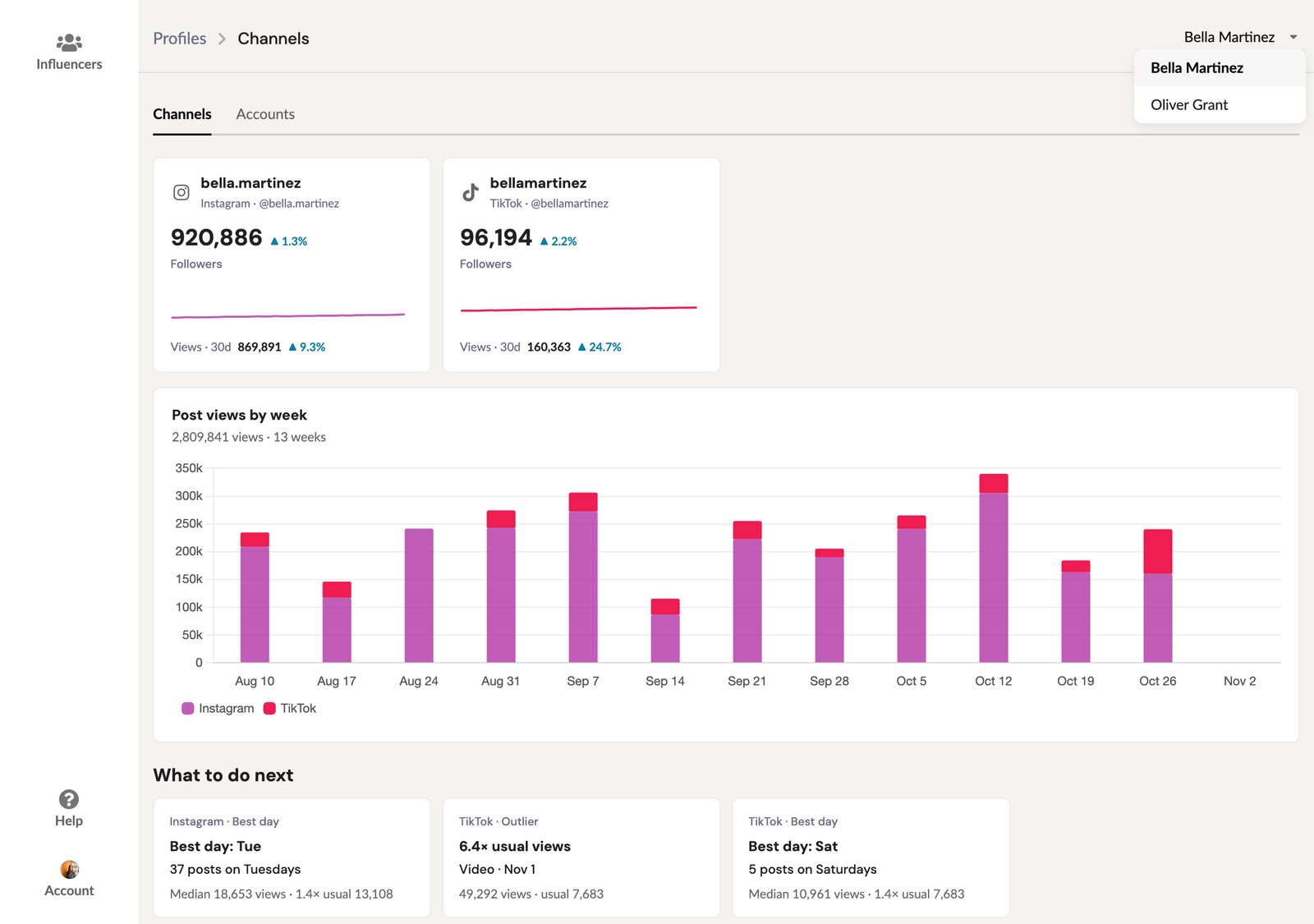
Channels shows one creator at a time. Pick who you’re looking at from the menu in the top right corner. Creators on your roster who sign in see only their own channels, never another creator’s.
Hiding an account you don’t need
Some platforms hand you more than you asked for. Connecting Facebook, for example, gives InfluenceKit every Page that person administers — which can include a client’s Page or one they set up years ago and forgot.
Every account is listed, however quiet it is. To take one off the list, click the eye icon at the end of its row. Hiding never deletes anything — Show hidden at the top of the page brings those accounts back, and you can unhide any of them individually.
Who can see this
Everyone on your account sees their own connected accounts. Admins see the whole roster. Hidden accounts aren’t shared with brands you collaborate with through InfluenceKit; everything else on this page is. Channels is never shared: only your own team can open it, and on a talent manager account each creator sees only their own.