

Kanban View
We think the best way to organize an editorial calendar is, well, a calendar. That’s why the default view for campaigns on InfluenceKit is calendar-based. But sometimes, it’s better to get a high-level view of what’s coming up, what’s being worked on, and what’s done.
For that, the Kanban (/ˈkänbän/) view is really helpful. It organizes your campaigns in columns based on their status (proposed, approved, working, completed, rejected). This simple workflow works for most content creators — it’s a great system for tracking your work and moving it through the process until it’s done.
https://www.loom.com/embed/a6cf0f358514415bbaa721e7099ea673
How to use Kanban view
To access Kanban view, just click on this icon:

Here’s what the Kanban view looks like:
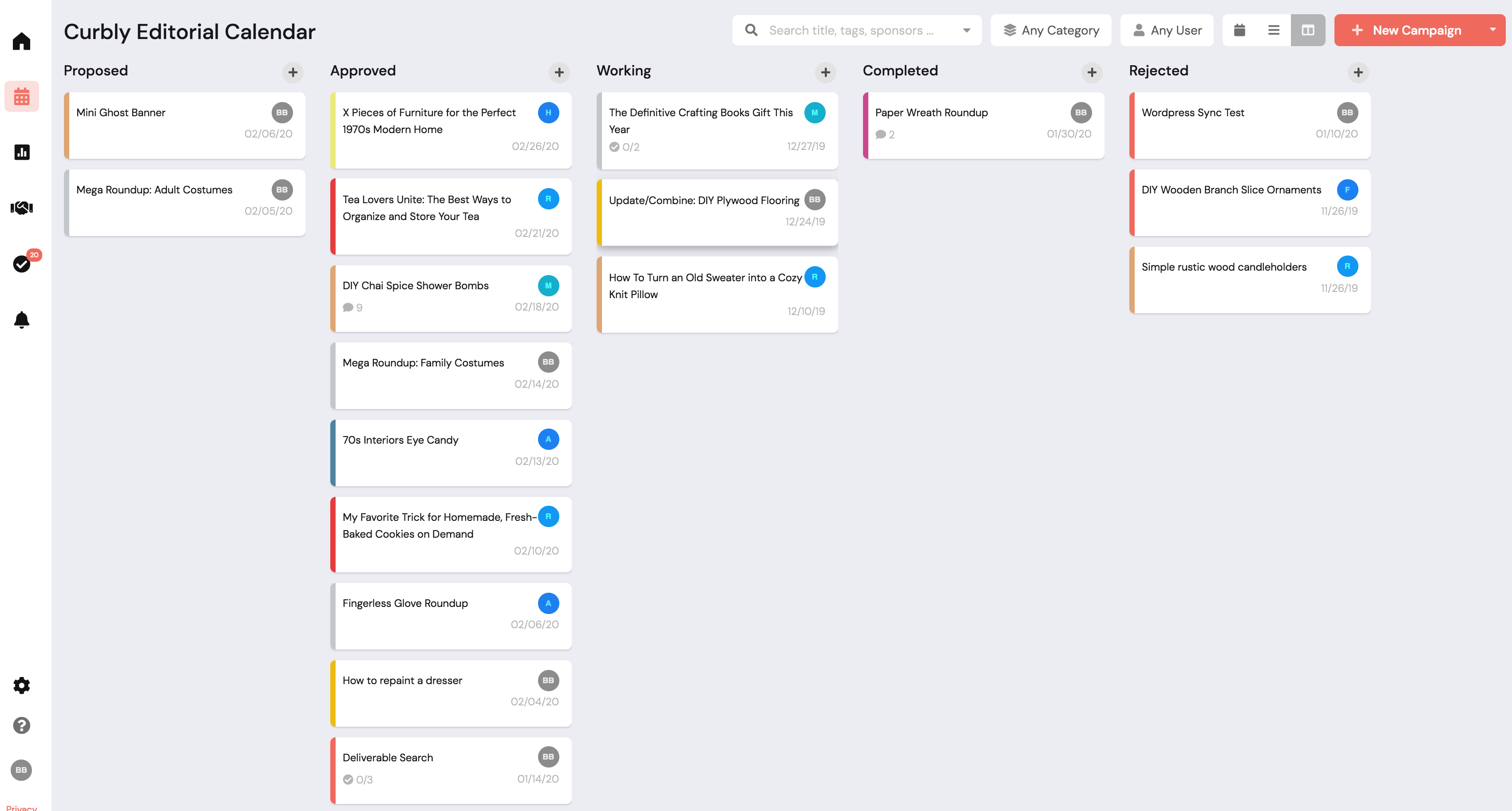
You can drag and drop campaigns between columns (this will change their status to whatever column you drop them in).
You can also add new campaigns by clicking the ‘+’ icon:

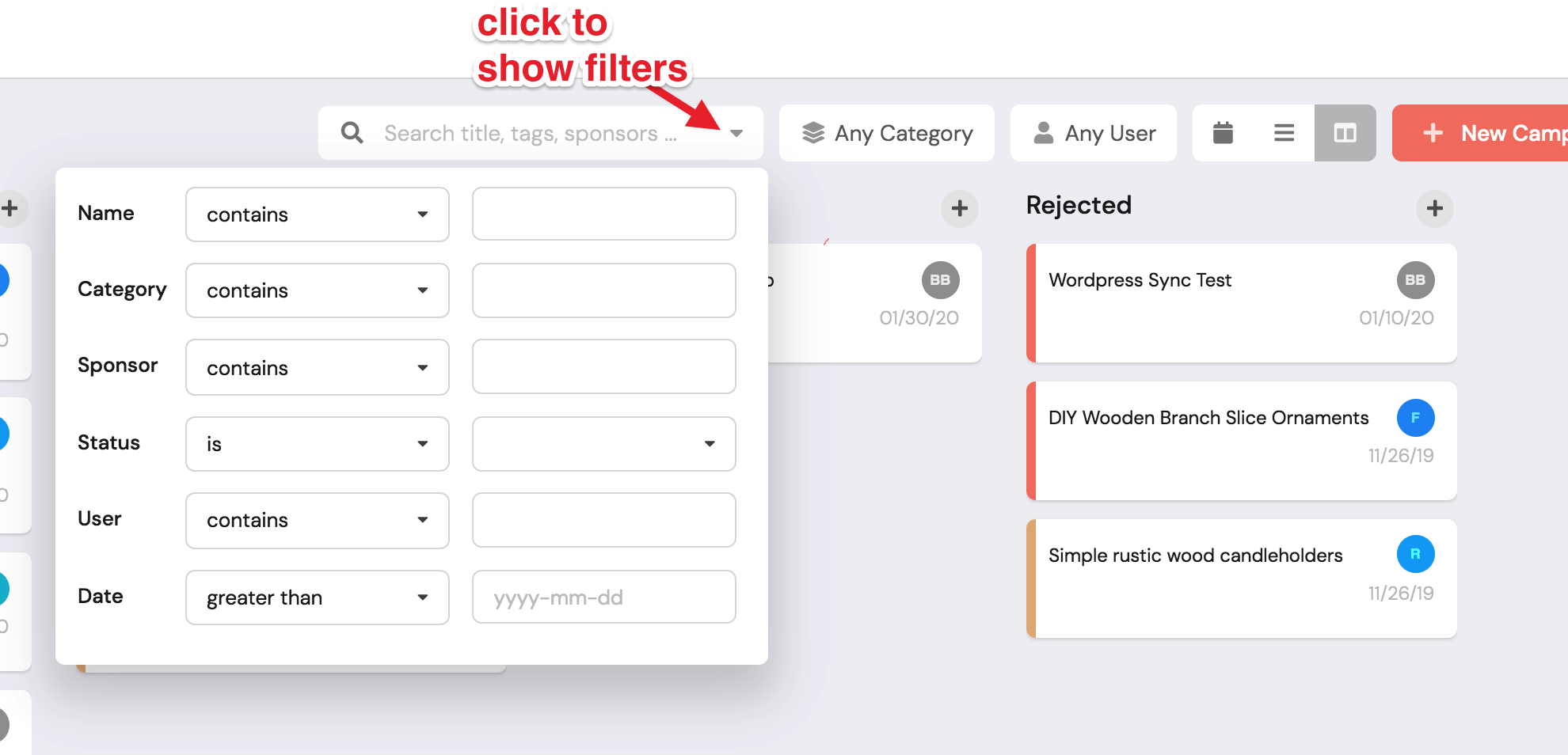
All of the filters in the header menu can be used in this view as well:
InfluenceKit will default to the last view you selected (so if you switch to Kanban view, the next time you open your calendar, it will show you the same view).