
Find Brands: opportunities from brands looking for creators
Brands, agencies and tourism boards often post in public when they want to work with creators. They might offer a paid campaign, free product, a hosted trip, UGC work or an affiliate program. We gather those posts into the Opportunities tab in Find Brands.
Every opportunity comes from a public post. We never contact the brand for you. When you find one you like, reply on the original post the way it asks you to.
Browse opportunities
Open Find Brands in the sidebar and click Opportunities. The newest opportunities are at the top.
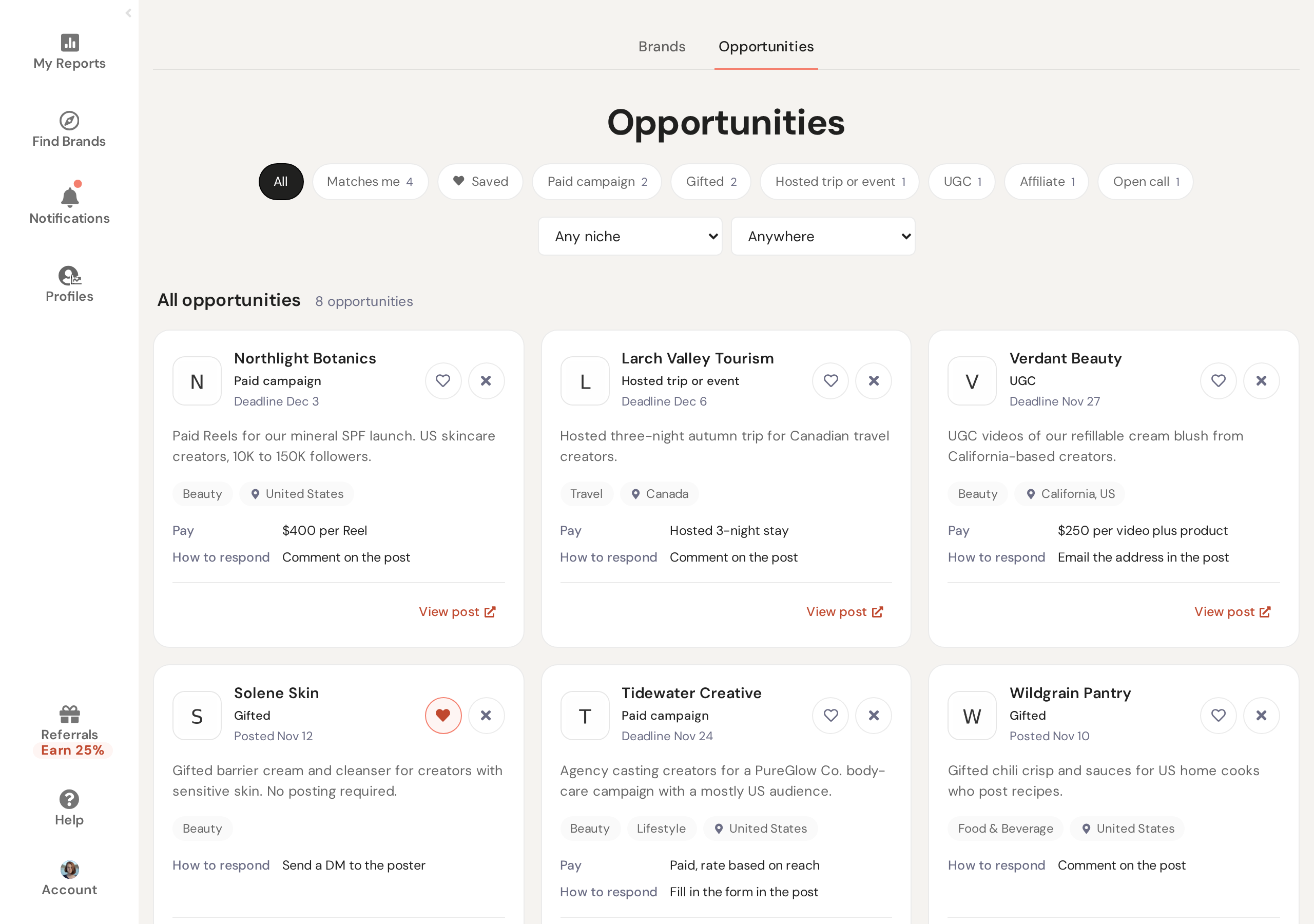
Use the chips at the top to filter the list:
- All: every open opportunity
- Matches me: the opportunities that fit your accounts (see below), with a count. You’ll see this chip once at least one opportunity matches you.
- Saved: the ones you’ve saved. You’ll see this chip once you’ve saved something.
- a type, with a count: Paid campaign, Gifted, Hosted trip or event, UGC, Affiliate, Talent managers or Open call. You only see the types that are in the list right now.
Pick a niche from Any niche or a place from Anywhere to narrow the list. Click Clear to remove your filters.
An opportunity is removed from the list when its deadline passes. If the post has no deadline, it’s removed 30 days after it was posted.
What’s on a card
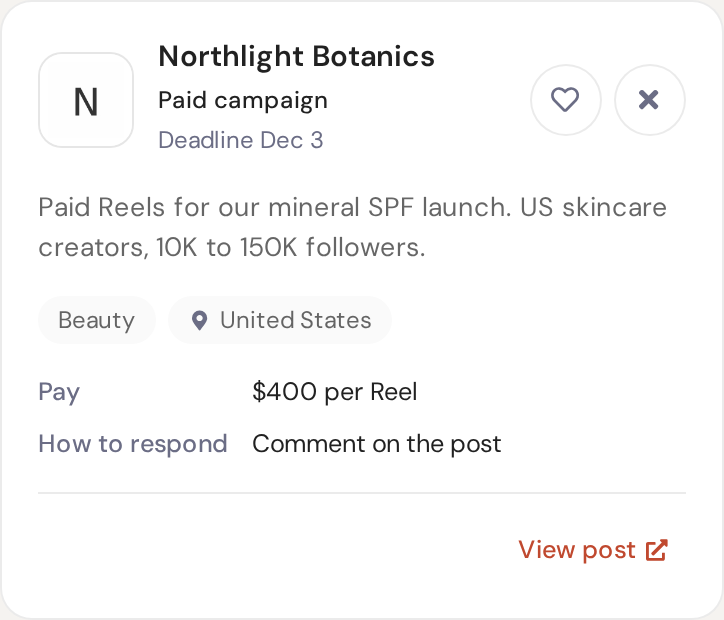
On each card you’ll find:
- who posted it, and the type of opportunity
- the deadline, or the date it was posted if there’s no deadline
- a short summary
- the niches and locations it’s looking for
- Pay, if the post says what it pays
- How to respond, such as “Comment on the post” or “Email the address in the post”
- For and a brand name, when an agency posted it for one of its clients
- View post, to open the original post
If the organization has a page in Find Brands, click its name to open that page.
Opportunities that match you
Click Matches me to see the opportunities that fit your connected accounts. We use what we already know about your accounts. There’s nothing to fill in.
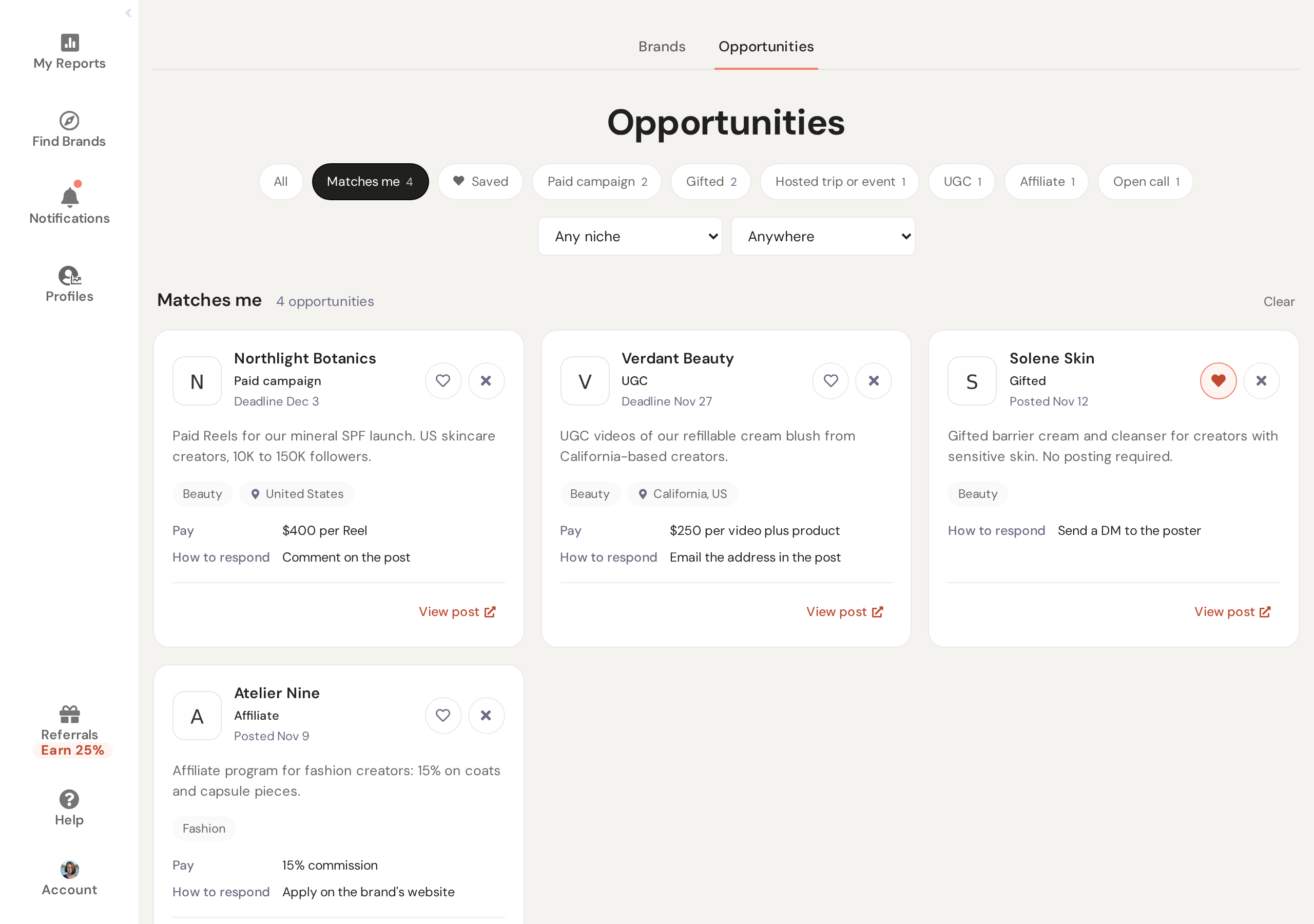
An opportunity matches you when both of these are true:
- Niche: the opportunity’s niche is your account’s category, or close to it. If the opportunity doesn’t name a niche, this check is skipped.
- Location: if the opportunity wants creators in a certain place, you’re based there. For a hosted trip, or a call about a destination, a place you’ve posted from counts too. If the opportunity wants an audience in a certain country, enough of your followers live there. Either one counts. If the opportunity doesn’t name a place, this check is skipped.
An opportunity that names neither a niche nor a place isn’t matched to anyone. You’ll still find it under All. Your matches are listed newest first, like the rest of the tab.
For talent managers
If you’re a talent manager, we match opportunities against the creators on your roster.
Some posts are calls for talent managers. They’re listed under the Talent managers type. Only a talent manager’s own staff sees these calls. The creators you manage don’t see them.
Save or dismiss
Click the heart on a card to save it, and click it again to remove it from your saved list. Saved opportunities belong to your account, so everyone on your team sees the same saved list.
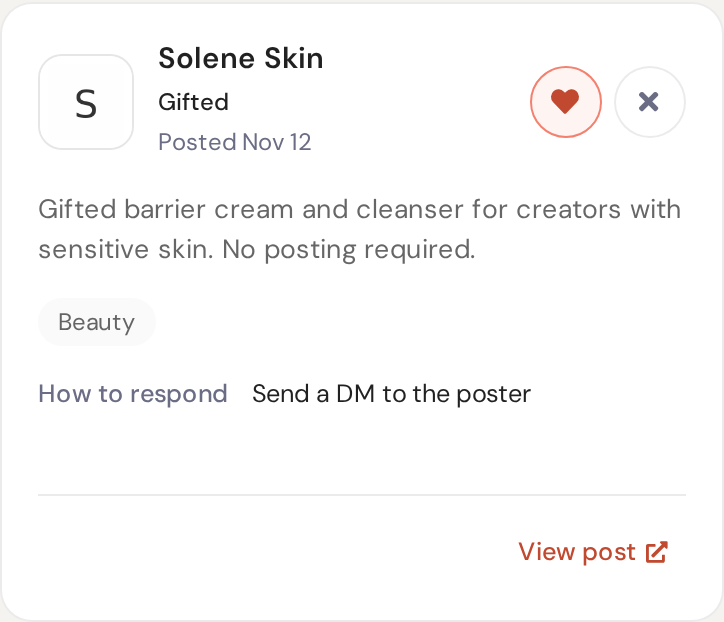
Click the × on a card to dismiss it. Dismissed opportunities are removed from the list and from your matches for everyone on your team. There’s no undo.
Alerts and your weekly email
Once a day, we check for new opportunities that match you. For each one, your account admins get a notification in InfluenceKit. If they use the InfluenceKit app, they get a push notification too. On a talent manager account, these go to the admins on your staff. The creators you manage don’t get them. You get alerts for at most three opportunities a day.
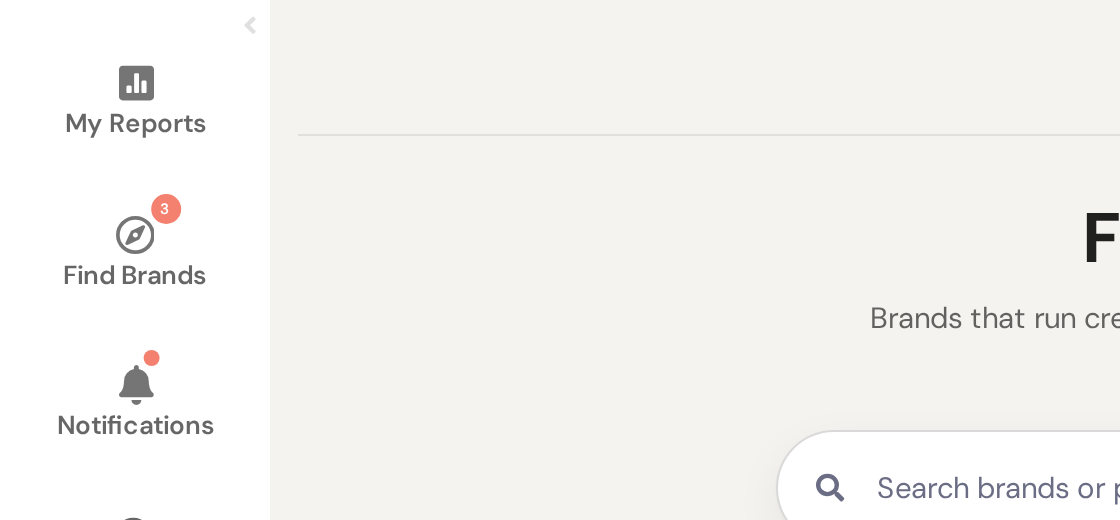
The number next to Find Brands in the sidebar is how many alerts you haven’t seen yet. It’s cleared when you open the Opportunities tab.
In your weekly email you’ll also get up to five opportunities that matched you that week, under Opportunities for you, with a See your matches link. If you’ve turned off the weekly email, you won’t get this list either.
Use opportunities in Claude
If you’ve connected Claude or another AI assistant to InfluenceKit, you can ask it about your opportunities too. To connect one, see Using InfluenceKit with AI Assistants (MCP).
Your assistant sees the same opportunities you see on the tab. You can ask it for your matches or your saved ones, or for opportunities of a certain type, niche or location. It can also save an opportunity, take it off your saved list or dismiss it, just like the buttons on a card. For example:
- “Any paid campaigns for food creators in Minnesota this week?”
- “Which opportunities match me, and how do I respond to each?”
- “Save the Fernhollow Creamery one.”
- “Dismiss the gaming opportunities, they’re not for me.”
A dismiss from your assistant works like one on the tab: the opportunity is gone for everyone on your team, and there’s no undo. Your assistant never replies to a post for you. To respond, reply on the original post.