
AI Search: see how AI assistants describe your brand
When people ask an AI assistant where to travel or what to buy, AI Search lets you see whether the answer mentions your brand, how often it names your competitors, and which websites it cites.
It’s already set up for you
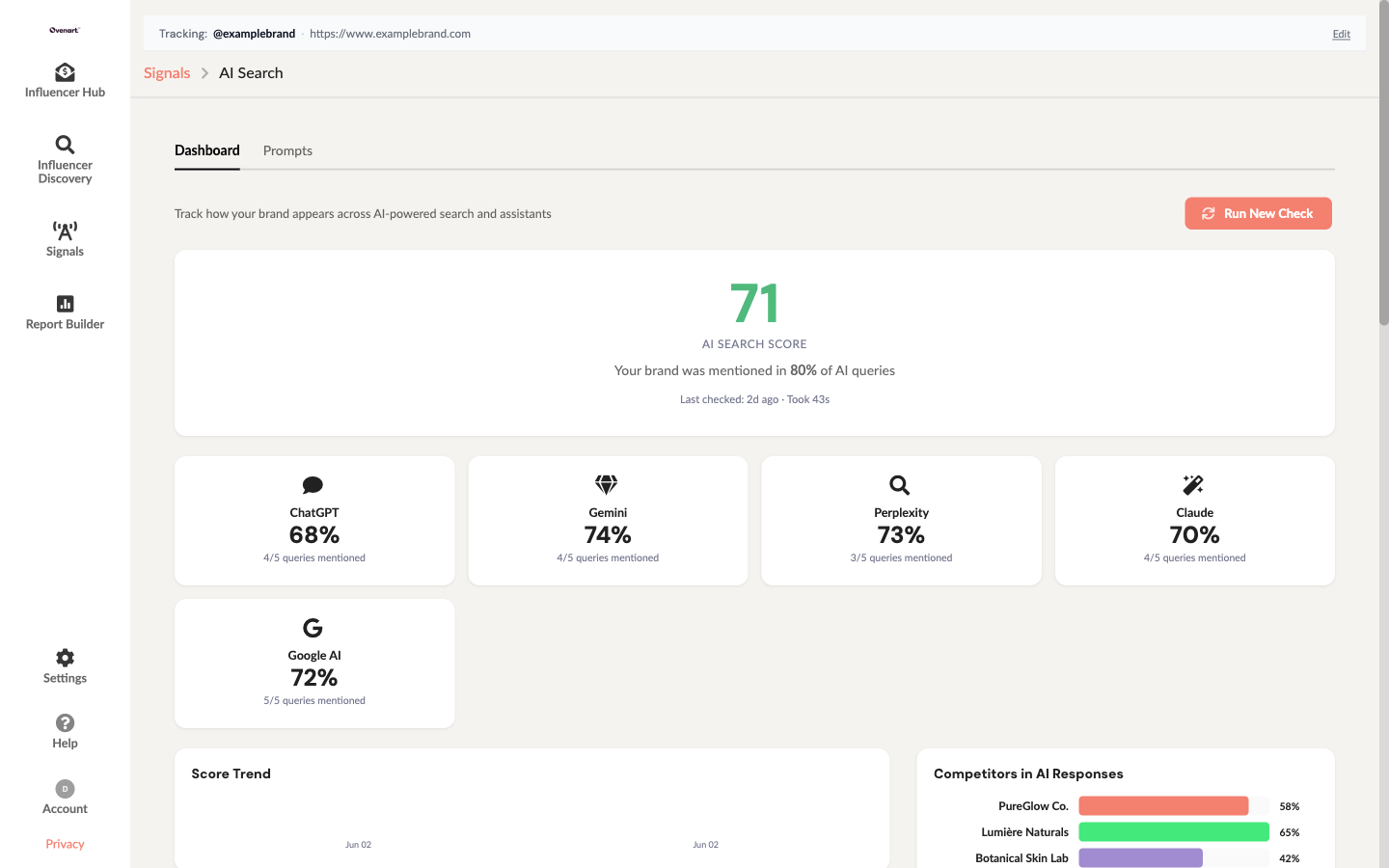
When your brand profile is created, we write a starting set of questions based on your brand and category, and find the competitors to compare you with. We then ask those questions of five AI assistants:
- ChatGPT
- Gemini
- Perplexity
- Claude
- Google AI Overviews (labeled Google AI in the app)
For every answer we record whether your brand was named, where it appeared in the answer, and which competitors were named. For assistants that cite sources, we also record the sources.
The competitors we look for are the ones we found from your website plus every competitor on your Signals > Competitors tab, whether you added it yourself or we suggested it. Add a competitor there and the next check counts it.
To see your results, open Signals and go to AI Search. If you’ve never had a check, click Run First Check and the results will appear when it’s done.
Add your own questions
The starting questions are written from your brand profile. The results are more useful when you add the questions your own customers or visitors ask. A destination might add “best fall weekend trips near Fargo”. A skincare brand might add “best moisturizer for dry skin in winter”.
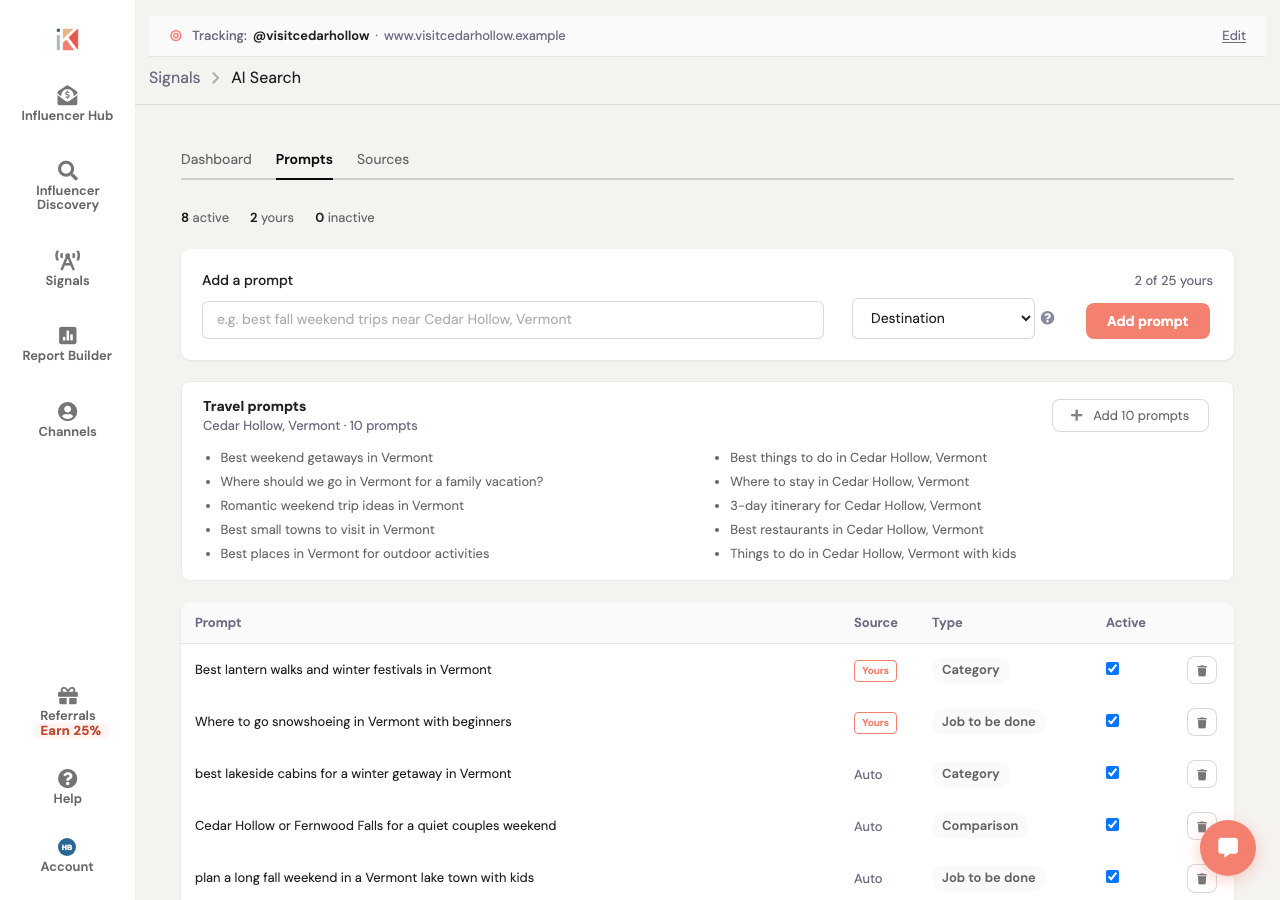
- On the AI Search Dashboard, click Add prompt. You can also open the Prompts tab.
- Type the question in the Add a prompt field. A prompt needs between 10 and 250 characters.
- Pick a type: Category for “best X for Y” questions, Comparison for questions that compare brands, or Reputation for questions about your brand by name. Destinations can also pick Destination for questions about the place itself.
- Click Add prompt.
Your new question is included in the next check. To leave a question out of checks without losing it, switch off its Active toggle. You can also delete a question you no longer want to track.
On the Prompts tab, the questions you added are listed first and marked Yours. The ones we wrote are marked Auto. You can add up to 25 questions of your own, and the count next to the field shows how many you’ve used, for example 12 of 25 yours. Questions you’ve switched off still count. Once you have 25, adding another shows Prompt limit reached (25). Delete one of yours to make room.
You can’t add a question that’s already tracked, even with different capitalization, including one that’s switched off or one we wrote. You’ll see Prompt is already tracked.
Questions you add yourself are kept if your brand profile is regenerated. Only the questions we wrote for you are replaced.
Your account type
AI Search offers a set of starting questions that fits your account type. We work out the type from your website and brand profile, and an account admin can change it at the top of the Prompts tab: pick a type from Account type and click Save. Auto goes back to the type we detected, which is shown in brackets. Other team members see the current type but can’t change it.
- Destination is for tourism boards, convention and visitors bureaus and regional tourism offices.
- Business is for a company or a single place people visit, such as a hotel, resort, farm, winery, tour company or museum, even when it’s in the travel category.
- Service business, Event, Agency and Talent manager cover the other kinds of account.
Changing the type doesn’t change or delete the questions you already track. It only changes which set of questions is offered.
Destination questions
If your account is a destination, the Prompts tab offers a set of Destination questions for your city and state or region. For example:
- Best weekend getaways in Pennsylvania
- Where should we go in Pennsylvania for a family vacation?
- Best things to do in Hershey, Pennsylvania
- Where to stay in Hershey, Pennsylvania
The questions about your state or region don’t name your destination, so they show whether AI suggests you over nearby places. The questions about your city show what AI says about you and which sites it cites.
The set has up to 10 questions: 5 about your state or region and 5 about your city. If we only know your city, or only your state or region, you get the 5 questions for the one we know.
Business questions
If your account is a business with a location in your brand profile, the Prompts tab offers a set of Business questions built from what you offer and where you are. For example, a pumpkin farm might see “Best pumpkin patch near South Barrington, IL” and “Best things to do near South Barrington, IL”. The questions don’t name your business, so they show whether AI recommends you.
Adding a set
Next to the set’s name you’ll see how many of its questions you aren’t tracking yet, for example 10 prompts. Click Add destination questions or Add business questions to add them all next to the questions you already track. They’re added as your own questions, so:
- They count toward your 25. If there isn’t room for all of them, we add as many as fit and the rest stay in the set. Delete some of your own questions to add the rest.
- They’re kept if your brand profile is regenerated.
- You can switch off or delete any of them.
Once they’re all added, the set is no longer offered.
We use the location from your brand profile. If we can’t tell where you are, no set is offered. Contact support and we’ll check your brand profile.
See which sources AI cites
When an assistant answers a question about your category, it often cites web pages such as review sites, travel guides, “best of” roundups, retailer listings, news articles and forums. You can see those citations in AI Search, including which sites the assistants cite most for your category. ChatGPT, Gemini, Perplexity and Google AI Overviews include sources in their answers. Claude’s answers don’t include sources, so Claude isn’t counted in the source lists.
- On the Dashboard, Top Sources Cited by AI About You lists the sites cited in two or more answers that named your brand, counted once per answer. A site cited by only one answer isn’t listed.
- Click any row in the results table to read the full answer and any sources it cited.
- On the Sources tab, you can see what the most cited pages say about you. See Checking the sources AI cites further down this page.
Reviewing your results
- On the Dashboard, you can see your latest completed check: where your brand was mentioned, where it was absent, and the trend across your recent checks.
- In the results table, each row is one prompt on one assistant. We ask each prompt more than once, so Named shows how many of those answers included your brand (for example “2 of 3”), and Best position is the highest spot you reached. Click a row to read every answer, with its sentiment and any sources it cited.
- Competitors in AI Responses shows your brand first, then each competitor. Every bar is the share of answers that named that brand, so you can compare them directly. If a competitor is named for a prompt where your brand is absent, look at that prompt first.
- Open the Prompts tab to see every question being tracked.
How the AI Search score works
The score is out of 100. It’s calculated from four parts of your latest check:
| Part | Weight | What it measures |
|---|---|---|
| Mention rate | 40% | Share of answers that named your brand |
| Position | 30% | How high you appeared when named (first = full marks) |
| Sentiment | 20% | Whether the answer recommended you (positive), described you without a verdict (neutral), or criticized or warned against you (negative) |
| Providers | 10% | How many of the assistants that answered named you at least once |
Sentiment measures how the answer treats your brand. A list of specs under your recommended product counts as positive, and praise for a competitor doesn’t count against you.
The score isn’t shown on the Competitors in AI Responses chart. That chart only shows the share of answers that named each brand.
Companies with more than one brand
If your company sells under several brands, AI Search can measure all of them together. An answer that names any of your brands counts as naming your company, and we record which brand each answer named.
When your brands are set up, you’ll see a By brand table on the dashboard and the shared page:
- Measured on: the prompts that belong to that brand. For example, a lawn mower brand is only measured on your lawn and garden prompts.
- Named in: the share of answers to those prompts that named the brand.
- Most-named competitor: the competitor AI names most in answers to the same prompts.
A brand that no answer named is shown as 0%. On the shared page this is also written out in a sentence. A brand that none of your prompts cover shows No prompts. Add a prompt about that brand’s products on the Prompts tab to start measuring it.
Your own brands are never listed as your competitors. The CSV export has a Brands named column.
You can’t edit brands in the app yet. Contact support with your list of brands and we’ll set them up. We can recalculate your latest check from the answers already collected, so you don’t need to run a new one.
Checking the sources AI cites
On the Sources tab, you can see what the pages the assistants cite say about you.
After every check, we list the pages the answers cited, with how many answers cited each one and which assistants did. We then read the most cited pages and compare them with your brand profile and your store’s product catalog. For each page you’ll see:
- A verdict. Accurate means the page mentions you and nothing it says contradicts your site. Possibly outdated or wrong means at least one claim differs from your site, for example an old model name, a different price or an outdated spec. Doesn’t mention you means the page is cited for your category but never names your brand.
- The claims. Click a page to see what it says about your products. Each claim shows the exact words from the page and, where your site covers the point, what your site says. A claim your site doesn’t cover is marked Not on your site.
- Sentiment and competitors. You’ll see whether the page is positive, neutral, negative or mixed about you, and which of your tracked competitors it names.
Pages marked Possibly outdated or wrong are the ones to look at first. If a review still lists last year’s specs, the assistants citing it may repeat them. Keeping your brand profile and product catalog current makes the comparison more accurate.
A few things to know:
- To get there, open AI Search and choose the Sources tab, or click Check sources on the Top Sources Cited by AI About You card on the dashboard.
- We read the 12 most cited pages from each check. A page is read again at most every two weeks, so a page cited by every check isn’t re-read each time.
- We respect each site’s robots.txt and don’t read past paywalls. Those pages show Blocked by robots.txt or Paywalled. A page we can’t read, for example because it’s been removed or needs JavaScript to show its text, shows Couldn’t read.
- The comparison only uses your brand profile and product catalog. If your site doesn’t mention a spec, a claim about it is marked Not on your site. It isn’t treated as wrong.
- To read the sources again after your profile changes, click Check sources on the Sources tab.
Missed questions
On the Dashboard, Missed questions lists the prompts where the assistants mostly left your brand out, with what to do about each one. It’s built from your latest check, so it doesn’t run anything new.
A prompt counts as missed when fewer than half the answers to it in your latest check named your brand. Exactly half counts as named. Answers that failed aren’t counted.
For each missed question you’ll see:
- Missed by: the assistants that left you out, and how many answers named you (for example “named 1 of 5”).
- Named instead: the competitors those answers named, with how many answers named each one.
- Cited: the pages those answers cited, listed once each. Every page is marked Your site (your website or any of its subdomains; for a store or link page on a shared platform such as Shopify, Etsy, Amazon or Linktree, only your own store or page), Mentions you, Doesn’t mention you or Not checked. A page that mentions you with a claim that differs from your site shows Mentions you · possibly outdated. These labels come from the Sources tab, so a page we haven’t read yet shows Not checked.
- Fix: what to do first.
- Fix your page: the assistants cited one of your own pages and still left you out. Make sure that page clearly answers the question and names your brand.
- Get covered: the assistants cited other sites that don’t name you. Those are the sites to pitch or partner with.
- Publish and get covered: nothing was cited, or every cited page already names you. Publish a page that answers the question, and look for coverage on sites that write about it.
Click a page or site name to open it.
When there’s a check from about four weeks earlier, each question is also marked New miss (you were named for it then), Still missed or New question (it wasn’t asked then). Questions you were missed in then and are named in now are listed under Now named. If there’s no check from about four weeks back, the section shows No check 4 weeks back.
Wrong facts
Wrong facts, under Missed questions on the Dashboard, lists pages the assistants cited in your latest check that say something about your brand that doesn’t match your own website or brand profile. It covers every question, including ones where you were named, so a page can show up here even when you’re winning the question.
A page shows up here once we’ve read it from the Sources tab and found at least one claim that conflicts with your site. Pages we haven’t read yet, couldn’t read, or that only say accurate things aren’t listed. Each page is listed once, however many answers cited it.
For each page you’ll see:
- The page itself. Click it to open it.
- Page says: the claim about your brand, with the sentence it came from.
- You say: what your website or brand profile says instead.
- Cited for and Cited by: the questions and assistants that cited the page.
- Fix:
- Ask the site to correct it: the page is on someone else’s site. Contact the site and point them to the right information.
- Make it clearer on your own page: the page is on your website or one of its subdomains. Update it so it says the same thing as the rest of your site.
This compares the cited pages with your site. It doesn’t check the assistants’ own answers.
When checks run
- On paid plans, a new check runs every week as long as someone on your team has signed in during the past 30 days. On free plans that include AI Search, a check runs every four weeks.
- If your latest results are more than a week old when you open the AI Search dashboard, a new check starts in the background.
- To refresh sooner, click Run New Check on the dashboard. You’ll see that the check is running, and you’ll see the new results when it’s complete.
- If a check is already running, you’ll need to wait for it to finish before starting another one.
AI Search in your weekly email
When something changed in AI Search, your weekly email includes an AI Search section. It compares the check that finished in the past week with the checks before it and lists only what changed:
- Score: your AI Search score, when it moved by 5 points or more since the previous check.
- New competitor named: competitors the assistants named this time that none of your previous four checks named.
- New cited source: sites cited in answers that named your brand, which no previous check cited. Claude’s answers don’t include sources, so Claude isn’t counted here.
New competitors and sources are compared on the prompts and assistants that answered in both checks. If you add prompts or switch prompts off between two checks, answers to the new prompts are left out of the comparison, and the email shows Prompts with the old and new count in place of the score, since the two scores cover different questions. The week after, both checks will have the same prompts, and the score will be compared again.
When your latest check has missed questions, the section also lists the top three, with who was named instead and the fix for each. Click See all missed questions to open the full list on the dashboard. Pages with wrong facts are listed the same way, top three first, with See all wrong facts to open the rest. Missed questions and wrong facts alone don’t send the email: they’re shown when the email is going out anyway.
If no check finished in the past week, the section isn’t included. If a check finished but nothing changed, the section is only included when that check has missed questions or wrong facts. Click Open AI Search in the section to see the full results.
You’ll only see this section if AI Search is on for your account. To stop the weekly email, use the Unsubscribe from weekly emails link at the bottom of it.
Exporting your results
On the Dashboard tab, click Export at the top right and pick a format.
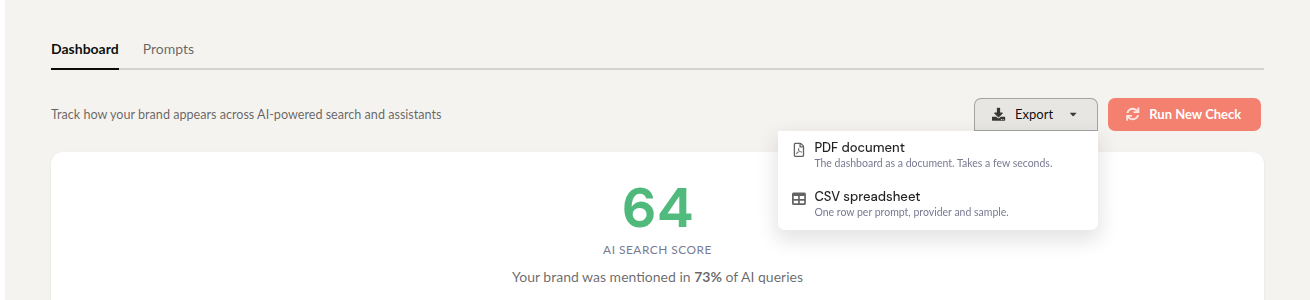
PDF document gives you a file you can email or attach to a deck. It opens as a short case study: your AI Search score, a few plain sentences on what the numbers mean, your share of AI answers against each competitor, a breakdown by assistant, three example answers showing where your brand appears, the sites AI cites most about you, and suggested next steps. After that comes a Full results section with your score trend, a summary table of every prompt result, the full response each assistant gave (with where your brand appeared and any sources it cited), and the list of prompts you’re tracking.
The PDF takes a few seconds to build. After you pick PDF document, you’ll see Preparing your PDF… next to the Export button. When the file is ready, you’ll see a Download PDF button in its place. You can keep working on the page while you wait, and you don’t need to reload it.

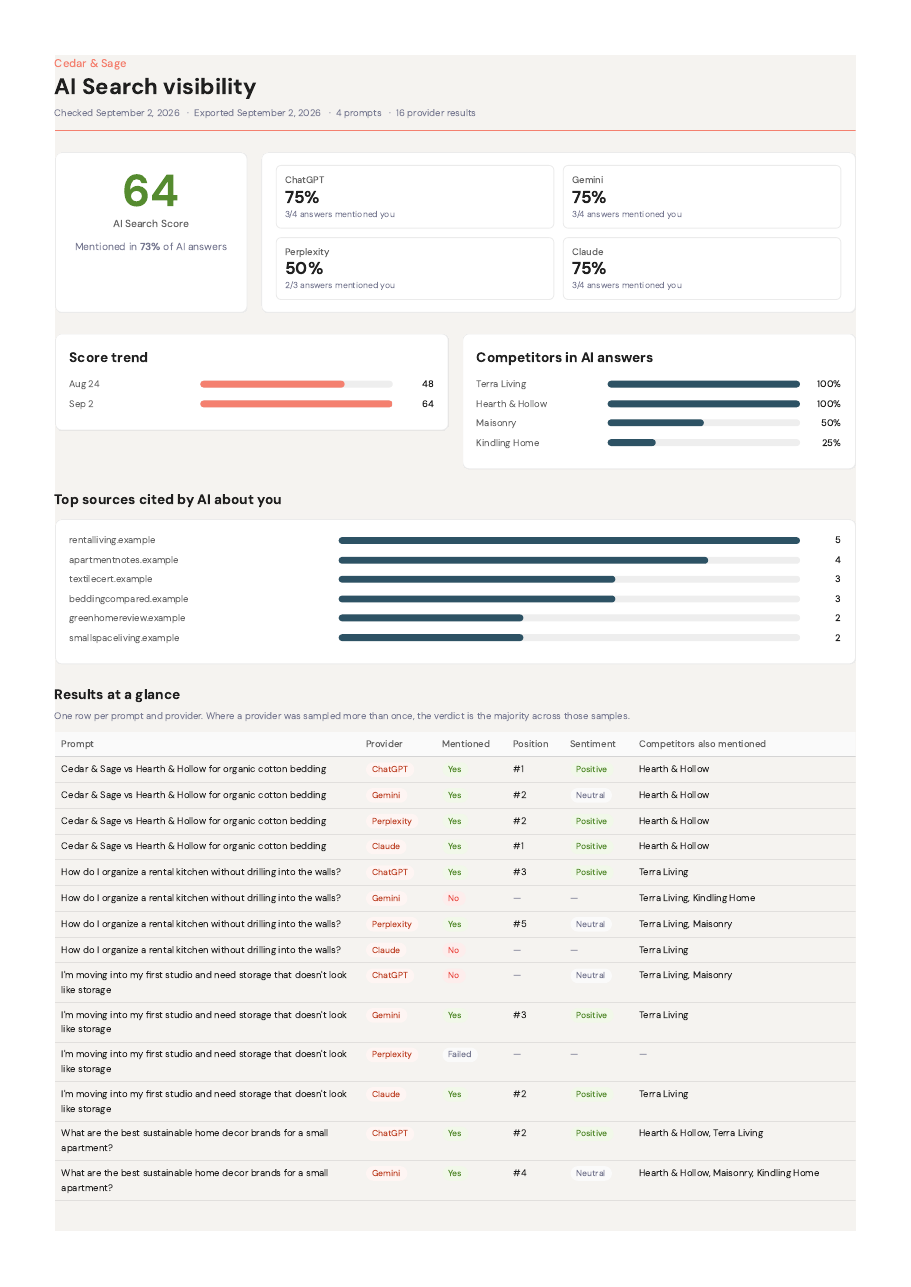
CSV spreadsheet gives you the same results in a grid: one row per prompt and provider, with the mention verdict, position, sentiment, how confident we are in the sentiment (this can be blank for some answers), competitors mentioned, citation sources and the response text. Use it when you want to pivot the data or track prompt-level results in your own reporting.
A few things to know:
- Both exports cover your most recent completed check. If no check has finished yet, run one first.
- We ask each assistant every prompt more than once, so a single unusual answer doesn’t decide your result. The PDF shows one entry per prompt and assistant, with the majority verdict and how many of those answers agreed. The CSV has every individual answer, so it has more rows.
- If you’ve filtered the dashboard to a single provider, the export uses that filter too. Set the provider dropdown back to All Providers to export everything. The filter only narrows the example answers and the full results. The score, competitor and assistant figures always include every provider that answered.
- If a provider didn’t answer, for example because it isn’t configured for your account, it’s left out of the results. A missing answer doesn’t count as your brand not being mentioned.
- An export only covers the check it came from. Export again after your next check to get the new numbers.
Sharing a read-only link
To show your results to people without an InfluenceKit login, click Share on the Dashboard tab. Anyone with the link can see the same case study as the PDF, with your latest completed check. You can turn the link off at any time. See AI Search: share a read-only link with stakeholders.
Tips
- Start with prompts where a competitor is named and your brand isn’t.
- Write prompts the way your customers or visitors phrase them, including the place, the season or the problem they’re trying to solve.
- Look at the trend across several checks before reacting to one result. AI answers vary from one day to the next.
Availability
AI Search is included on every paid brand plan. You’ll find it under Signals. If you don’t see it, contact support and we’ll check your account.