

How to Add User-Generated Content (UGC) to Your Report on InfluenceKit
User-generated content (UGC) — the extra photos and videos you’ve licensed to a brand — can be added to a report alongside your regular deliverables. Here’s how.
Adding UGC to your report
-
Open the report. In your InfluenceKit dashboard, go to the specific campaign report where you want to include UGC. This content is added manually — it isn’t pulled from a URL.
-
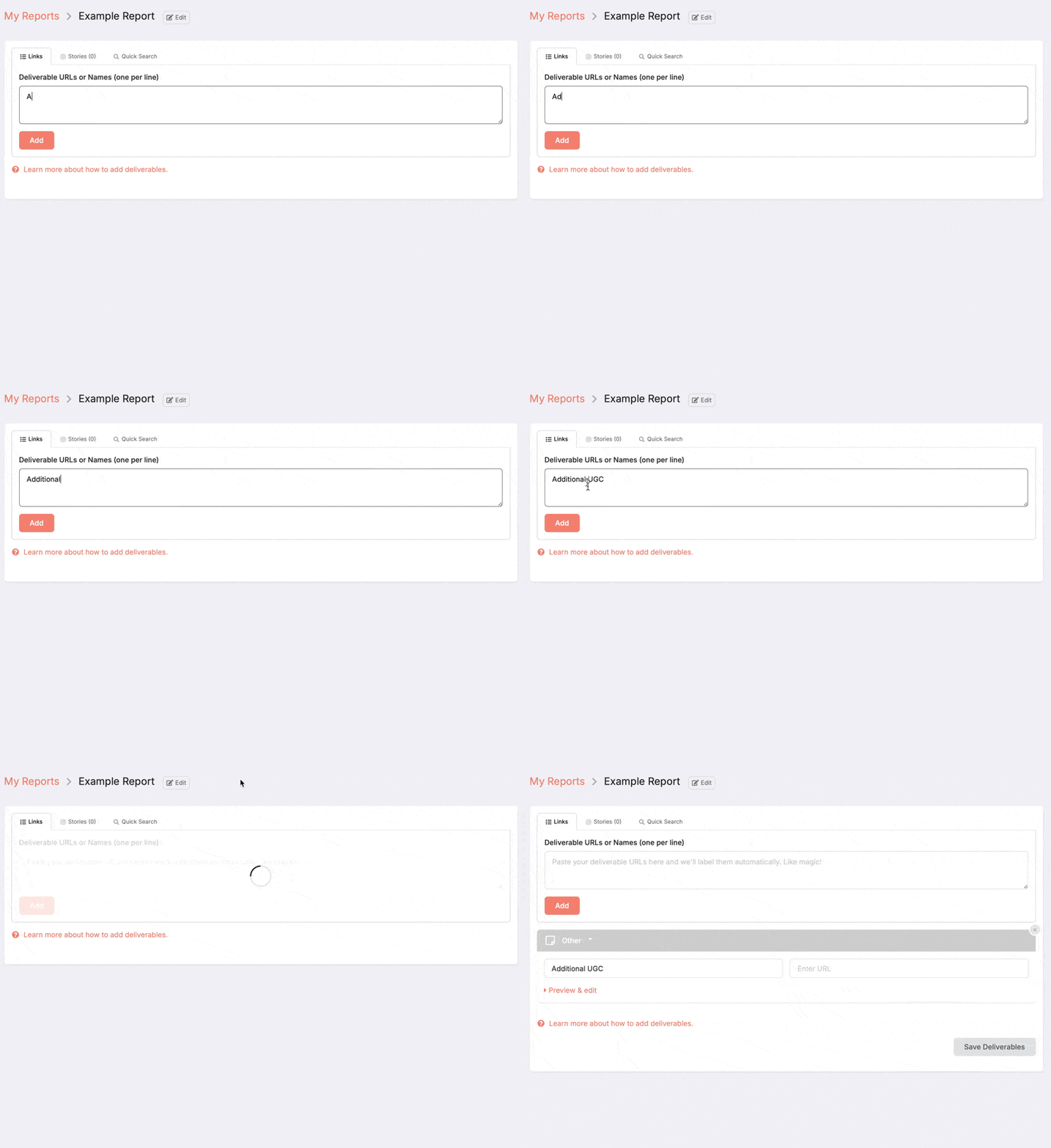
Create a UGC section. Under “Deliverable URLs or Names,” type the title you want associated with your UGC. This can be general, like “Additional UGC,” or specific, such as “Hotel Room #1.” Click Add to create a new section for it.
-
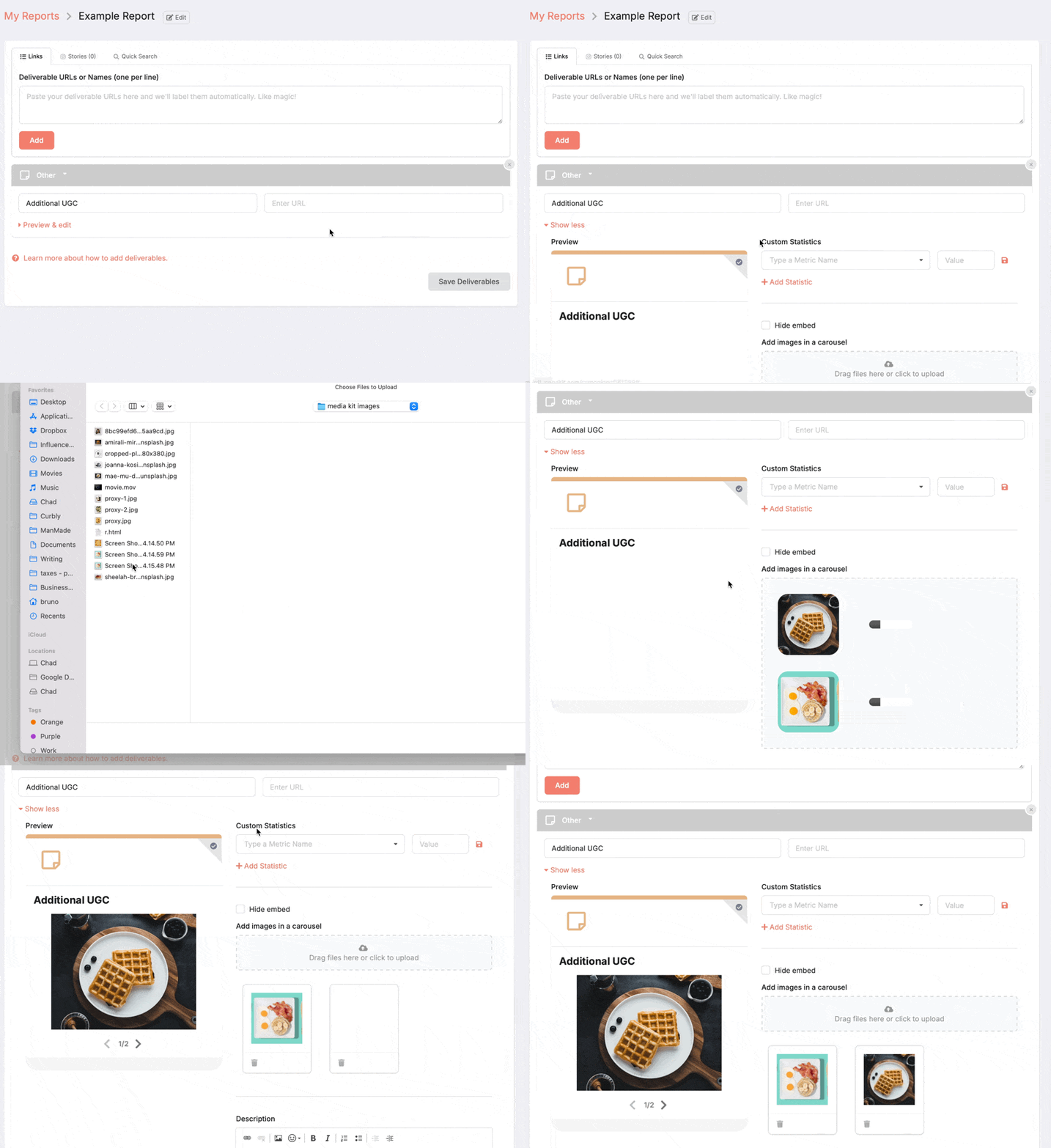
Upload the content. You’ll see a new box with your UGC title. Click Preview & edit. In the right-hand column, click Add images in a carousel and upload the photos or videos you want to feature — you can select multiple at once.
-
Add more sections as needed. Some creators split UGC into separate sections, like “Additional UGC - Videos” and “Additional UGC - Photos.” The choice is yours.
-
Share the report. Once you’re happy with it, share it with your brand partner or use it when pitching a new one.