
How to Add an Influencer Directly (Without Sending an Invite)
Most of the time you’ll invite influencers to an assignment so they can connect their accounts and build their own report. But sometimes you just want to track a creator’s content yourself — for example, when they’ve already posted about your brand, or they aren’t able to connect their own account.
The Add Influencer option lets you add a creator to an assignment directly: no invite email, no signup, and nothing required on their end. It also doesn’t use any of your assignment credits — adding someone this way is free.
Add the influencer
Step 1: From the Influencer Hub, open your campaign and the assignment you want, then go to Invite Influencers.
Step 2: Select the Add Influencer tab (next to Bulk Invite and Email Template).
Step 3: Type their @handle into the field and click Look up. We’ll show you the public profile we found so you can check it’s the right person, then click Add to assignment.
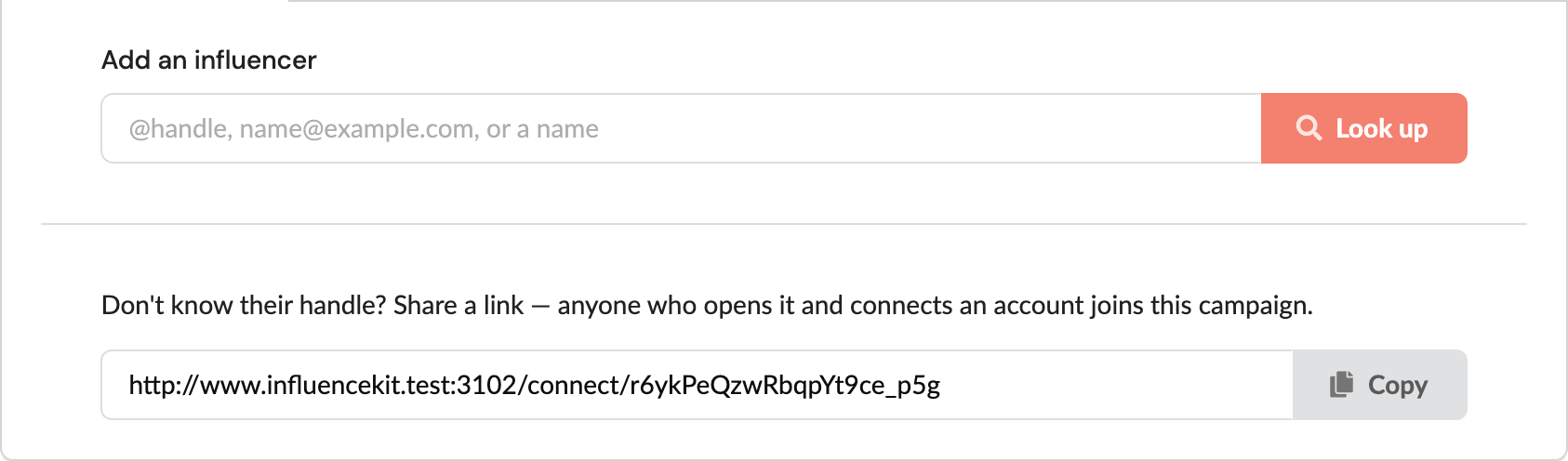
Step 4: That’s it — they’re added to the assignment right away. No email is sent, and they don’t need an InfluenceKit account.
If the handle you type belongs to someone who already has an InfluenceKit account, we’ll tell you, and what happens next depends on whether you’ve worked together:
- They’ve accepted an assignment from you before. Click Add to assignment and they’re attached to their account right away, with full first-party stats. We won’t email them unless you tick Notify them by email? on that card.
- You haven’t worked together yet. The button reads Send invite. They get the usual invitation email and the assignment shows as Proposed until they accept. Nothing is added to their account before then.
Adding a creator you’ve already worked with
When a creator already has an InfluenceKit account and has accepted an assignment from you before, there’s nothing to invite them to — they don’t need to sign up again, and they don’t need to accept anything.
Step 1: Open the creator from your creator directory.
Step 2: Click Add to Assignment. (If the button reads Invite to Assignment instead, they either don’t have an InfluenceKit account yet or haven’t accepted an assignment from you before, so they’ll get an invitation to accept.)
Step 3: Pick an existing assignment, or create a new one on the Create New Assignment tab.
Step 4: Tick Notify them by email? if you’d like them to hear about it, then click Add to assignment.
They’re added right away, already accepted, and their deliverables report with full first-party stats — reach, impressions and stories included — because their accounts are already connected. They’ll see the new assignment the next time they sign in.
Add their content
Open the influencer’s assignment and paste their content URLs under Deliverables, then click Add. (See How do I add Deliverables to a Campaign or Assignment? for details.)
What stats you’ll see
Because the creator hasn’t connected their own accounts, InfluenceKit will automatically try to pull publicly-available stats for each piece of content you add. What’s available depends on the platform:
- Public Instagram posts and reels: we can usually capture public likes and comments automatically.
- YouTube videos: public views, likes and comments.
- TikTok posts: the public play count, likes, comments, shares and saves shown on the post.
- Private metrics (like reach, impressions and watch time) and platforms that don’t expose public data (such as Facebook) aren’t available this way. Some figures may be shown as estimates.
For anything we can’t pull automatically, you can enter the stats yourself.
If they join later
Click Connect creator beside their name to email an invitation or copy their personal invite link to send by email or DM. For several creators, use Connect creators above the campaign’s assignments.
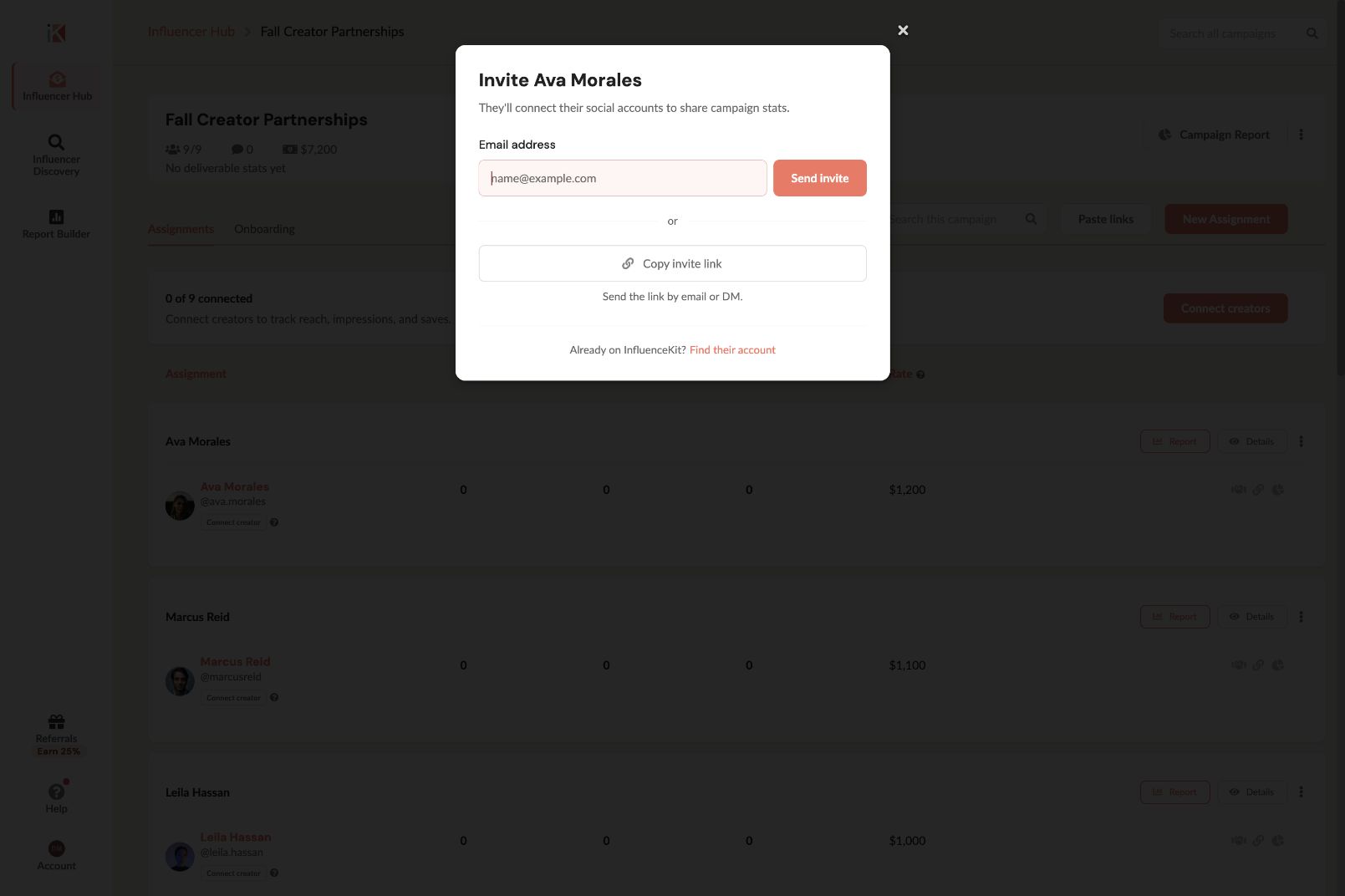
If they already have an InfluenceKit account, choose Find their account in the invitation dialog. You can search by name, handle, or email. A creator who has accepted an assignment from you before is linked right away on an exact match to their handle, connected account, or email address. Anyone else is asked to confirm first, and the row shows Awaiting confirm until they answer. Their existing deliverables and stats stay on the row.
When to invite instead
If you want full, first-party analytics — including reach, impressions, and stories — invite the influencer to connect their accounts instead. Adding directly is best when you simply want to track a creator’s public content without involving them.
If you’d prefer to enter every stat yourself, see How to Add an Influencer’s Deliverables to a Report (Without Inviting Them).