

Blog performance: traffic for every WordPress post
Blog in the sidebar shows how every post on your WordPress blog is doing: pageviews, how long readers stay, and which posts are losing traffic. Your posts come from WordPress. Your traffic stats come from Google Analytics.
Blog is part of the paid creator plans: Grow, Pro and Mediavine Premiere.
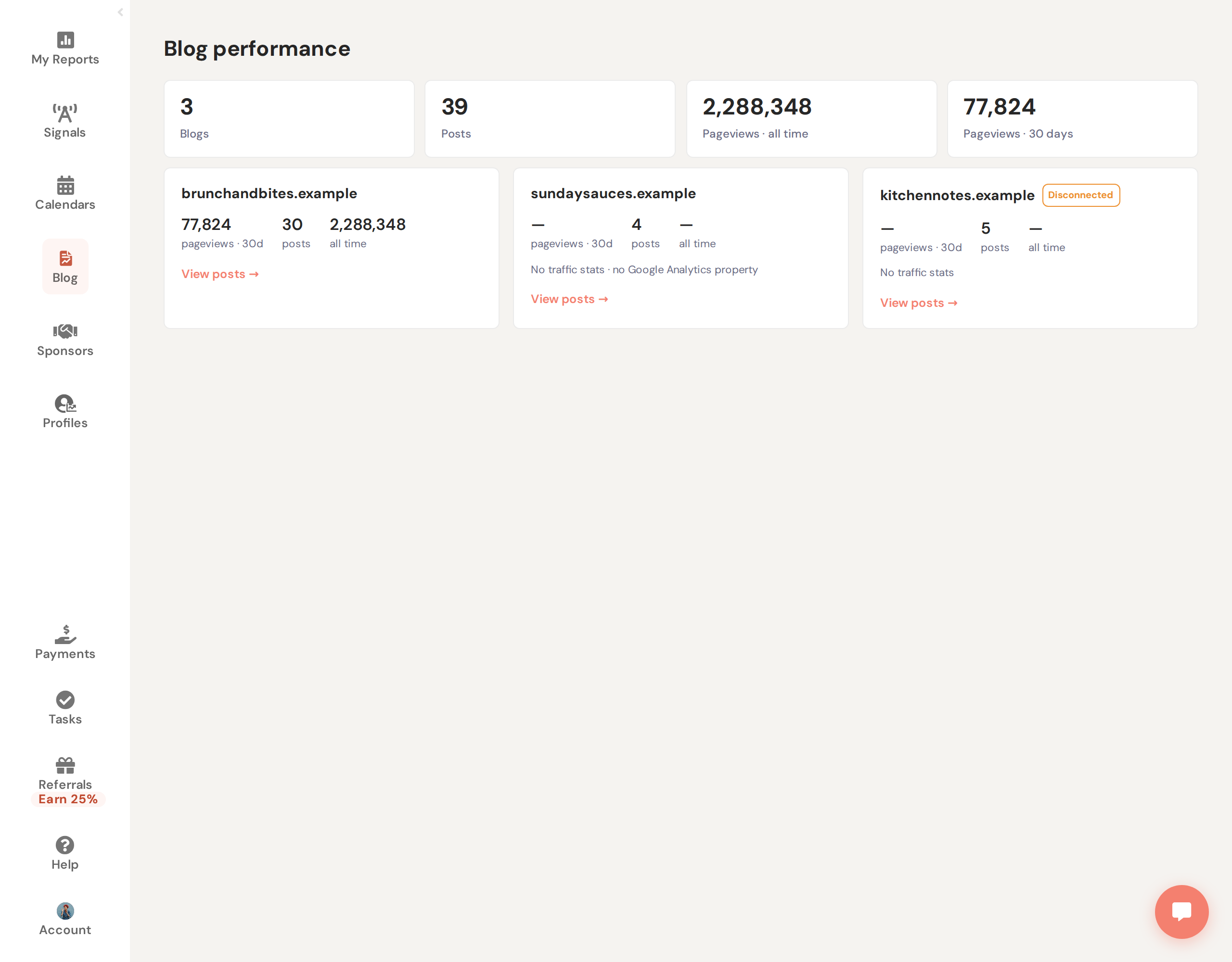
Connect your blog
- Go to Connected accounts and choose WordPress.
- Enter your site’s address (like
myblog.com) and the username you use to log in to your WordPress admin. - Paste an Application Password. You create one in your WordPress admin under Users → Profile → Application Passwords. It isn’t your real password, and you can revoke it from WordPress at any time.
- Click Connect WordPress.
We start syncing your published posts straight away. They show up under Blog within a few minutes. Drafts, scheduled and private posts are never synced.
Add traffic stats
Right after you connect WordPress, the next page tells you which Google Analytics property your traffic stats will come from:
- Google Analytics is already connected and one of its properties is for the same website as your blog. We pick that property for you, and the page names it.
- Google Analytics is connected but no property matched. Click Choose a property and pick the right one on your blog’s page.
- Google Analytics isn’t connected yet. Click Connect Google Analytics. When you come back, we match a property to your blog for you.
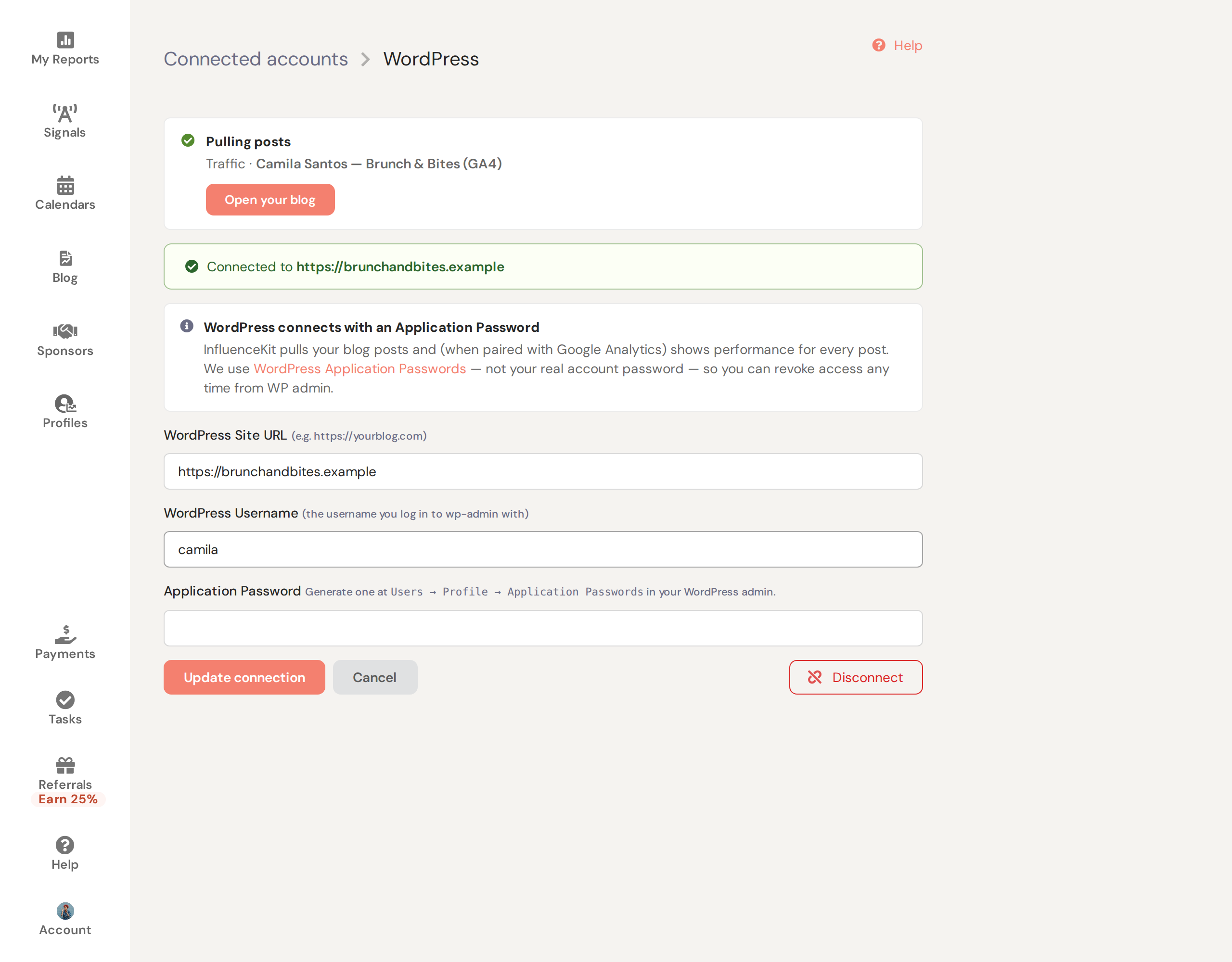
You can also pick or change the property any time from the top of the blog’s page. If no property is set, click Connect stats, pick a property and click Connect stats again. To switch properties, click Change, pick one and click Update. Pick Not connected to turn traffic stats off for that blog.
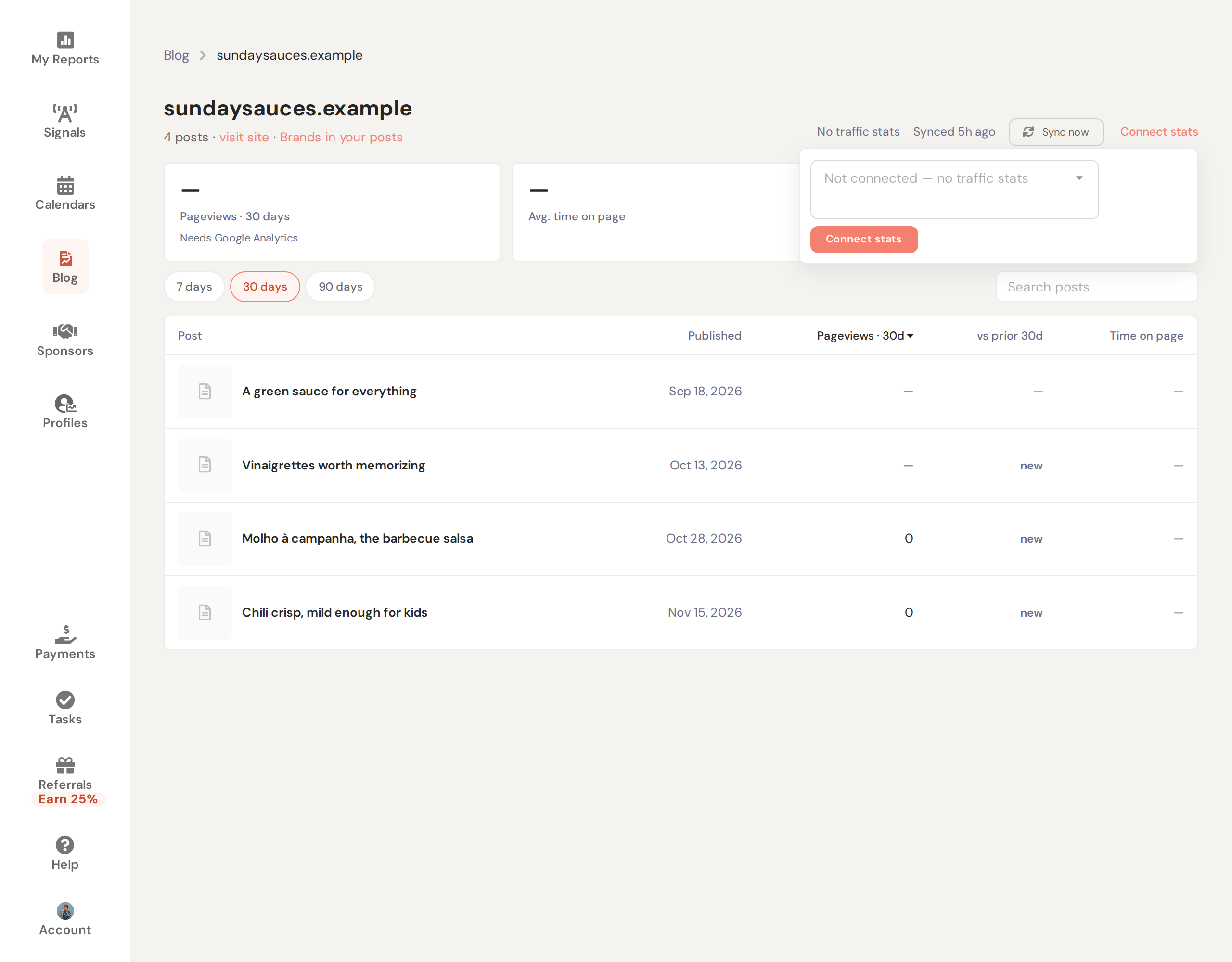
Without Google Analytics you’ll see your posts but no traffic, and the numbers show as a dash. The Blog page reminds you with a Connect Google Analytics button until it’s set up.
Your past traffic comes in straight away
Once a property is connected, we load your blog’s traffic history from Google Analytics, as far back as the property goes. The 7-, 30- and 90-day numbers and the charts fill in within a few minutes, so you don’t have to wait months for them to build up.
See how your posts are doing
Open a blog to see all of its posts, ranked by pageviews. Each post shows its featured image and a one-line summary from WordPress, so you can tell posts apart.
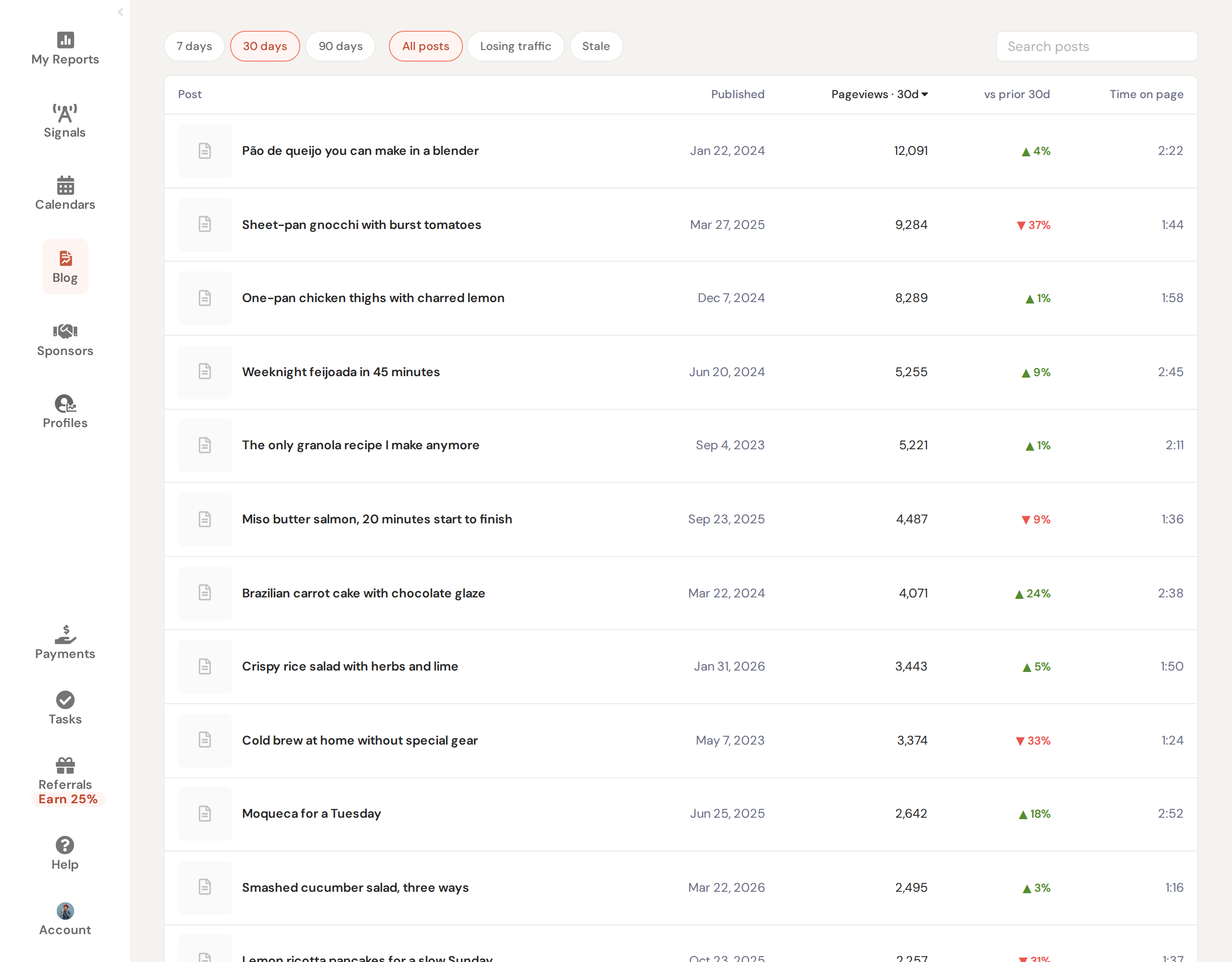
- 7 days, 30 days and 90 days change the time window for the ranking.
- vs prior compares that window with the one before it. A post marked new had no pageviews in the window before.
- Avg. time on page is how long, on average, a reader spent on the post.
- Use Search posts to find a post by its title.
- Click a column heading to sort by it. Click it again to reverse the order. Changing the window, filter or sort keeps your place on the page.
If Pageviews · 30 days at the top of the page reads Under 30 days tracked, some posts don’t have 30 days of history yet. We hold that total back until they all do.
Daily traffic and where readers come from
The Traffic chart shows pageviews for the whole blog, back to the start of your Google Analytics property. 30 days, 90 days, 12 months and All change how much of the chart you see. The chart shows one point per day for up to about four months, one point per week for up to two years, and one point per month beyond that. Hover over the chart to see the number for any point. A week or month that’s only partly in the chart is drawn as a dashed line. That way the month in progress doesn’t look like a drop. Hover over it to see the days it covers.
On a computer, drag across the chart to zoom into a stretch of time, and click Reset zoom to go back. The text above the chart gives the total for the time shown, and its peak day, week or month.
Where readers come from breaks the last 30 days of pageviews down by channel, like Organic Search, Organic Social, Direct, Email and Referral. Below that, it lists the sites that sent the most readers. These numbers come from Google Analytics and are updated overnight, so they appear the day after you connect a property.
Find posts that need attention
Next to All posts, two filters narrow the list.
Losing traffic lists posts whose pageviews fell 30% or more from the window before. A post only counts if it had at least 50 pageviews in the window before. The biggest drop comes first. These are often the best posts to update.
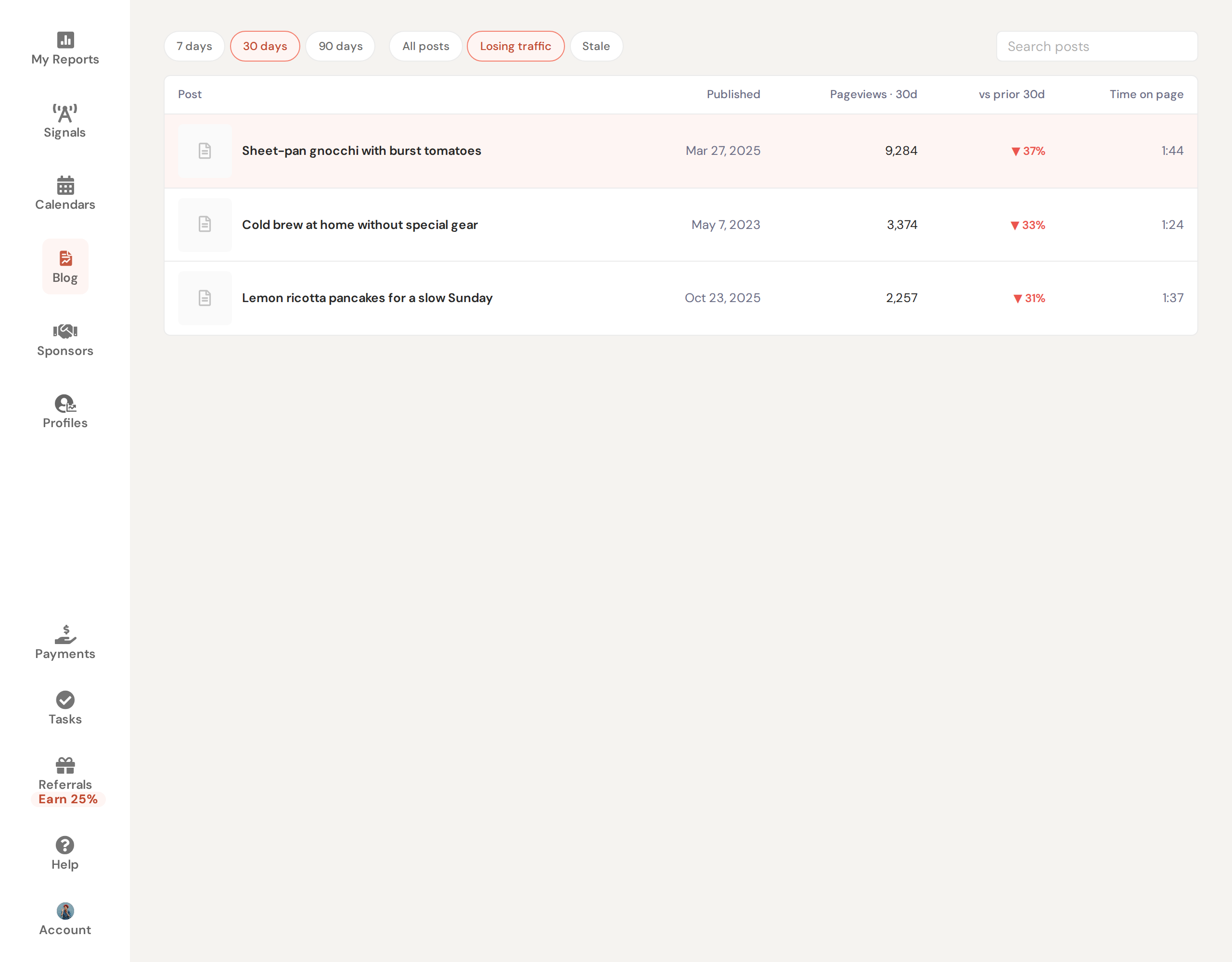
Stale lists posts published more than 180 days ago that have had 50 or fewer pageviews in total. They never found readers, so they may need promoting again or rewriting.
These filters only appear once traffic stats are connected. Without traffic stats, every post would look unread.
One post’s details
Click a post to see its pageviews for the last 7, 30 and 90 days, and how each compares with the window before. Below the numbers is a chart of daily pageviews over the last 90 days. Hover over it to see the number for any day. Where readers come from shows the same breakdown as on the blog’s page, for this post only.
Below the daily chart, Pageviews by month charts the post’s whole history, one point per month since it was published. Under that chart, a note compares the post’s last full month with the same month a year earlier, for example “September 2026: 898 pageviews ▲ 14% · September 2025: 787”.
View post opens the post on your site. Edit in WordPress opens it in the WordPress editor.
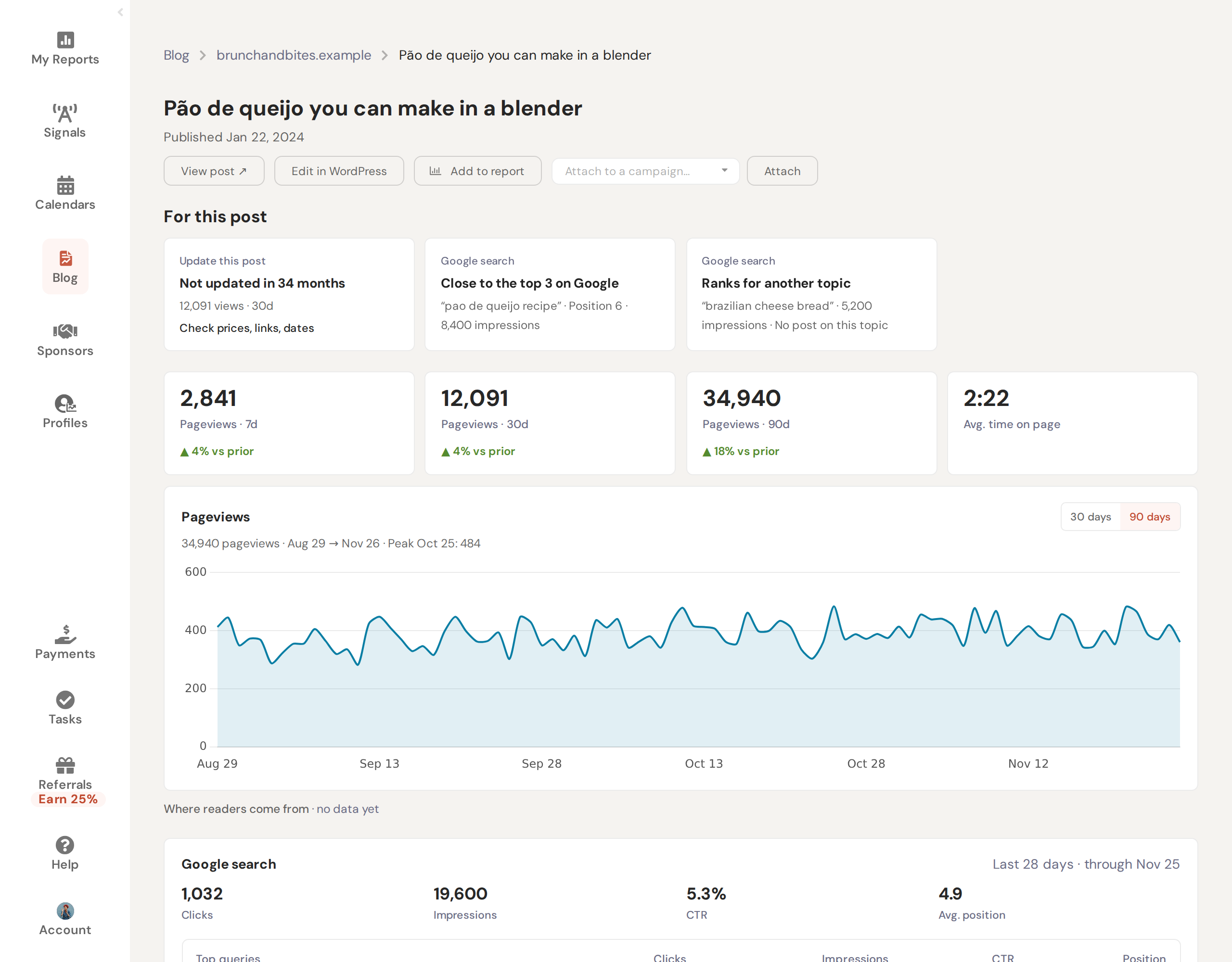
Add a post to a report
Click Add to report. The report builder opens with a filter for this post’s address already set, so the report starts with just this post. Add a title, any other filters you want, and click Save.
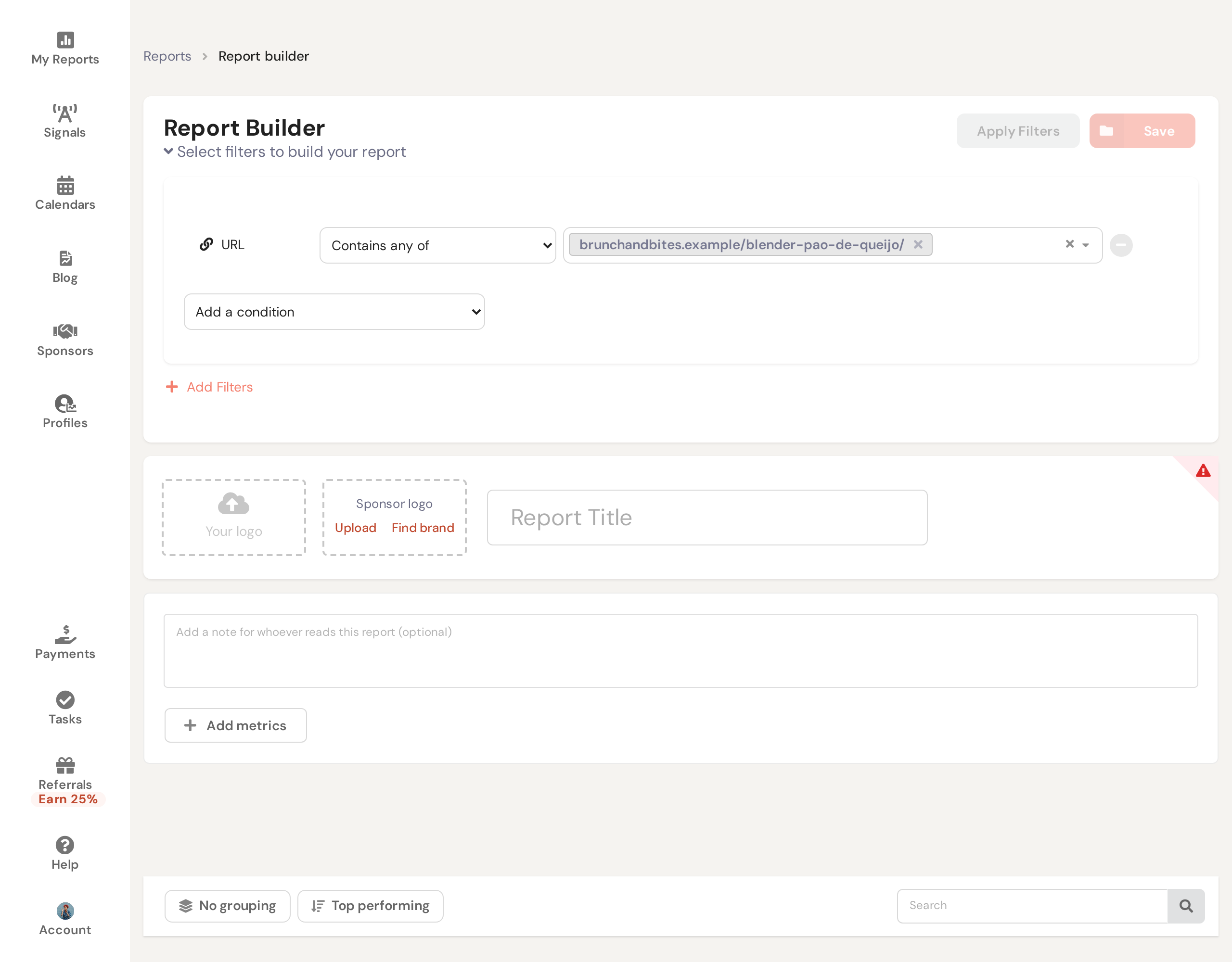
If the same post is also in a campaign, the builder shows it twice. Tick Remove duplicates to keep one copy.
Attach a post to a campaign
Pick a campaign from Attach to a campaign… and click Attach. The post is added to that campaign’s content, and you land on the campaign. If the campaign already has the post, we tell you and don’t add it again.

Google search
If your blog is in Google Search Console, a post’s page also has a Google search panel. It covers the last 28 days of Google searches and gives you four totals:
- Clicks: how many times someone clicked through to the post from Google.
- Impressions: how many times the post appeared in Google results.
- CTR: clicks divided by impressions.
- Avg. position: where the post ranked on average. 1 is the top result.
Under the totals, Top queries lists the searches that showed the post, most clicked first, with the same four numbers for each one. Google keeps rare searches private, so a post with only a few impressions may show totals and no searches.
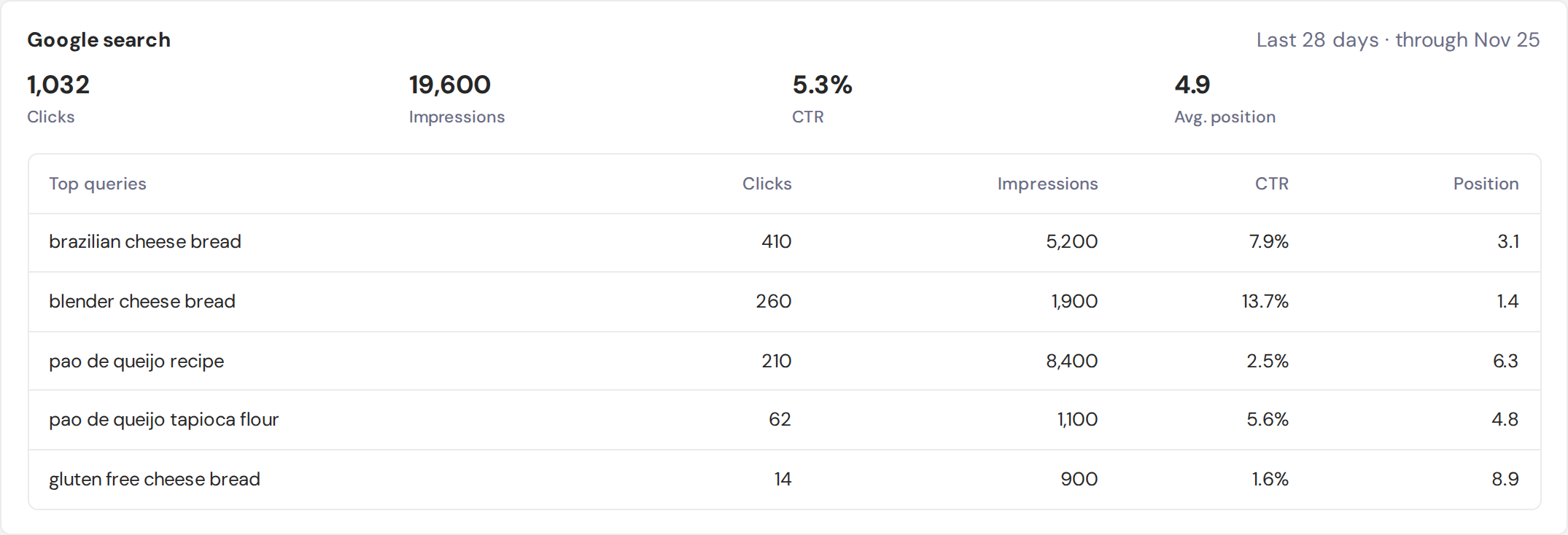
Search Console numbers are updated once a week. Google’s data runs about two days behind, so the panel tells you the last day it covers.
Connecting Search Console
Most people don’t need to connect anything new. We use the Google account you connected for Google Analytics. Two things can keep the panel empty:
- Search Console not connected means your Google connection was made before we asked for Search Console access. Click Connect Search Console and sign in to Google again.
- myblog.com not in Search Console means the Google account you connected can’t see your blog in Search Console. Click Open Search Console to add and verify your site, or to check that you’re signed in with the right account.

After you fix either one, we try again the next day. Neither message stops your traffic stats from working.
What to do next
Once traffic stats are connected, the top of a blog’s page suggests what to work on, biggest payoff first. Each card names a post. Click it to open that post.
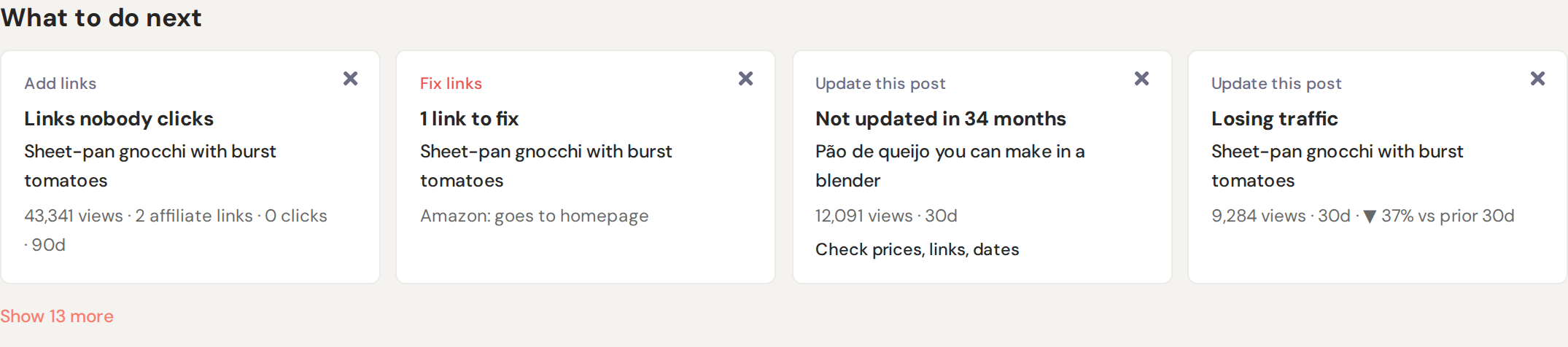
- Add links shows a post with a lot of traffic and no affiliate links, or one whose affiliate links almost nobody clicks.
- Update this post shows a post that’s losing traffic, or one that still gets traffic but hasn’t been edited in 18 months or more.
- Seasonal refresh shows a post that got a lot of pageviews at this time last year. It comes up four to eight weeks ahead, while there’s still time to update it. When a post has peaked in that month in two or more years, the card says so. A post with three or more years of history that only spiked once is left out, since a one-off spike is unlikely to come back.
- Fix links shows a post with a link that needs fixing. The link is broken, goes to a homepage or search page instead of the product, or goes to an Amazon product that’s unavailable.
- Google search cards come from Search Console:
- Close to the top 3 on Google is a search where the post ranks 4th to 10th and appears at least 1,000 times in 28 days. A small update could move it into the top 3, where most of the clicks are.
- Top 3 on Google, low CTR is a search where the post ranks in the top 3 but fewer than 2% of people click it. A clearer title or meta description usually helps.
- Fewer impressions on Google is a post that appeared at least 30% less often in the last 28 days than in the 28 days before.
- Ranks for another topic is a search that shows your post but has nothing to do with the post’s topic. If another of your posts covers it, the card names that post so you can link to it. Otherwise, the topic may deserve its own post.
- Pitch shows a brand your readers click on a lot, with its clicks over the last 90 days. It needs Outbound clicks turned on in Google Analytics (see “If there are no click numbers” below).
- Unlinked brand shows a brand you’ve written about at least twice but never linked to, when we’ve found an affiliate program for it. The card names the post that mentions it most, how many times it’s mentioned, the program and where we found it. This card doesn’t need Google Analytics.
If you use Sponsor Hub, Pitch and Unlinked brand cards tell you when the brand is already one of your sponsors. The card shows how many campaigns you’ve done together and links to the sponsor.
When you open a post from a card, that card comes first under For this post at the top of the post’s page, and it’s highlighted. The post’s other cards sit next to it. The matching part of the page is highlighted too: the pitched brand’s links, the broken links, or the search in Google search.

If a card isn’t useful, click the × on it to dismiss it. Dismissed cards stay hidden for everyone who manages the blog. Click Dismissed to see them again and Restore to bring one back. Dismissing a card only hides that kind of card for that post. A dismissed Seasonal refresh card comes back the next year.
The links in a post
A post’s page lists every link in the post that goes to another site:
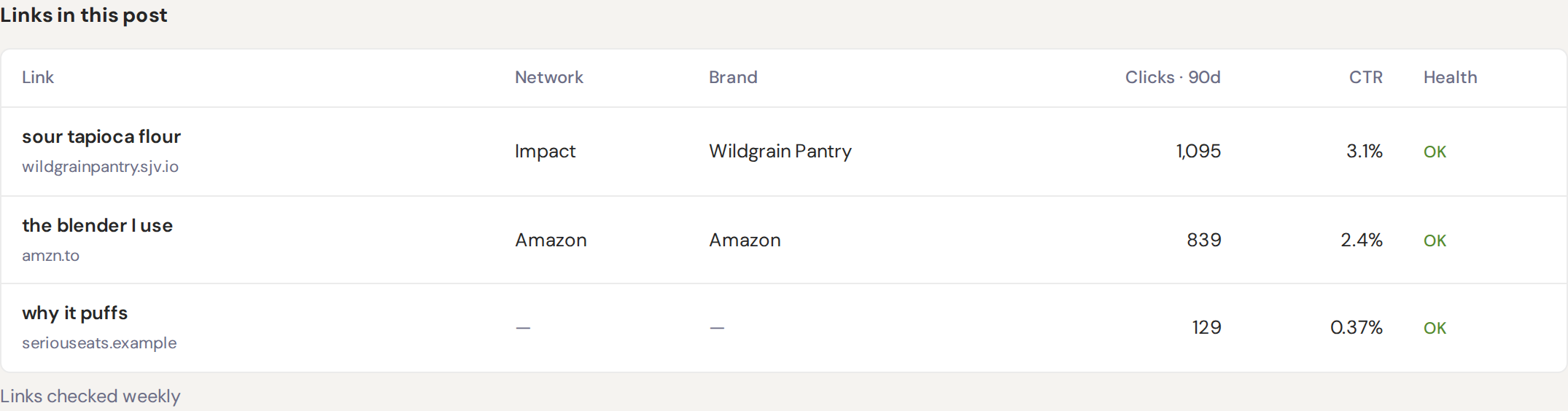
- Network is the affiliate network the link belongs to, like Amazon, LTK, ShopMy or Impact. Links that aren’t affiliate links show a dash.
- Brand is the store the link ends up at. For a new affiliate link it reads “Looking up…” until we’ve followed the link.
- Clicks · 90d and CTR come from Google Analytics. CTR is clicks divided by the post’s pageviews over the same 90 days.
- Health is the result of our weekly link check. A dash means the link hasn’t been through a check yet.
We read your links when we sync your posts, so a new link shows up after the next sync.
If there are no click numbers
Google Analytics only counts clicks on links to other sites when Outbound clicks is turned on. If your property has no click numbers, the blog’s page and the post’s page say Outbound clicks off in GA4. The click columns show a dash instead of zeros. To turn it on:
- In Google Analytics, go to Admin → Data streams.
- Pick your website’s stream.
- Open Enhanced measurement and switch on Outbound clicks.
Clicks for each link show up on the post’s page the next day.
Brands in your posts
Click Brands in your posts under the blog’s name to see every brand your posts mention or link to.
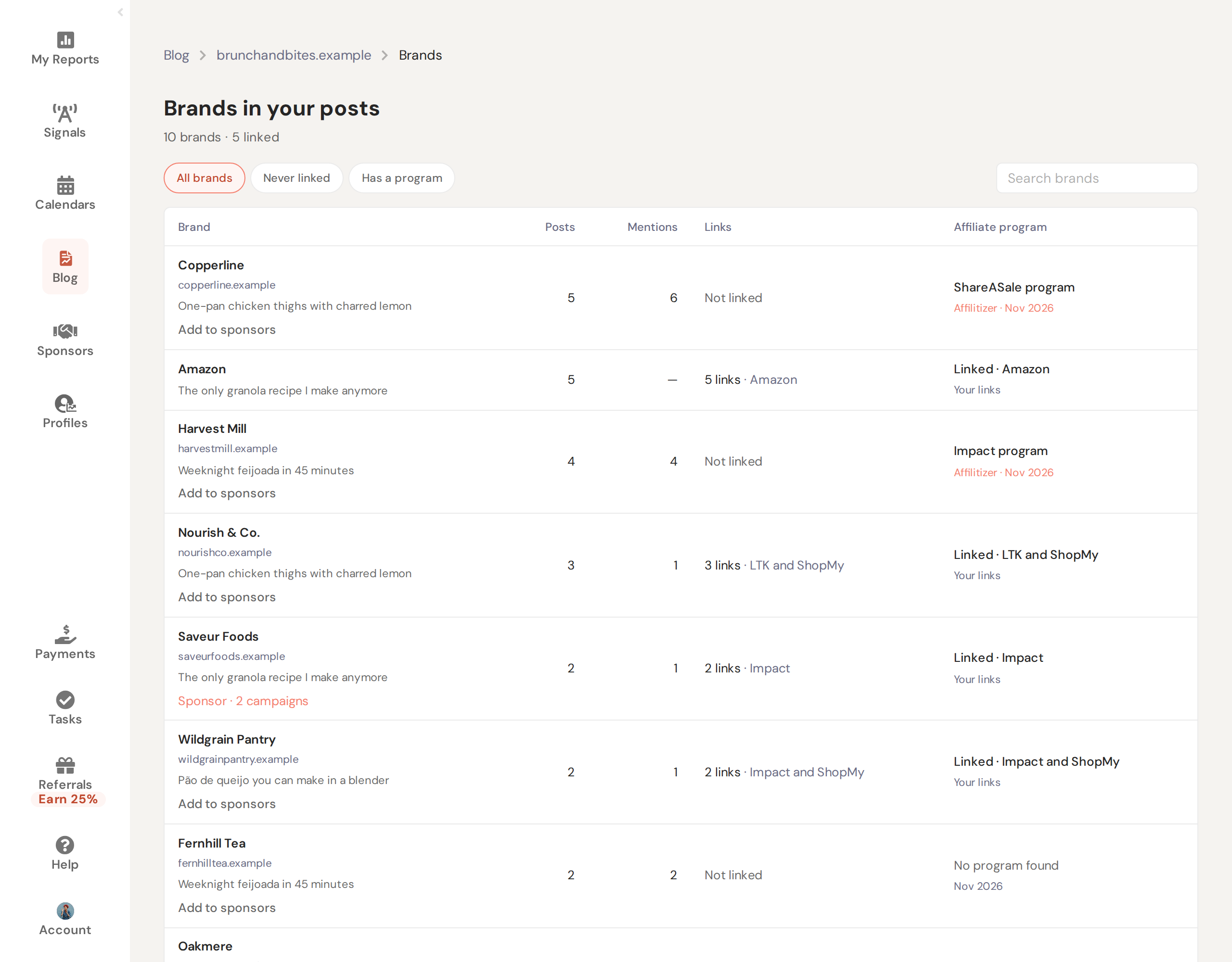
- Posts is how many posts mention or link to the brand. Under the name is the post that mentions it most.
- Mentions is how many times the brand’s name appears in your posts.
- Links is how many of your links go to the brand, and which networks they use. It reads Not linked if none of your posts link to it.
- Affiliate program says whether the brand has one, and where we found it.
Use Never linked to see only the brands you haven’t linked to, and Has a program to see only the brands with a program you could join.
If you use Sponsor Hub, each brand also shows whether it’s one of your sponsors, with a link to it. Add to sponsors adds the brand to Sponsor Hub with its website, so you can track campaigns with it. Affiliate networks like Amazon and LTK don’t get this option.
A post’s page also lists the brands it mentions but doesn’t link to, under Mentioned, not linked. Each one shows how many times that post mentions it.

Where the program information comes from
We only say a brand has an affiliate program when we can name the source. Here is what each label means:
- Linked means your posts already have affiliate links to the brand.
- A network name, like ShareASale program, means we found the program on that network. Usually the brand is listed in a public directory of affiliate programs. The text under the network name gives the directory and the month we checked, with a link to the listing. If it reads InfluenceKit earnings data, other creators earn from the brand on that network.
- Program page on its site means the brand’s website links to an affiliate or partner page, but no directory lists the program. Check the page before you count on it.
- No program found means we looked and found nothing. The page shows the month we looked.
- Not checked means we haven’t looked yet, usually because we don’t know the brand’s website.
We check each brand again every few months.
How we find the brands
When we sync your blog, we read each new or updated post and pick out the brands and products it mentions. A post we’ve already read isn’t read again until it changes. Very short posts are skipped. If Posts read on Brands in your posts shows fewer posts than your blog has, the rest will be read over the next few syncs.
Ask Kit about your blog
Ask Kit “How is my blog doing?” and it answers from the same numbers you see under Blog, with one suggestion from What to do next. You can ask about one post (“How is my banana bread post doing on Google?”) or about the brands your posts mention. AI assistants you connect to InfluenceKit can read the same data.
Keeping it up to date
We sync your blog every night. To sync right now, click Sync now at the top of the blog’s page. Next to it, Synced shows how long ago we last synced, for example “Synced 3 hours ago”.
Your weekly InfluenceKit email shows your Top blog post under Highlights. That’s your most-viewed post of the last 7 days, as long as it had at least 100 pageviews. This needs traffic stats connected.
If WordPress gets disconnected
If the WordPress connection is removed from InfluenceKit, the blog’s page says WordPress disconnected and new posts stop syncing. Your posts and their stats stay where they are. Click Reconnect WordPress and connect again with the same site address, and syncing picks up where it left off.
If WordPress doesn’t accept your Application Password
If WordPress stops accepting the Application Password you connected with, we keep syncing your published posts without it. The blog’s page shows Saved WordPress password rejected · posts still syncing, with a Reconnect WordPress link. Click the × to hide the note. It comes back only if WordPress rejects the password again after you reconnect.
If your site’s firewall blocks us
Some hosts and firewalls (Cloudflare, for one) turn away requests from our
servers, with or without your Application Password. When that happens we read your
published posts another way and keep syncing them. The blog’s page shows
Site firewall blocks our server · posts still syncing. Reconnecting WordPress won’t change this. To clear it,
ask whoever runs your site to allow requests to /wp-json/wp/v2/ through the
firewall. The note goes away on its own the next time your site answers us
directly. You can also click the × to hide it.
Who can change things
Each blog belongs to one of your calendars. Anyone who can see that calendar can see the blog’s posts and stats. People who can edit the calendar can also change the Google Analytics property, click Sync now, dismiss or restore cards, and hide the Application Password and firewall notes.