

Sign in with a code or a passkey
You can sign in to InfluenceKit with a one-time code instead of a password. Enter your email or phone number on the login page and we’ll send you a 6-digit code. If you add a passkey, you can sign in with Face ID, Touch ID, Windows Hello or your password manager.
Sign in with a code
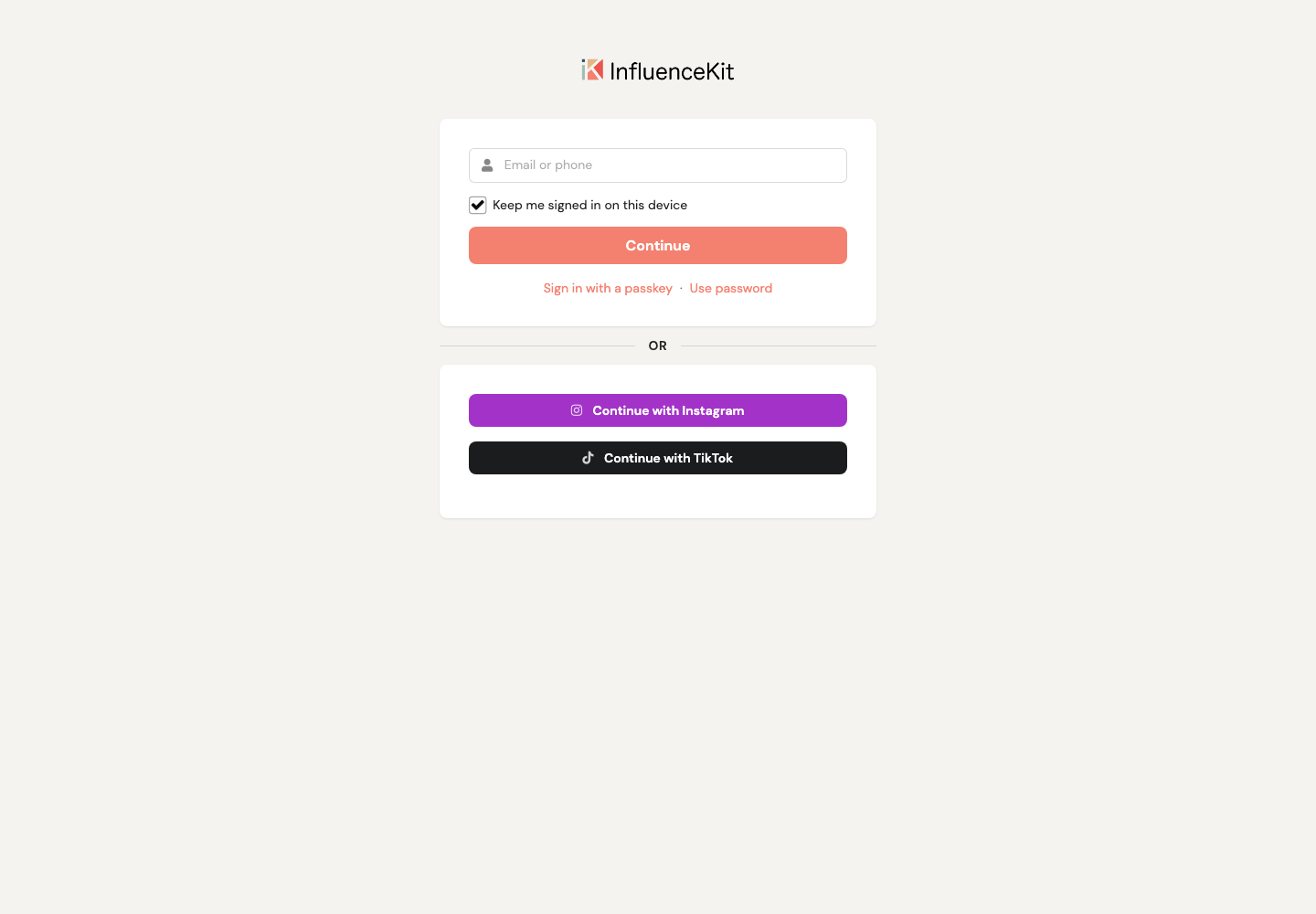
- Go to your login page and enter your email address. If you’ve added a phone number to your account, you can enter that instead.
- Click Continue. We’ll email you a code, or text it if you entered a phone number.
- Enter the code. The code expires after 10 minutes. You can request a new one after 30 seconds with Resend code.
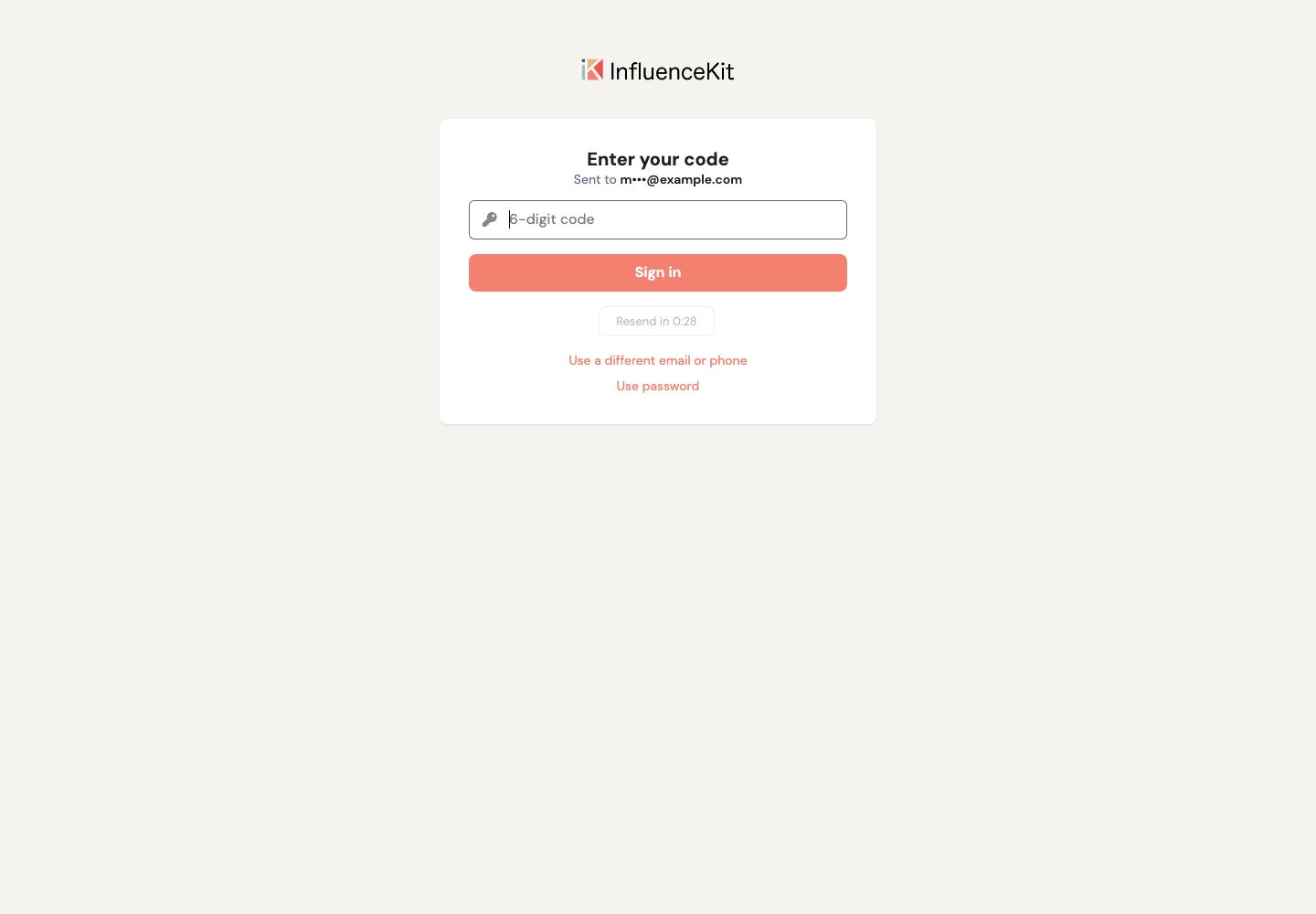
The email also has a Sign in button you can click instead of typing the code.
If your email address is on more than one InfluenceKit account and you’re on the login page of one of those workspaces, the code signs you in to that workspace. On any other login page, you’ll be asked which workspace to open after you enter the code.
Your password still works. Click Use password on the login page to sign in with your email and password.
Keep me signed in
Keep me signed in on this device is checked by default. With it checked, you’ll stay signed in on that browser for a month from when you sign in. Uncheck it on a shared or public computer, and you’ll be signed out when you close the browser.
Sign in with a passkey
A passkey lets you sign in with the same thing you use to unlock your device. Your passkey is saved in iCloud Keychain, Google Password Manager, 1Password or another password manager, so it’s available on your other devices too.
To add one:
- Go to Settings > Login & security.
- Under Passkeys, click Add passkey.
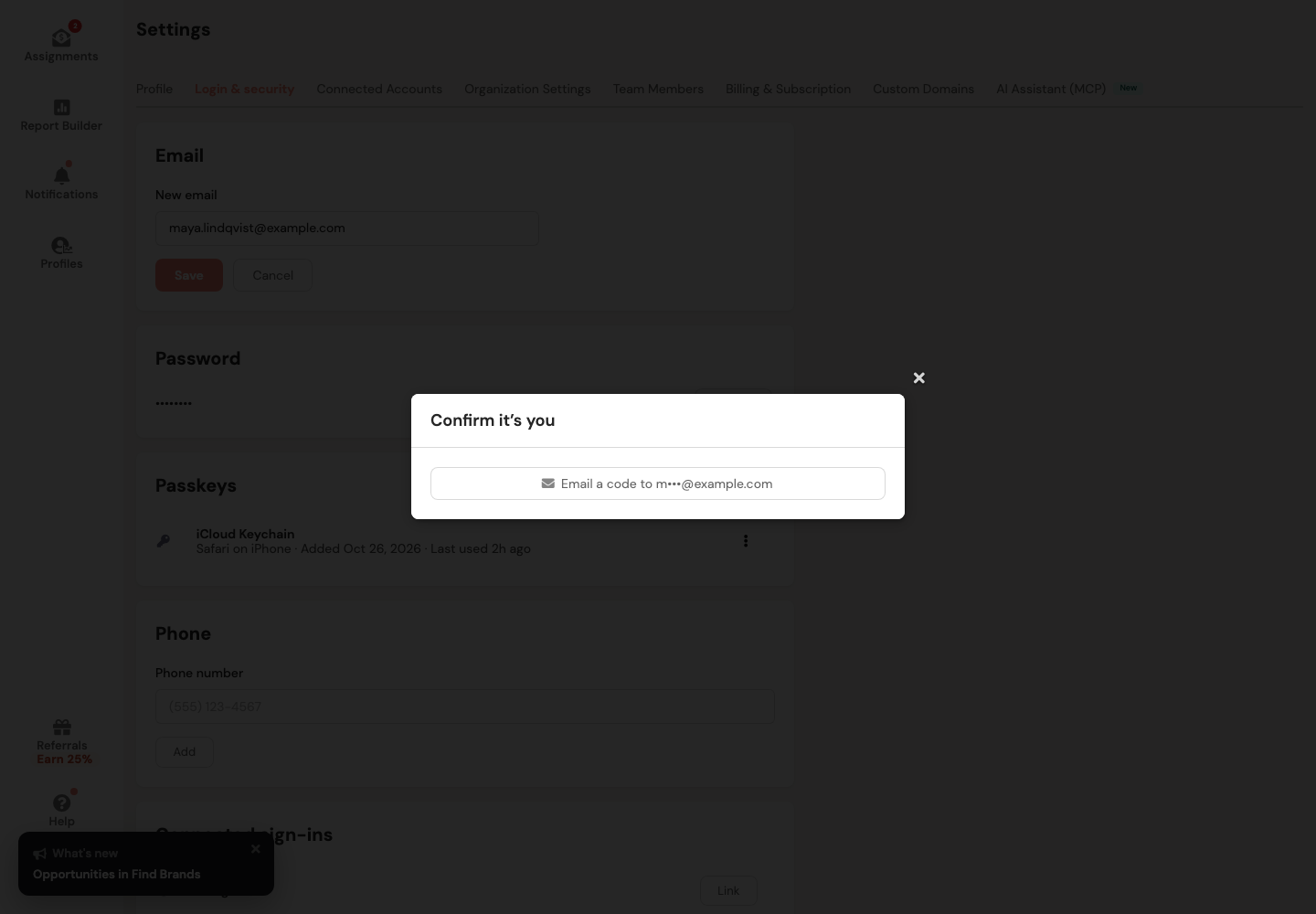
- Confirm it’s you with a code we send to your email (or with a passkey you already have).
- Follow your browser’s prompt.
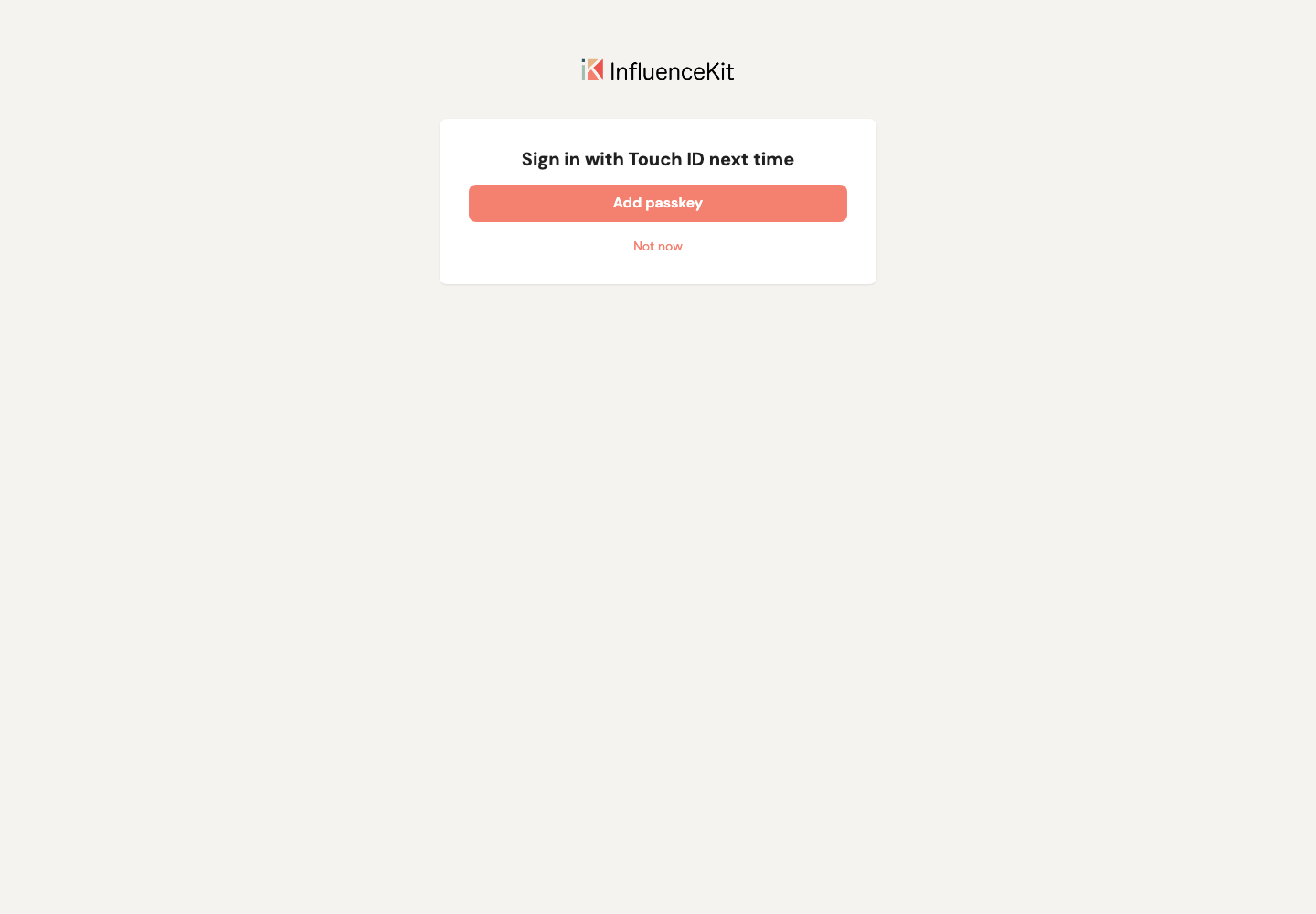
After you sign in with a code on a device that supports passkeys, we’ll offer to add a passkey once per account. You can choose Not now.
To sign in with a passkey, click Sign in with a passkey on the login page, or pick your passkey from the suggestions when you click the email field. One passkey works on every InfluenceKit login page.
Passkeys work in Chrome, Safari, Edge and Firefox. The InfluenceKit iPhone and Android apps support sign-in with a code for now. Passkeys aren’t available on a custom domain.
Login & security
On Settings > Login & security you can see how you sign in and where you’re signed in:
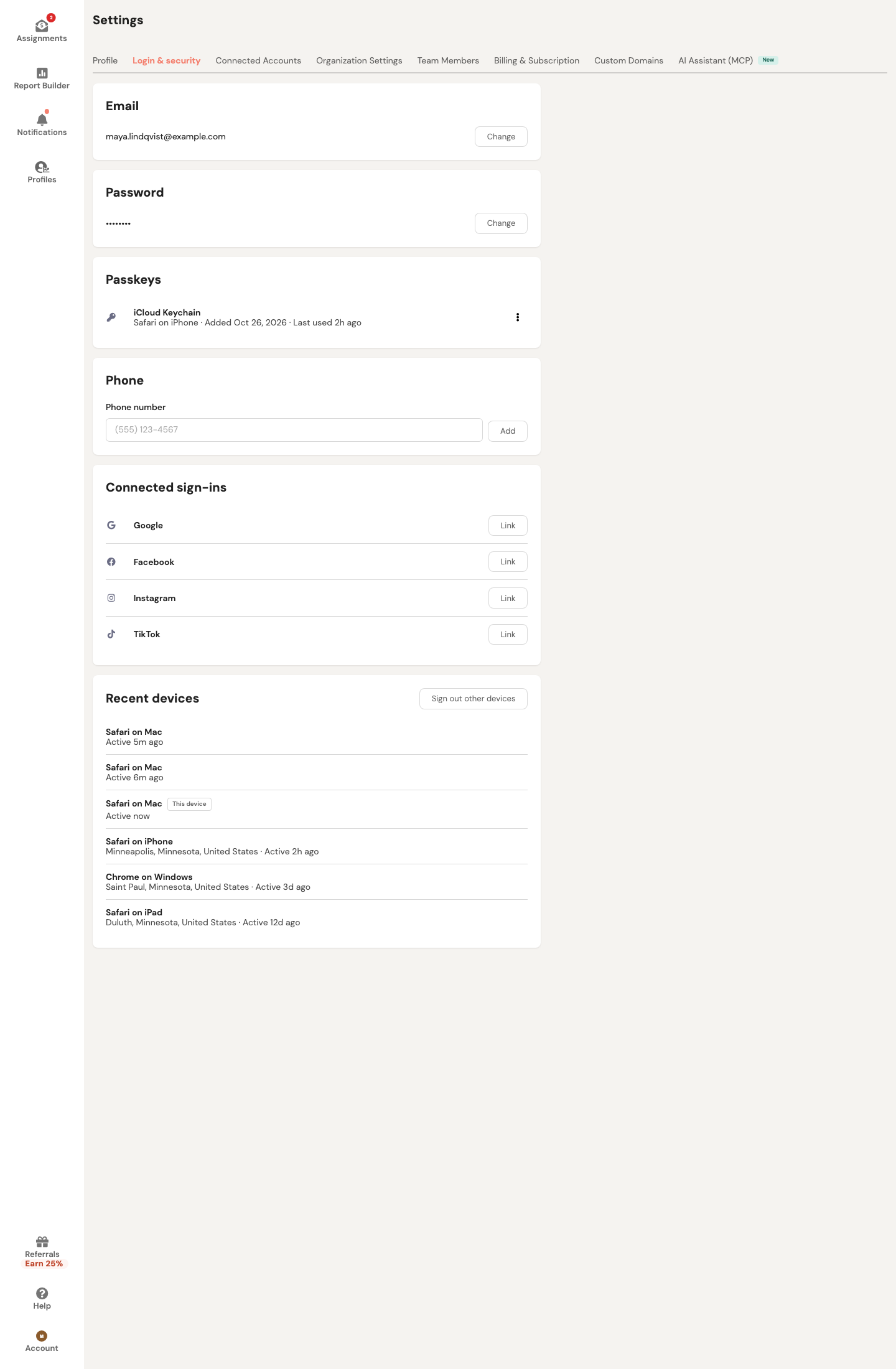
- Email and Password: change either one. When you change your email, we send a confirmation link to the new address. Your sign-in email changes when you click it.
- Passkeys: add, rename or remove a passkey.
- Phone: add a U.S. or Canadian phone number to sign in with a text code.
- Connected sign-ins: link or unlink Google, Facebook, Instagram or TikTok.
- Recent devices: the browsers and apps that have signed in to your account recently, with their approximate location. Devices you’ve signed out of are listed as Signed out. Sign out other devices signs out every other browser and app on your account. It also signs out your accounts in other workspaces, if you’re signed in to them in this browser or if they use the same email address and that address is verified.
Before you change your email, password, phone number or passkeys, we’ll ask you to confirm it’s you with a code or a passkey. If you signed in with a code or a passkey in the last 15 minutes, you can skip this step. Each change ends that 15 minutes, so the next change asks you to confirm again.
Security emails
We email you when:
- your account is signed in from a browser or app it hasn’t used before. The email lists the device, approximate location and time.
- your password, email address, phone number or passkeys change. When your email changes, we send that email to your old address.
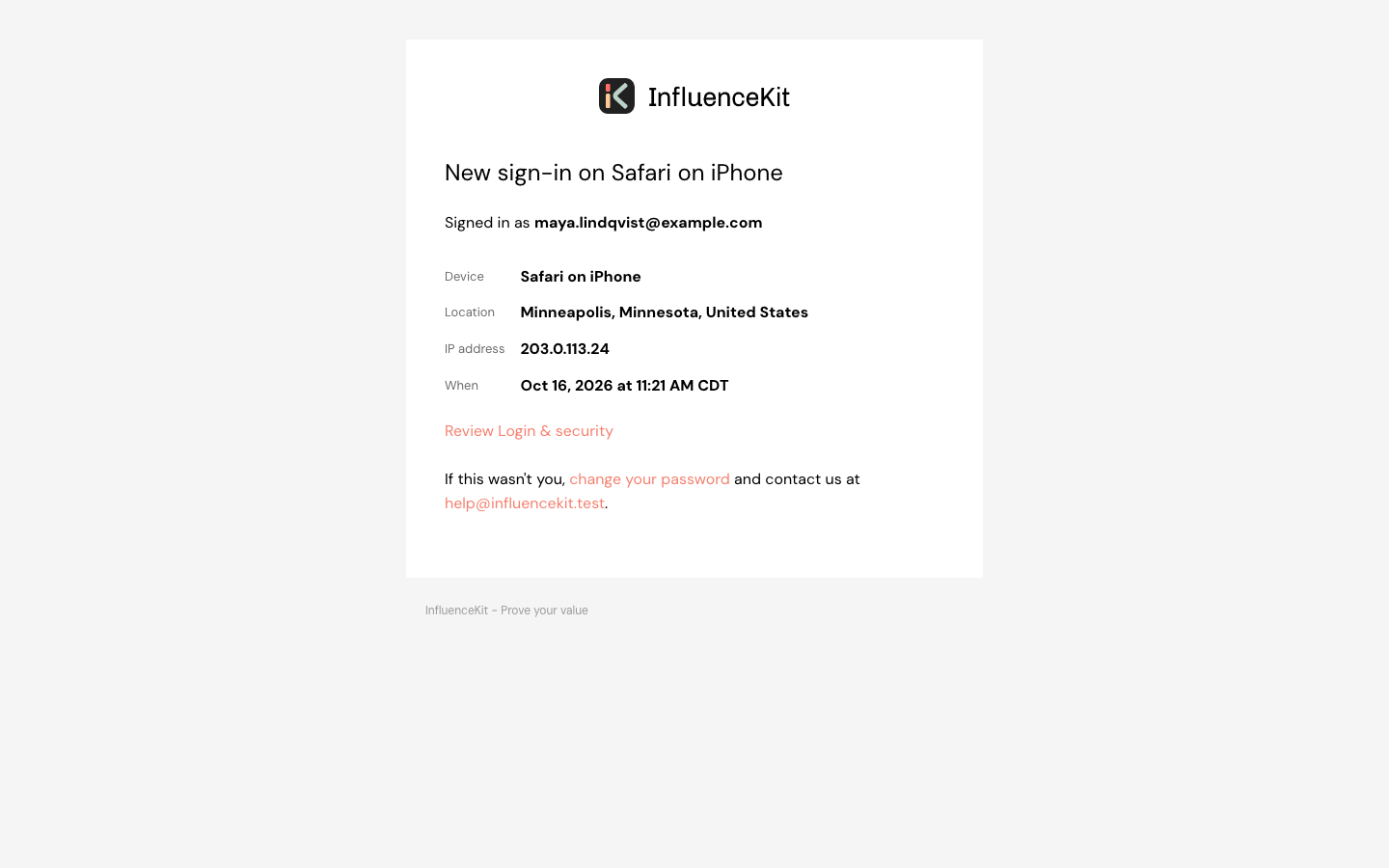
If you get one of these emails and it wasn’t you, reset your password from the link in the email and contact support.